# Showbrew — full documentation and blog corpus
Concatenated Markdown of every Showbrew docs page and blog post, generated from the content collections. Recording → Episode → Clip is the product model (the retired "Moment" noun is not used). Showbrew is the new name for the workbench previously presented as BitterClip; the application still carries the BitterClip name, and the docs use the labels shown in the app. Showbrew is a product of SheetGenius, Inc. (https://company.sheetgenius.com).
---
# Showbrew docs
Source: https://showbrew.com/docs
Description: Turn recorded conversations and sessions into finished, source-accurate work in your browser or a supported AI assistant. Start here.
# Showbrew docs
::naming-note
::
::what-is-bitter-clip
::
::signup-cta
::
## Start here
New to Showbrew? Walk through making your first clip, then pick up the handful of words you'll see everywhere. You can make clips in your browser, or hand the job to your AI assistant. Most people begin by setting up a project, which is the home for one show or series.
::next-steps
---
links:
- to: /docs/getting-started/your-first-clip
label: Your first clip
- to: /docs/getting-started/what-is-bitterclip
label: What is Showbrew?
- to: /docs/getting-started/projects-and-collaborators
label: Projects and collaborators
- to: /docs/getting-started/import-zoom-cloud-recording
label: Import a Zoom cloud recording
- to: /docs/getting-started/import-youtube-takeout
label: Import your YouTube archive
---
::
## Use it from your AI assistant
Showbrew's agent is built into the editor. If you connect ChatGPT or Claude, ask it to open a recording or make a specific cut and it operates the same workbench. The source stays attached, the result stays editable, and nothing is selected or published without your direction.
::next-steps
---
links:
- to: /docs/assistants/overview
label: Use Showbrew from your AI assistant
- to: /docs/assistants/connect-chatgpt
label: Connect ChatGPT
- to: /docs/assistants/connect-claude
label: Connect Claude
---
::
## Connect your channels
Hook up the places you publish. Once a channel is connected, you can send a finished clip to it without leaving the workbench.
::callout{type="warning"}
Connecting YouTube has one trap that quietly breaks the link. The YouTube guide walks you through choosing the right account.
::
::next-steps
---
links:
- to: /docs/connect/youtube
label: Connect YouTube
- to: /docs/connect/x
label: Connect X
- to: /docs/connect/linkedin
label: Connect LinkedIn
- to: /docs/connect/instagram
label: Connect Instagram
---
::
## After you've made clips
Once you have a clip you like, this is where you find it again. Download it, share it, or send it out to your channels.
::next-steps
---
links:
- to: /docs/getting-started/find-and-share-clips
label: Find and share your clips
- to: /docs/publishing/publish-a-clip
label: Publish a clip
---
::
## More
::next-steps
---
links:
- to: /docs/help/troubleshooting
label: Troubleshooting
- to: /docs/help/faq
label: FAQ
- to: /docs/changelog
label: What's new
---
::
---
# What is Showbrew?
Source: https://showbrew.com/docs/getting-started/what-is-bitterclip
Description: A plain introduction to Showbrew (the workbench previously presented as BitterClip), the Recording → Episode → Clip model, and how a clip gets made.
# What is Showbrew?
::naming-note
::
If you record conversations or sessions and want something useful out of them, this page explains what Showbrew does and the few words you'll see throughout the docs.
## Showbrew in plain words
::what-is-bitter-clip
::
You don't need to connect an assistant or configure anything before starting. The Creator
trial lasts seven days and requires a card: $0 today, then $24/month unless you cancel
before it ends. Once the payment method is accepted and the trial starts, Billing shows
your exact cancel-before time. Bring one recording up to two
hours and use the included $5 of agent work while balance remains. You can add exactly $20,
$50, or $100 of agent work during an active trial or paid plan. Top-ups never auto-activate
paid Creator; early activation requires a separate explicit $24 authorization. Creator
supports files up to 4 GB after payment. Producer is $99/month. There is no recurring Free
plan; if you cancel, your existing work stays available and new processing may require an
active plan.
## The three things you'll work with
::what-is-episode
::
::callout{type="note"}
You might run into an older post that says "Moment." Don't worry about it. The words we use now are Recording, Episode, and Clip.
::
## Where it runs
There are two ways to work, and your recordings and clips are the same in both. The browser is the place to manage everything in one window. If you'd rather just say what you want out loud, ChatGPT or Claude can do the work for you while you talk it through. Whichever you start in, you can pick up where you left off in the other. The [assistant guide](/docs/assistants/overview) walks through that side.
## How a clip actually gets made
The cut is built from the words you keep, not from numbers you type in.
::how-the-cut-works
::
## Ready to try it?
::signup-cta
::
## Next steps
::next-steps
---
links:
- to: /docs/getting-started/your-first-clip
label: Make your first clip
- to: /docs/assistants/overview
label: Use Showbrew from your AI assistant
---
::
---
# Your first clip
Source: https://showbrew.com/docs/getting-started/your-first-clip
Description: Sign up, upload a recording, and get your first captioned clip out, start to finish, in the browser.
# Your first clip
This walks you from a brand-new account to a finished clip you can download, all in your
browser. You don't need any editing experience.
## 1. Sign up
::signup-cta
::
## 2. Create a project
A project is a home for one show or series. Your recordings, episodes, and clips all live
inside it, so everything from the same show stays together. Make one and give it a name
you'll recognize later: your podcast title, your channel name, whatever fits.
[screenshot: the New project button and the name field]
## 3. Upload a recording
Open your project and click to upload, or drag your file onto the upload area. This is the
raw file you're starting from: an interview, an episode, a talk you gave. BitterClip takes
any file your device sees as audio or video. How large it can be depends on your plan.
[screenshot: dragging a file onto the upload area]
::callout{type="tip"}
Moving a whole channel instead of one recording? Use
[Import your YouTube archive](/docs/getting-started/import-youtube-takeout) to turn the
videos you exported with Google Takeout into individual Episodes.
::
::callout{type="tip"}
If Zoom cloud import is enabled for your studio, you can let a completed meeting arrive
automatically instead. Follow [Import a Zoom cloud recording](/docs/getting-started/import-zoom-cloud-recording)
to check the destination and verify the Episode.
::
::callout{type="note"}
Uploading and transcribing need a verified email first. Click the link in the email
BitterClip sent when you signed up and you're set. (If you signed in with Google, you're
already verified.) When an upload or transcription won't go through, this is usually why.
See [troubleshooting](/docs/help/troubleshooting).
::
## 4. Let BitterClip transcribe it
Once the upload finishes, BitterClip transcribes it into words timed to the audio. This runs
in the background and can take a while on a long recording, so feel free to leave and come
back. It keeps processing. When it's done, the recording becomes its own
[**episode**](/docs/getting-started/what-is-bitterclip) automatically, and the episode is the
thing you'll actually work in.
::callout{type="tip"}
An episode is just your recording, ready to clip. If you join more than one recording
together later, they share a single episode timeline. For your first clip, one recording is
one episode.
::
## 5. Open the episode and find the part worth sharing
Open the episode and you'll see the full transcript. Read through it, then select the words
you want to keep. Selecting the words is how you pick your clip.
::how-the-cut-works
::
## 6. Fine-tune the start and end
Your clip shows up in the transcript editor with a start and an end already set. Read it
over. To trim or extend it, change which words you've got selected, the same thing you did in
step 5. Add a word at the front for a little lead-in, or drop one at the end to tighten the
ending. The cut follows your selection.
[screenshot: refining a selection in the transcript editor]
## 7. Export the captioned clip
When the clip looks right, hit Export. You'll get a chance to pick the shape of the video
first. Exports keep your source's shape by default (a widescreen recording stays
widescreen), and you can choose vertical or square when you export. Pick vertical if you're
headed for Shorts, Reels, or TikTok.
BitterClip then renders an MP4 with the captions burned right into the picture, so they look
the same everywhere you post it. (If you ever turn captions off, the video comes out without
them.) Rendering runs in the background, so give it a moment to finish.
That's your first clip. You'll find it in your project's **Outputs** tab, linked back to the
recording it came from, and it's ready to download or share.
::example-clip-prompt
::
See [Use BitterClip from your AI assistant](/docs/assistants/overview) to set that up.
::next-steps
---
links:
- to: /docs/getting-started/find-and-share-clips
label: Find and share your clips
- to: /docs/publishing/publish-a-clip
label: Publish a clip to your channels
---
::
---
# Projects and collaborators
Source: https://showbrew.com/docs/getting-started/projects-and-collaborators
Description: What a project is, how to switch between projects, and how to invite an editor, reviewer, or client to work alongside you.
# Projects and collaborators
A project keeps one show or series together, and you can invite the people you work with into it. This page covers what a project is, how to move between them, and how to bring in an editor, a reviewer, or a client.
## What a project is
A project is the home for a show or series. Everything you make lives inside one: the recordings you upload, the episodes built from them, and the clips you export. When you start a new podcast, take on a new client, or begin a new series, give it its own project so its recordings and clips stay together and don't mix with anything else.
You created your first project when you signed up and uploaded a recording. Make as many as you need; one per show or per client is a good rule of thumb.
## Switching between projects
Your projects live on the Projects page, listed under your studio. Open the one you want, and the recordings, episodes, and clips you see all belong to it. Go back any time to move to another show.
[screenshot: the Projects page listing your studio's projects]
When you connect an assistant like ChatGPT or Claude, it works inside the project you point it at, so the recordings it can open and the clips it makes stay scoped to that show.
## Inviting a collaborator
You don't have to do everything yourself. If you own a project, you can invite someone to work in it alongside you: an editor, a co-host, a reviewer, or a client. They open your recordings, and depending on the role you give them, they can pull their own clips in their own ChatGPT or Claude, or in the browser. You upload once, and your collaborators work from the same recordings.
When you send an invite, you choose what that person can do:
- **Editor**: opens your episodes and exports their own clips, just like you.
- **Reviewer**: opens your episodes and reviews the work, without exporting.
- **Viewer**: looks at the project without changing anything.
Pick the role that fits. A client who wants to pull their own clips needs editor access. A stakeholder who just wants to watch along can be a viewer.
To share a project:
1. Open the project you want to share and go to its invitations page.
2. Send an invite to your collaborator's email address, and pick their role.
3. They get an invite link. Their email arrives if delivery is set up, but the link is what matters, so you can also send it to them yourself.
4. They open the link and accept.
The link stays valid for about two weeks. If it lapses before your collaborator gets to it, resend the invite from the same page. You can also revoke an invite there to un-share the project, which cuts that person's access.
::callout{type="note"}
A new collaborator sets a password when they accept, which creates their own account. If they already have a BitterClip account, they sign in with the invited email first. Either way it's quick, and they don't need a paid plan to join you.
::
After someone accepts, the shared project shows up in their own studio under a **Shared with you** shelf. They keep their own home and projects; yours simply appears alongside them.
One thing to know: publishing to your connected channels stays with you. An editor can find, review, and export clips, but only you, the project owner, can post them out to your YouTube, LinkedIn, or X. So you can hand the clipping to a client and still keep the final say on what goes live.
::callout{type="tip"}
A clip a collaborator makes is still tied back to the original recording it came from, so it's easy to see where it started and find the full context later.
::
## Next steps
::signup-cta
::
::next-steps
---
links:
- to: /docs/getting-started/your-first-clip
label: Make your first clip
- to: /docs/assistants/connect-chatgpt
label: Use it from ChatGPT
- to: /docs/assistants/connect-claude
label: Use it from Claude
---
::
---
# Import a Zoom cloud recording
Source: https://showbrew.com/docs/getting-started/import-zoom-cloud-recording
Description: Check Zoom import configuration, record a meeting to the cloud, follow it into BitterClip, and verify the Episode before deleting the original.
# Import a Zoom cloud recording
If Zoom import has been enabled for your studio, a completed cloud recording can arrive in
BitterClip without downloading and uploading it yourself. BitterClip creates one Capture
Session for the meeting, brings in the available video views, and builds an editable Episode
inside the configured Project.
This guide starts with the configuration check, then follows the exact buttons you will use. It
also includes a short confidence test for your first real meeting.
::callout{type="note"}
Zoom import is currently configured for a studio, not connected by each person from
Settings. If the Zoom section does not say **Configured**, the status underneath tells you
what is missing. **Configured** means the required deployment values and target Project are
present; it does not prove that Zoom has delivered a recording. Do not paste Zoom credentials
into a support message.
::
::zoom-import-settings-link
::
## Before the meeting
### 1. Open Zoom settings in BitterClip
1. Sign in to BitterClip.
2. Click your name or avatar in the upper-right corner.
3. Click **Settings**.
4. Scroll to **Recording import → Zoom**.
The direct link above opens the same section.
### 2. Confirm the destination
The Zoom row should say **Configured** and name the Project that will receive meetings.
Click **Open target Project** to make sure it is the destination you expect.
Look for **Last successful delivery** underneath the Project. That timestamp is stronger
evidence than **Configured**. If Settings instead says that no successful delivery has been
proven yet, use the short test meeting in this guide as your first proof and keep the Zoom
original until the entire checklist passes.
If the row says **Setup incomplete**, **Targets another Studio**, or **Not configured**, stop
there. The explanation under the status names the problem. Click **Check setup again** after
your deployment operator changes it, or contact [BitterClip support](#if-the-import-needs-attention)
before recording anything you expect to import automatically.
::callout{type="warning"}
The destination is chosen before the recording arrives. Settings does not currently let you
route an individual Zoom meeting to a different Project. Confirm the named Project first.
::
### 3. Check the Zoom side
This path works with a **Zoom cloud recording**, not a recording stored only on your
computer. In Zoom, make sure the meeting is being recorded to the cloud. End the meeting
normally and wait until Zoom says the cloud recording has finished processing.
Only record people and material you have the right and consent to record. Importing does not
publish the meeting anywhere.
## Follow the recording into BitterClip
### 4. Find the new Episode
Return to the target Project you confirmed in step 2 and reload the page. A new Episode card
will say **Importing from Zoom**. Click **View progress** to open its Capture Session.
If the card has not appeared yet, use the diagnostic path: click your name or avatar, click
**Settings**, scroll to **Recording import → Zoom**, and click **Check for updates**. Under
**Recent Zoom deliveries**, the meeting should appear as one of these states:
- **Received** — Zoom delivered the meeting and the import is waiting to start.
- **Waiting for Zoom** — Zoom is still preparing the cloud recording files, or the import is
queued.
- **Receiving files** — BitterClip is bringing the completed files into the Capture Session.
- **Building Episode** — the files arrived and BitterClip is organizing the Episode.
- **Episode ready** — the editable Episode has been built.
- **Needs attention** — the automatic import stopped and needs a retry or manual recovery.
From a delivery row, click **Open Capture Session** when that action appears. You can leave
while an import is working. Long meetings and several video views take longer, and Zoom's
own processing happens before BitterClip receives the delivery.
### 5. Open the Capture Session
The Capture Session says whether it is **Receiving your Zoom recording** or **Building your
Episode** and checks again automatically. Do not add the same files manually while the
automatic import is still working; that can create a second, unnecessary intake attempt.
When the page says **Episode ready**, click **Open Episode**.
## Verify the first Episode
Before deleting the Zoom original, check the parts that would expose an incomplete import:
1. Play the first and last 20 seconds.
2. Find one sentence near the start and one near the end in the transcript, then play each
one to check that the words and audio agree.
3. If the meeting used screen sharing or more than one Zoom view, click **Sources · Compact**
(the **Inspect sources** control) and check that the useful views arrived once each.
4. Listen across two speaker changes and make sure the meeting audio is continuous.
5. Select a short passage, click **Preview as Clip**, then **Create First Cut**. When it is
ready, click **Download MP4** and play the file through once.
Expect the meeting's mixed audio and the completed video views Zoom made available. Separate
per-participant audio and automatic participant-name assignment are not part of this import
yet.
::callout{type="tip"}
For a first confidence test, use a 5–10 minute meeting with two people. Speak near the
beginning and end, share the screen for a minute, and switch between speakers. That one test
exercises delivery, multiple views, transcription, Episode assembly, playback, and export.
::
## If the import needs attention
Keep the original cloud recording in Zoom while you recover it.
1. Return to **Settings → Recording import → Zoom**.
2. Find the meeting marked **Needs attention**.
3. Read the recovery sentence on that row. It distinguishes a retryable delivery from one
that needs manual recovery.
4. If shown, click **Retry Zoom import** once. Expect the state to return to **Waiting for
Zoom**.
5. If **Open Capture Session** appears, click it. Files already received are preserved there;
follow the recovery sentence and use **Browse files** only for missing footage.
6. If there is no Capture Session and no retry, download the completed video from Zoom,
click **Open target Project**, click **Add footage**, then **Browse files**. This creates the
manual fallback without discarding the Zoom original.
If no meeting appears at all, confirm that Zoom finished processing a cloud recording, reload
Settings, and recheck that the Zoom row still says **Configured**. Then contact support with the
meeting topic, approximate end time, and the status shown in BitterClip. Do not send the Zoom
download link, passcode, or credentials.
::support-contact
::
## Tomorrow's confidence check
- [ ] Zoom says the test meeting's cloud recording is ready.
- [ ] BitterClip Settings shows the expected Project and either a recent successful delivery
or the new test delivery.
- [ ] The target Project card says **Importing from Zoom** and **View progress** opens it.
- [ ] **Open Capture Session** shows progress without asking for a duplicate upload.
- [ ] **Open Episode** reaches a playable, editable Episode.
- [ ] Beginning, end, transcript timing, audio, and useful Zoom views are present.
- [ ] A short Clip exports and the downloaded MP4 plays correctly.
- [ ] The original Zoom recording remains available until every check passes.
::next-steps
---
links:
- to: /docs/getting-started/your-first-clip
label: Make your first clip
- to: /docs/help/troubleshooting
label: Troubleshooting
- to: /docs/getting-started/projects-and-collaborators
label: Projects and collaborators
---
::
---
# Import your YouTube archive
Source: https://showbrew.com/docs/getting-started/import-youtube-takeout
Description: Export videos you uploaded with Google Takeout, then bring the ZIP files into BitterClip as source-linked Episodes.
# Import your YouTube archive
If you uploaded a collection of videos to YouTube, Google Takeout gives you a direct way to
export them. BitterClip can inspect that export, let you choose what belongs together, and
turn each selected video into an Episode inside one Project.
This is an archive import, not a YouTube downloader and not a publishing connection. Use it
only for videos you uploaded or otherwise have the right to copy. See
[Connect YouTube](/docs/connect/youtube) when you want BitterClip to publish finished clips
to your channel.
::callout{type="warning"}
Importing does not publish anything. A label such as **Public**, **Unlisted**, or **Private**
describes how the source was set on YouTube; it does not change the Episode's visibility or
post it anywhere.
::
## 1. Create one Google Takeout export
1. Sign in to the Google Account that owns the channel, then open
[Google Takeout](https://takeout.google.com/).
2. Choose **Deselect all**.
3. Select **YouTube and YouTube Music**. Open **All YouTube data included** and make sure
your uploaded videos and their metadata are included.
4. Choose **Next step**.
Choose **Export once**. A recurring export is unnecessary for a first import.
If the channel belongs to a Brand Account, switch to the Brand Account used to upload the
videos before making the export. Google's
[Takeout help](https://support.google.com/accounts/answer/3024190) explains the account
switch and the full export process.
## 2. Choose ZIP and an archive size
Choose **.zip** as the file type. For the maximum archive size:
- **50 GB is recommended** because it gives Google more room to keep the export in fewer
parts.
- **2 GB works too.** It creates more ZIP files for a large channel, and you will need to
download and provide every part.
The size setting only controls where Google splits the archive. It does not change the
resolution of the videos inside it. Choose your delivery method, then select **Create
export**. Google will notify you when the files are ready.
## 3. Download every part
Download all of the ZIP files Google created for this export. Keep them zipped and together
in one folder until the import is complete.
::callout{type="tip"}
An export split into six ZIP files is still one archive. Missing one part can mean missing
videos or metadata in BitterClip.
::
## 4. Open the importer
Sign in to BitterClip, open the account menu, and choose **Import YouTube archive**. You can
drop in one ZIP, select all of the ZIP parts together, or choose a folder that contains
them.
BitterClip first inspects the ZIP files in your browser. It finds the videos and reads the
metadata without sending the whole archive to BitterClip as one giant upload. Nothing is
imported until you review the map and start the import.
## 5. Review the map and choose a Project
The review shows the videos BitterClip found, their total running time and size, and any
metadata or matching warnings. For each video, BitterClip uses as much Takeout metadata as
is available, including its:
- title and description;
- YouTube create or publish timestamp, kept as source provenance rather than treated as a
recording date;
- source privacy label; and
- video filename and technical details.
When the same upload appears in more than one rendition, BitterClip selects the
highest-resolution copy present in the Takeout files. You can still deselect any video you
do not want to import.
Choose one destination for the selected videos:
- **Create a new Project** when the archive belongs to one show or series.
- **Use an existing Project** when those Episodes belong with work already in BitterClip.
If the archive contains several shows, import one selection into its Project, then return
and import another selection into a different Project.
## 6. Start the import
BitterClip extracts and uploads each selected video individually. Every video becomes its
own Episode in the Project you chose. The screen shows the current file, completed Episodes,
items still waiting, and anything that needs attention.
Large archives take time, but completed Episodes are saved as the batch proceeds. Media
inspection and transcription can continue after a video is stored, so an Episode may need a
little more time before its transcript is ready.
Nothing in this flow publishes to YouTube or any other channel.
## Continue an interrupted import
Keep the original ZIP files until the batch is finished. If you close the tab or lose your
connection:
1. Return to **Import YouTube archive** and choose **Continue**.
2. Select the same complete set of ZIP files again.
3. BitterClip restores the original Project choice and selection, keeps completed Episodes,
and resumes the remaining work.
Choosing the same archive again does not require a second media transfer for a Recording
that BitterClip has already completed.
## What video quality should you expect?
BitterClip preserves the highest-resolution rendition it finds in your Takeout archive. It
does not reach back into YouTube to fetch a different copy.
Google says Takeout may provide an uploaded video in its original format or as an H.264/AAC
MP4. That exported copy may be compressed and can differ from the camera master or another
original you kept. If you have a higher-quality master, upload that file directly instead.
Google's [YouTube owner-download help](https://support.google.com/youtube/answer/56100?hl=en) also
explains the difference between downloading one of your uploads and exporting all of them
with Takeout.
## Troubleshooting
### Some videos are missing
Confirm that you downloaded every ZIP part and included videos in the Takeout selection. If
the missing uploads belong to a Brand Account, switch to that Brand Account and create a new
export. Google specifically calls out Brand Accounts as a common reason videos are absent.
### Titles or descriptions are missing
Some exports contain less metadata than others. BitterClip will flag missing details and use
the video filename as a fallback title. You can edit the Episode after import.
### The import stopped partway through
Choose **Continue** and select the same ZIP set. Already completed Episodes are safe. If the
screen shows a plan or billing action, follow that prompt before resuming; a collaborator may
need the Project owner to do this.
### The Episode exists but has no transcript yet
The video upload and the transcription are separate steps. Leave the Project open or return
later; processing continues in the background.
::next-steps
---
links:
- to: /docs/getting-started/projects-and-collaborators
label: Organize Projects and collaborators
- to: /docs/getting-started/your-first-clip
label: Make a clip from an Episode
- to: /docs/connect/youtube
label: Connect YouTube for publishing
- to: /docs/help/troubleshooting
label: Troubleshooting
---
::
---
# Find and share your clips
Source: https://showbrew.com/docs/getting-started/find-and-share-clips
Description: Where your finished clips live, how to download the MP4, and how to share a clip as a link people can play anywhere.
# Find and share your clips
You've made a clip or two. Here's where they live, how to grab the video file, and how to
hand someone a link they can play without ever opening BitterClip.
## Where your finished clips live
Every clip and rendered video you make lands in your project's **Outputs tab**. It sits in
the project tab bar next to Episodes and Sources, and it gathers everything you've finished:
the clips you cut, plus any longer videos you've put together.
Each clip stays linked to the recording it started from. So if you want to revisit the full
episode, pull a different clip, or just jog your memory on the context, the trail back is
always there.
[screenshot: the Outputs tab in a project]
## Download a clip
A clip needs a moment to render before you can grab the file. Right after you cut it, you may
see it marked "rendering" on its card; once it's ready, a **Download** button appears. You
don't have to open the clip first. The download is right there on the card.
What you get is an MP4. By default it keeps your source's shape (a widescreen recording stays
widescreen), and you can choose vertical or square when you export. Captions are burned right
into the video by default, so they travel with it everywhere you post. If you turned captions
off at export, the file comes out without them.
::callout{type="tip"}
Because the captions live inside the video, there's no separate caption file to upload and
nothing extra to set up. Drop the MP4 into a post and the words are already there.
::
## Share a clip with a link
You can also publish a clip as a shareable link. Switch it on and you get a small video player
that plays the clip on any web page: your site, a blog post, a landing page. Whoever you send
it to never has to open BitterClip. They just press play.
You turn this on per clip, from the clip's card in the **Outputs tab**. The clip has to be
exported and finished rendering first; if there's no ready export yet, the toggle won't switch
on. You can turn it back off any time you want to stop sharing publicly.
::callout{type="note"}
Sharing a clip as a live, embeddable player is part of an upgraded plan. The embed page
re-checks your plan every time it loads, so if your plan changes, the shared link quietly stops
playing. If it isn't included on your plan yet, you'll see the option to upgrade when you go to
switch it on.
::
::signup-cta
::
[screenshot: the embed toggle on a clip's Outputs card]
::callout{type="note"}
Downloading the MP4 always works once a clip has rendered. The shareable link is the extra step
for when you'd rather have a clip play live on a page than hand someone a file.
::
::callout{type="warning"}
No download or embed option showing up? The clip is probably still rendering, or live embeds
aren't included on your plan yet. Give a fresh render a minute, then refresh the Outputs tab.
::
::next-steps
---
links:
- to: /docs/publishing/publish-a-clip
label: Publish a clip to your channels
- to: /docs/getting-started/your-first-clip
label: Make another clip
- to: /docs/assistants/overview
label: Do it all from your AI assistant
---
::
---
# Use Showbrew from your AI assistant
Source: https://showbrew.com/docs/assistants/overview
Description: Connect ChatGPT or Claude and make clips just by asking.
# Use Showbrew from your AI assistant
::naming-note
::
You connect Showbrew to ChatGPT or Claude once, then you make clips by talking to your
assistant. No timeline, no settings to learn. You ask for a good moment, and the transcript
editor opens right there in the chat with a clip already picked. From there you watch it,
nudge the edges if you want, and export when it's right. The same work is waiting in your
browser whenever that is easier.
::callout{type="note"}
Claude supports custom connectors on every plan. In ChatGPT, custom-app access and the
actions an app may take depend on your plan and workspace policy. BitterClip's browser
workspace works for everyone.
::
You'll need a BitterClip account first. The Creator trial lasts seven days and requires a
card: $0 today, then $24/month unless canceled before it ends. It includes $5 of agent work
for one recording up to two hours. Producer is $99/month. Already have an account and just
want the connect steps?
[Jump to Connect your assistant](#connect-your-assistant).
::signup-cta
::
::what-is-bitter-clip
::
## Try the editor right here
This is the same transcript editor your assistant opens for you. Have a play with it.
::live-editor-embed
::
## What you can ask for
::example-clip-prompt
::
You don't have to phrase it any particular way. "Pull up my interview," "find me something
worth posting," and "cut the part where she talks about pricing" all work. The assistant
reads the transcript, finds the moment, and opens it.
## What your assistant can do for you
These are a handful of the things you can ask for once you're connected. Open a recording,
ask for a specific cut, and inspect or revise the result in the same editor. BitterClip does
not silently pick a "strong clip" for you; the request supplies the direction and the source
stays attached. You can also ask the assistant to bring in a recording. Point it at a file
or a link and it adds the recording to your project.
::mcp-tools
::
## How it connects
::assistant-connection-intro
::
::callout{type="note"}
New to the word **episode**? The
[What is BitterClip?](/docs/getting-started/what-is-bitterclip) guide walks through it in
plain words.
::
## What lives in chat, and what lives in the web app
Your assistant is built for one job: finding, reviewing, and tuning clips with you. It can
also check whether a channel is connected and post a clip you've prepared. That keeps the
conversation simple. Everything else lives in the web app.
::chat-vs-web-app
::
## Nothing posts until you set it up
::approval-promise
::
## Connect your assistant
Both assistants connect to the same BitterClip account, but their setup rules differ.
Choose the guide for the host you use:
- **[Connect ChatGPT](/docs/assistants/connect-chatgpt)**: enable custom apps, add
BitterClip, then sign in. Workspace policy may require an admin.
- **[Connect Claude](/docs/assistants/connect-claude)**: add BitterClip as a custom
connector on any Claude plan, then sign in.
If the connection doesn't take or your recordings don't show up, the
[troubleshooting guide](/docs/help/troubleshooting) covers the usual fixes, and you can
always reach us:
::support-contact
::
::next-steps
---
links:
- to: /docs/assistants/connect-chatgpt
label: Connect ChatGPT
- to: /docs/assistants/connect-claude
label: Connect Claude
- to: /docs/getting-started/your-first-clip
label: Make your first clip in the browser
- to: /docs/getting-started/what-is-bitterclip
label: What is BitterClip?
---
::
---
# Connect ChatGPT
Source: https://showbrew.com/docs/assistants/connect-chatgpt
Description: Connect BitterClip to ChatGPT and make your first clip right in the chat.
# Connect ChatGPT
This page walks you through connecting BitterClip to ChatGPT and asking it for your
first clip. Once it's set up, you can say "find me a good bit from this interview" and
ChatGPT opens the editor with a clip already picked out, ready for you to review.
::callout{type="note"}
ChatGPT supports apps across plans, but access to custom developer apps and the actions
they may take can depend on your workspace policy. If the controls below are missing, ask
your workspace admin or use BitterClip in your browser or [connect Claude](/docs/assistants/connect-claude).
::
## Before you start
::connect-prereqs
::
## Add BitterClip in ChatGPT
::assistant-connection-intro
::
BitterClip is not in ChatGPT's public plugin directory yet. Until its plugin is approved
and published, add it as a custom developer app:
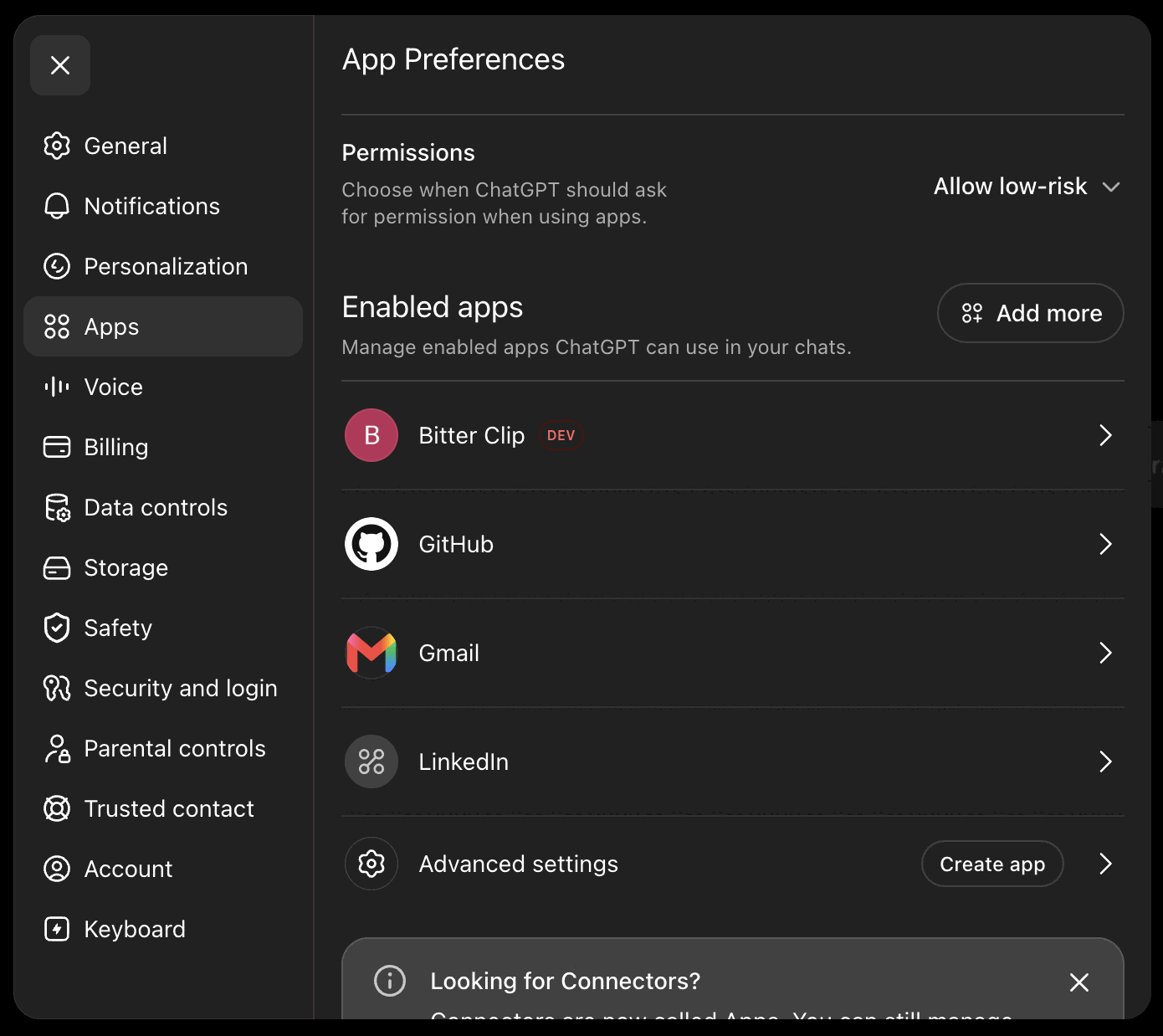
1. Open ChatGPT **Settings → Security and login** and turn on **Developer mode**. Your workspace may require an admin to make this available.
2. Open **Settings → Plugins**, or go to `chatgpt.com/plugins`.
3. Click **Create** to add a plugin.
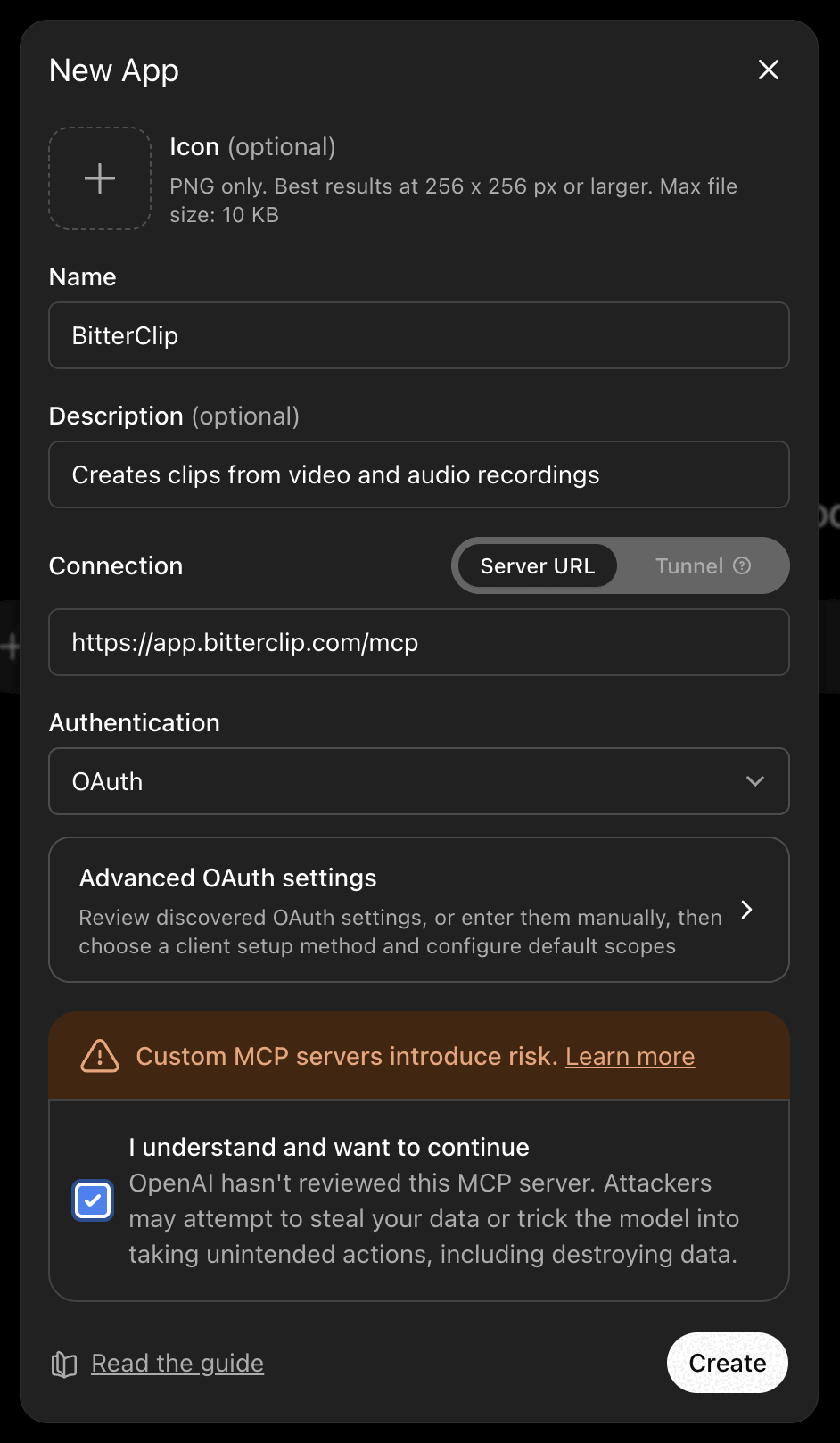
4. In the **New App** window, fill in:
- **Name** — BitterClip
- **Connection** — leave this on **Server URL** and paste the address above (it ends in `/mcp`): `https://app.bitterclip.com/mcp`
- **Authentication** — OAuth
5. Accept ChatGPT's developer-app warning, then click **Create**.
::callout{type="note"}
ChatGPT moves its menus and labels around, so the exact wording can differ. The shape stays
the same: enable developer mode, create a plugin pointed at the BitterClip address, and
authorize it. Once BitterClip's public plugin is available, you will add it from ChatGPT's
plugin directory instead. Stuck? See
[Troubleshooting](/docs/help/troubleshooting).
::
## Sign in to BitterClip
When you click **Create**, ChatGPT opens a browser window to sign you in to BitterClip and
authorize the connection. Approve it and you're set. That's the only sign-in step.
## Make your first clip in chat
If your account is empty, upload a recording first so there's something to clip. The
[browser walkthrough](/docs/getting-started/your-first-clip) shows you how. Once you have
one, just ask:
::example-clip-prompt{prompt="Pull up my latest interview and find the strongest moment."}
::
ChatGPT opens that episode in BitterClip's transcript editor, with the suggested clip's
words highlighted right in the transcript. Nothing is rendered yet, so take your time.
Read it like you'd read a paragraph. If the cut needs nudging, keep talking to ChatGPT
or drag the edges yourself. When it looks right, ask ChatGPT to export it. That's when
BitterClip renders the finished video and drops it in your project.
::chat-vs-web-app
::
## Nothing posts until you set it up
::approval-promise
::
## Troubleshooting
If the connection won't show up, the sign-in window doesn't open, or a clip doesn't
appear the way you expected, see [Troubleshooting](/docs/help/troubleshooting).
::signup-cta
::
## Next steps
::next-steps
---
links:
- to: /docs/assistants/connect-claude
label: Connect Claude instead
- to: /docs/getting-started/your-first-clip
label: Make your first clip in the browser
- to: /docs/help/troubleshooting
label: Troubleshooting
---
::
---
# Connect Claude
Source: https://showbrew.com/docs/assistants/connect-claude
Description: Add BitterClip to Claude as a Connector and make your first clip in chat.
# Connect Claude
Connect BitterClip to Claude once and you can make clips just by asking. After that,
the BitterClip tools and a live transcript editor show up right inside your
conversation. Here's how to set it up and pull your first clip.
## Before you start
::connect-prereqs
::
::callout{type="note"}
Claude supports custom connectors on Free, Pro, Max, Team, and Enterprise plans. A Free
account can add one custom connector, so BitterClip can be that one. The feature is still
marked beta, which is why some labels may move.
::
## Add BitterClip as a connector in Claude
::assistant-connection-intro
::
There's nothing to download or run on your computer:
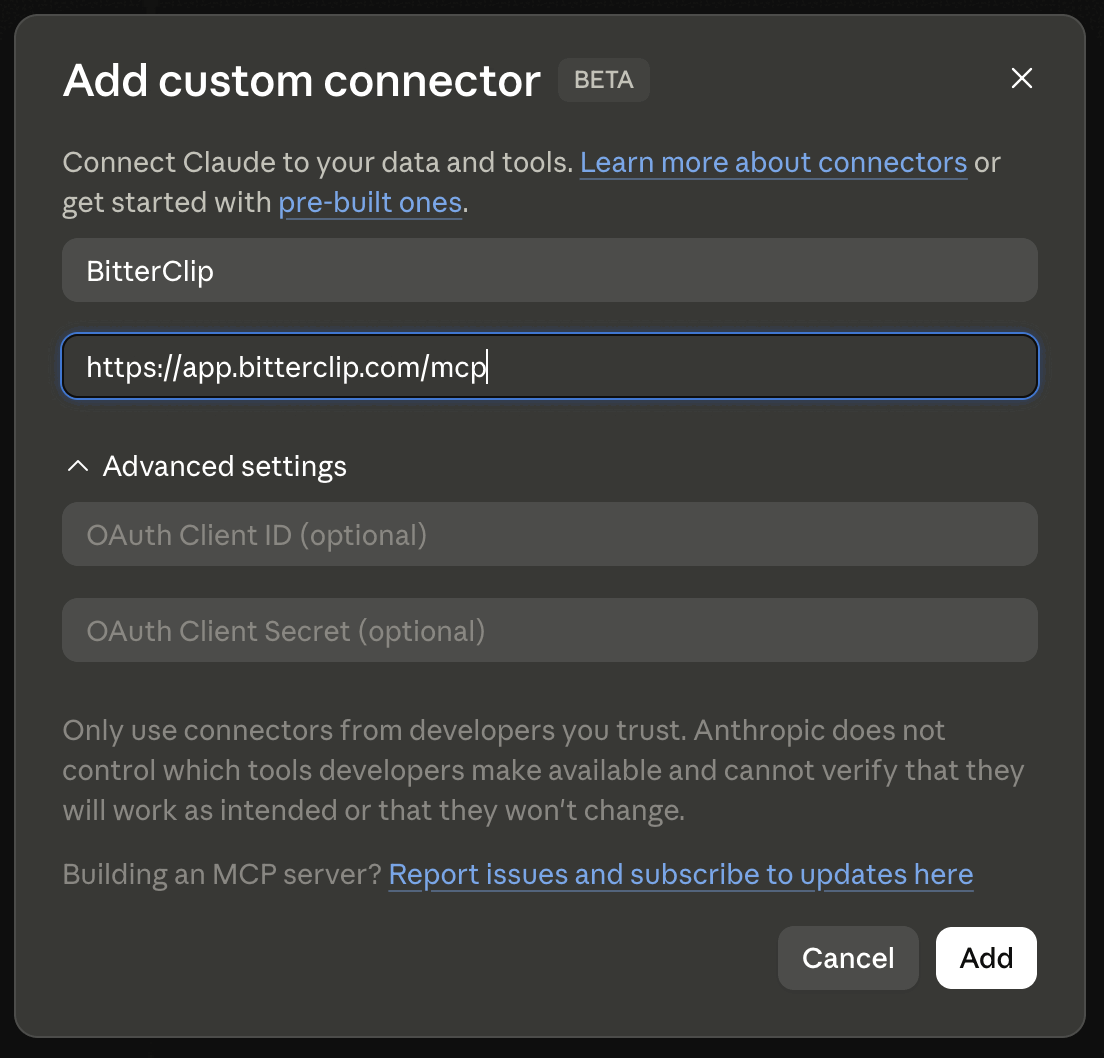
1. In Claude, open **Settings → Connectors** — or go straight to [claude.ai/customize/connectors](https://claude.ai/customize/connectors) — and click **Add custom connector** (it's marked BETA).
2. Fill in:
- **Name** — BitterClip
- **URL** — paste the address above (it ends in `/mcp`): `https://app.bitterclip.com/mcp`
- Leave **Advanced settings** (OAuth Client ID / Secret) blank — you don't need them.
3. Click **Add**.
## Connect and sign in
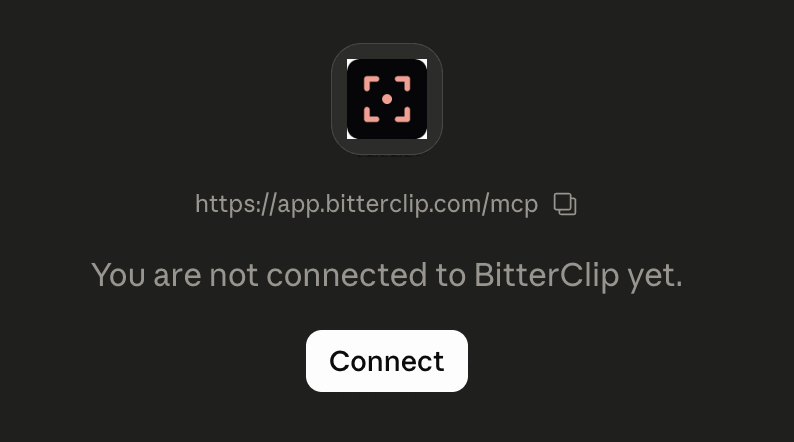
BitterClip now shows up in your connectors with **"You are not connected to BitterClip yet."**
Click **Connect**, then sign in to your BitterClip account in the window Claude opens. That's
the only sign-in step.
::callout{type="tip"}
Optional: on the BitterClip connector's page you can set **Tool permissions** to **Always
allow** so Claude stops asking each time it opens an episode or reads a transcript. You can
also allow tools one at a time.
::
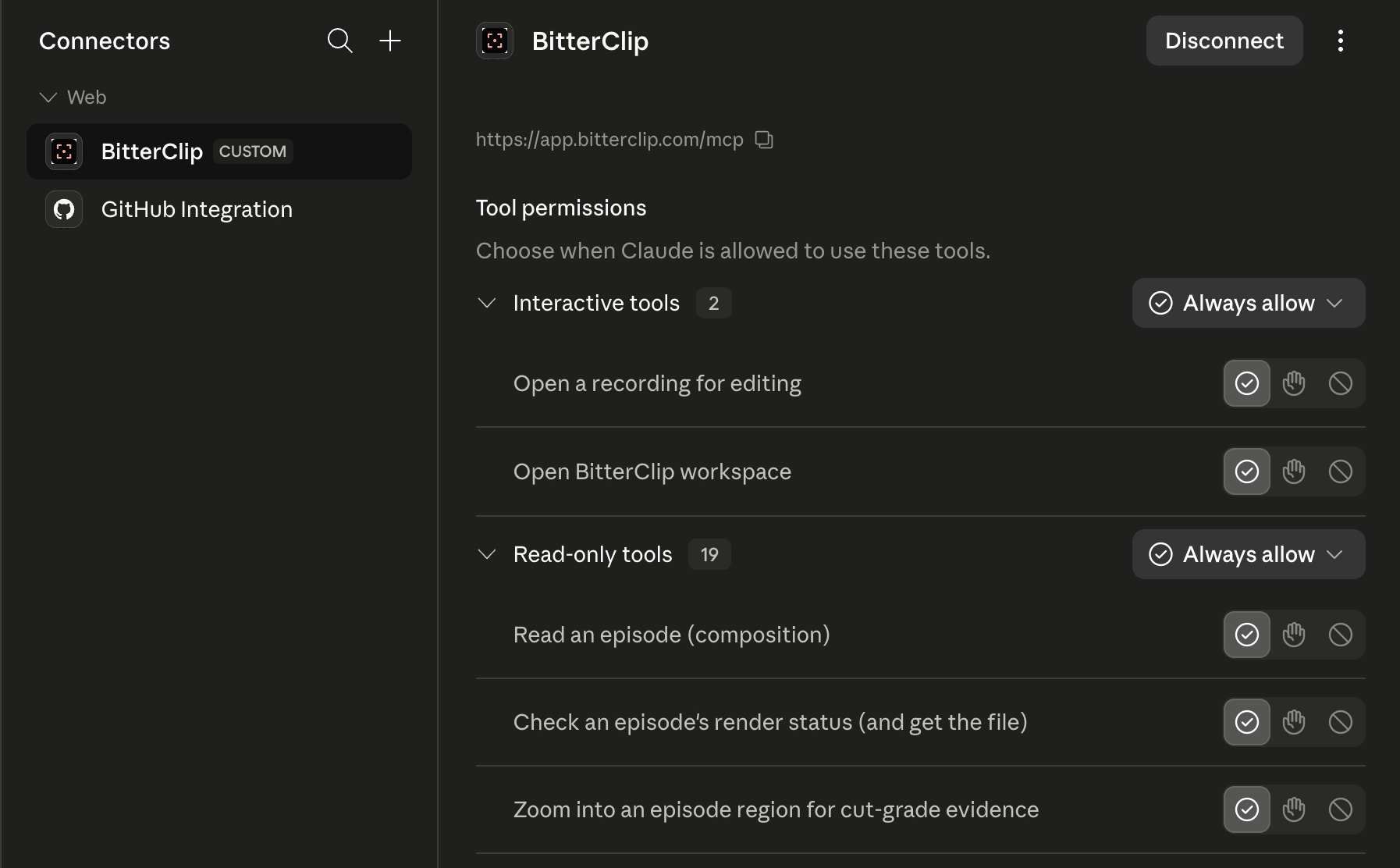
::callout{type="note"}
Claude moves its menus around now and then, so the wording can differ. The shape stays the
same: **Settings → Connectors → Add custom connector**, point it at the BitterClip address
above, then click **Connect** to sign in.
::
You'll know it worked when BitterClip's tools turn up in your conversation and Claude can
answer about your recordings.
## Make your first clip in chat
If your account is empty, upload a recording first so there's something to clip. You
can do that from the [browser walkthrough](/docs/getting-started/your-first-clip). Once
you have a recording, ask Claude in plain words:
::example-clip-prompt
::
## Review and export in the editor that opens
When Claude picks out a strong moment, the transcript editor opens right in the
conversation with that clip already selected. You'll see the words, who's speaking, and
the cut Claude chose. Read it over the way you'd read a paragraph. The cut comes
straight from the words you keep, so you can trace it back to the exact spot it came
from.
Nothing is final yet. Keep talking to Claude to nudge the edges ("start it on her
question," "trim the last few seconds"), or drag the selection yourself. When it looks
right, ask Claude to export it. That render is a separate step, and the finished clip
lands in your project once it's done.
::chat-vs-web-app
::
## Nothing posts until you set it up
::approval-promise
::
## Troubleshooting
If a connection won't stick or a clip doesn't show up, see the
[troubleshooting guide](/docs/help/troubleshooting).
::signup-cta
::
::next-steps
---
links:
- to: /docs/assistants/overview
label: Using BitterClip from your assistant
- to: /docs/assistants/connect-chatgpt
label: Connect ChatGPT instead
- to: /docs/getting-started/your-first-clip
label: Make a clip in the browser
- to: /docs/help/troubleshooting
label: Troubleshooting
---
::
---
# Connect YouTube
Source: https://showbrew.com/docs/connect/youtube
Description: Connect a YouTube channel as a publishing destination, and clear the Brand-Account trap that quietly breaks the connection.
# Connect YouTube
Once you connect a channel, BitterClip can post your finished clips to YouTube for you. One thing trips up almost everyone: the Google account you sign in with has to be able to act as the channel, and most channels live behind a Brand Account rather than a plain Gmail. Get that part right and the connection holds.
## Before you start
::connect-prereqs
::
## What connecting YouTube lets you do
::connector-scopes{connector="youtube"}
::
## Set your destination channel first
Before you connect anything, tell BitterClip which channel you're publishing to. Open **Settings** in the app, go to **Publishing accounts**, and find the YouTube row.
The simplest way to fill it in: open your channel in a browser, copy the web address from the address bar, and paste it into the channel field. A YouTube Studio, Videos, or Shorts URL all work. (If you happen to know your channel ID, the one that starts with `UC`, you can paste that instead.)
Save it, then connect. The connect flow has to know which channel to aim at, so if you skip this step it won't have a target to look for.
::callout{type="tip"}
If you already have the channel open in YouTube Studio, the address in your browser bar is exactly what you need. Copy it and paste it straight in.
::
## Connect with the right Google account
With your destination channel saved, choose **Connect** and sign in with Google. At Google's "Choose an account" step, pick the account that can actually manage that channel. This is where most people get stuck. Here's the trap and how to get past it:
::you-tube-brand-account-warning
::
Channel still won't show up? The heads-up above is almost always why. A YouTube Studio "manager" role is not the same as Brand Account access. Get yourself added on the Brand Account, choose it at the Google sign-in step, and the channel appears.
## Publishing privacy and defaults
You decide how your YouTube uploads behave by default in **Settings**, under **Publishing defaults**. That's where you set the privacy for uploads: private, unlisted, or public. The control stays greyed out until you've saved a destination channel and connected it, so sort the connection out first.
::callout{type="note"}
Depending on your YouTube account's standing, YouTube itself may force new uploads to start as private until your account is verified for public posting. If your uploads keep going private, that's coming from YouTube, not from BitterClip. You can still pick your preferred default in Settings.
::
## Posting to YouTube alongside X and LinkedIn
If you publish the same clip to several channels at once, BitterClip can drop the YouTube link into your X or LinkedIn post for you. That only happens after YouTube finishes publishing, since the link doesn't exist until the video is live. So when you line up a multi-channel post, let YouTube go out and the link follows on its own.
## Reconnecting later
::reconnect-note{connector="youtube"}
::
::next-steps
---
links:
- to: /docs/publishing/publish-a-clip
label: Publish a clip
- to: /docs/connect/x
label: Connect X
- to: /docs/connect/linkedin
label: Connect LinkedIn
- to: /docs/help/troubleshooting
label: Troubleshooting
---
::
---
# Connect X
Source: https://showbrew.com/docs/connect/x
Description: Connect X so BitterClip can post your clips to your feed, including how the sign-in works and when to reconnect.
# Connect X
Once X is connected, BitterClip can post a finished clip to your feed for you. This page walks through the sign-in and what you're agreeing to.
## Before you start
::connect-prereqs
::
## What connecting X lets you do
When you connect, X asks you to approve the permissions below. Each one does this:
::connector-scopes{connector="x"}
::
One of those permissions lets BitterClip read your posts. That's so a clip can go out as a short thread when it makes sense, with the parts in the right order.
## Connect X
1. Open **Settings** in the BitterClip app.
2. Find X under **Publishing accounts** and click **Connect**.
3. Sign in to X and approve the permissions above.
When you return to BitterClip, the X row should show **Connected**.
::callout{type="tip"}
Sign in with the X account you actually want your clips posted to. Whatever account you authorize is the one BitterClip posts from. If the connection doesn't take, double-check you picked the right account, then try again.
::
## What gets posted, and when
::approval-promise
::
## Reconnecting
::reconnect-note{connector="x"}
::
## Next steps
::next-steps
---
links:
- to: /docs/connect/youtube
label: Connect YouTube
- to: /docs/connect/linkedin
label: Connect LinkedIn
- to: /docs/getting-started/your-first-clip
label: Make your first clip
---
::
---
# Connect LinkedIn
Source: https://showbrew.com/docs/connect/linkedin
Description: Connect LinkedIn so BitterClip can post your clips to your own feed.
# Connect LinkedIn
Hook up LinkedIn once and BitterClip can post your clips to your own feed for you. You
do the connecting here; from then on, publishing happens right inside BitterClip.
## Before you start
::connect-prereqs
::
## What connecting LinkedIn lets BitterClip do
When you connect, LinkedIn asks you to allow a few things. Here's what each one means in
plain words:
::connector-scopes{connector="linkedin"}
::
## Connect LinkedIn
1. Open **Settings** in the BitterClip app and find LinkedIn under **Publishing accounts**.
2. Choose **Connect**. BitterClip sends you over to LinkedIn to sign in.
3. Sign in as yourself and approve the permissions above. LinkedIn brings you back to
BitterClip, and the channel shows as **Connected**.
Once connected, publishing a clip to LinkedIn works the same as any other channel. See
[Publish a clip](/docs/publishing/publish-a-clip).
## Posts go to your own feed
BitterClip posts your clips to your personal LinkedIn feed, as you. It can't post to a
company page or to someone else's account. Want a clip on a company page? Publish it to
your own feed first, then share it across to the page yourself.
## If you connected LinkedIn a while ago
::reconnect-note{connector="linkedin"}
::
If a LinkedIn post fails, your connection probably predates a permission LinkedIn now
requires. Reconnect to grant it, then try the post again. The same fix covers a post that
goes up but is missing its YouTube link in the comments.
## What gets posted, and when
::approval-promise
::
::callout{type="tip"}
Want the same opening copy on every post draft? You can set a shared post-body template
under **Settings → Publishing**, and it'll start your LinkedIn and X drafts for you. See
[Publish a clip](/docs/publishing/publish-a-clip) for the full list of publishing defaults.
::
::next-steps
---
links:
- to: /docs/publishing/publish-a-clip
label: Publish a clip
- to: /docs/connect/x
label: Connect X
- to: /docs/connect/youtube
label: Connect YouTube
- to: /docs
label: Back to the docs hub
---
::
---
# Connect Instagram
Source: https://showbrew.com/docs/connect/instagram
Description: What the Connect Instagram button does today, and the dependable way to get your clips onto Instagram right now.
# Connect Instagram
Yes, there's a **Connect Instagram** button in Settings. To be straight with you, it can't post a clip to your feed for you yet, and that limit is on Meta's side, not ours. The good news is the path that does work is quick.
::connect-prereqs{:publishing="true"}
::
## What the Connect button does
Instagram shows up in **Settings** next to your other channels. The difference is under the hood. Connecting Instagram runs through Facebook, where you authorize a Facebook Page that has an Instagram professional account linked to it. That's Meta's requirement for any app that posts to Instagram, not a choice we made. If you post from a personal account (most creators do), there's nothing to connect there.
::instagram-capped-note
::
## The dependable path today
BitterClip does the part that's hard to do well: it finds the moment and cuts the clip cleanly. From there you download it, move it to your phone, and post it in the Instagram app. You handle the upload, so you write the caption and decide exactly how it goes out.
## Post a clip on Instagram, step by step
1. Make and export your clip in BitterClip. Exports keep your source's shape by default (a widescreen recording stays widescreen), and you can choose vertical or square when you export. For a Reel, pick vertical so the clip fills a phone screen.
2. Download the finished clip from BitterClip.
3. Get the file onto your phone. AirDrop it from a Mac, drop it in a shared cloud folder, or download it straight from your phone's browser.
::callout{type="note"}
You post Reels from the Instagram app on your phone, so the clip has to live on your phone first. If you exported on a computer, move the file over before the next step.
::
4. Save the video to your phone's camera roll.
5. Open the Instagram app and start a new Reel or post.
6. Pick the clip from your camera roll, add your caption, and share.
## What's coming
We'd like BitterClip to post to Instagram for you one day, and we're working toward it. When it lands, direct posting will still need what Meta requires: an Instagram professional account linked to a Facebook Page. Until then, the manual hand-off above is the reliable way through.
::next-steps
---
links:
- to: /docs/publishing/publish-a-clip
label: Publish a clip
- to: /docs/connect/youtube
label: Connect YouTube
- to: /docs/help/troubleshooting
label: Troubleshooting
---
::
---
# Publish a clip
Source: https://showbrew.com/docs/publishing/publish-a-clip
Description: Send a finished clip to your connected channels. Review the post, choose how a project publishes, and check on it after it goes out.
# Publish a clip
Once you've exported a clip, BitterClip can send it to your connected channels: YouTube,
LinkedIn, and X. You review each post before it goes out, and the project decides whether
posts wait for your okay or publish on their own.
(Instagram works differently. There's no reliable one-click posting to it yet, so you hand
the clip to your phone instead. See [Connect Instagram](/docs/connect/instagram) for the way
that works today.)
## Before you start
::connect-prereqs{:publishing="true"}
::
New here? Make a clip first in [Your first clip](/docs/getting-started/your-first-clip). The
clip needs to finish exporting before you can publish it, because publishing sends that
rendered output.
## Choose how a project publishes
Each project decides for itself whether posts wait for you or go out on their own. Pick the
setting that fits before you publish anything.
::approval-promise
::
## Review the post before it goes out
::callout{type="note"}
A **package** is just your finished post for one channel: the clip, the caption that goes
with it, and where it's headed. Think of it as the post staged for you to check, not yet
sent.
::
When you ask BitterClip to publish, it builds one of these packages for each channel. You
look it over, read the caption, check the destination, watch the clip, and then your
project's setting takes over.
[screenshot: reviewing a publish package]
If the project waits for your approval, the package sits as a draft until you approve it. If
the project publishes automatically, the ready channels post as soon as the package is built.
::callout{type="tip"}
You can do all of this by chatting with ChatGPT or Claude. Ask it to publish the clip, look
over what it shows you, and approve when it reads right.
::
## Publish a whole episode at once
You don't have to post one clip at a time, and you don't have to repeat yourself for each
channel. BitterClip can take a whole episode's finished output and prepare it for YouTube,
LinkedIn, and X in one step. It builds one package per channel, then your project's
publishing setting handles the rest.
A channel counts as ready when it's connected and still has permission to post. A channel you
connected a while ago can go stale and need reconnecting. The note at the bottom of this page
points you to each channel's setup.
## Publishing a longer, assembled video
The same publishing flow works when you've stitched several pieces into a longer video, not
just a single clip. Once that longer video has finished rendering, you review and send it the
same way: a package per channel, your project's setting deciding what happens next.
## Check on a post after publishing
Publishing runs in the background, so a post can take a moment to land. You can check the
status of anything you've sent, in the BitterClip app or by asking your assistant in chat, to
see whether it's still working, finished, or waiting on you.
If a post simply fails, BitterClip flags it for review. Open it, fix what it points to (often
a caption, or a channel that needs reconnecting), and try again. For a stuck post that won't
clear, see [Troubleshooting](/docs/help/troubleshooting).
## If a post needs a second look
Sometimes BitterClip can't tell whether a post actually went out. When that happens, it asks
you to check the channel before retrying instead of failing outright. Don't hit publish
again. Go look at the channel first, because the post may already be live, and republishing
would create a duplicate. Once you've confirmed what's really there, BitterClip can bring its
record back in line.
::callout{type="warning"}
A "verify before retrying" prompt means BitterClip isn't sure the post made it. Check the
channel before you try again, so you don't post the same clip twice.
::
## Where your publishing defaults live
You don't have to set the same things every time. In the BitterClip app, open **Settings**
and find the **Publishing defaults** section. You can set, in this order:
- **Platforms**: the channels a new package goes to by default.
- **YouTube privacy**: how a YouTube upload starts. Private is the safe default, since a
fresh upload can't go fully public until it's been reviewed.
- **Default tags**.
- **Post body template**: default copy for your X or LinkedIn posts.
Set these once and every new package starts from them.
::callout{type="note"}
Each channel has its own setup steps worth knowing first. See
[Connect YouTube](/docs/connect/youtube), [Connect X](/docs/connect/x), and
[Connect LinkedIn](/docs/connect/linkedin) for the sign-in details and reconnect steps,
including the channel-account trap that quietly breaks YouTube connections.
::
::next-steps
---
links:
- to: /docs/getting-started/find-and-share-clips
label: Find and share your clips
- to: /docs/help/troubleshooting
label: Troubleshooting
- to: /docs/connect/youtube
label: Connect YouTube
- to: /docs/connect/x
label: Connect X
- to: /docs/connect/linkedin
label: Connect LinkedIn
---
::
---
# FAQ
Source: https://showbrew.com/docs/help/faq
Description: Quick answers to the questions creators ask most about BitterClip: cost, coding, where it runs, where your clips live, and publishing.
# FAQ
Short answers to the things people ask before they get started. If your question isn't here, the [troubleshooting guide](/docs/help/troubleshooting) covers the common snags, and you can always reach a human.
## What does BitterClip cost?
The Creator trial lasts seven days and requires a card: $0 today, then $24/month unless you
cancel before it ends. Once the payment method is accepted and the trial starts, Billing
shows your exact cancel-before time. Bring one recording up to
two hours. The trial includes $5 of agent work while balance remains, and its Exports are
watermarked. You can add exactly $20, $50, or $100 of agent work during an active trial or
paid plan. Top-ups never auto-activate paid Creator; early activation requires a separate
explicit $24 authorization. Clean Exports unlock after the first successful $24 payment.
Paid Creator includes 10 source-footage hours, $10 of agent work, and files up to 4 GB.
Producer is $99/month with 40 source-footage hours, $40 of agent work, and files up to 20
GB. There is no recurring Free plan. If you cancel, your existing work stays available so
you can return without losing it; new processing may require an active plan.
::signup-cta
::
## Do I need to know how to code?
No. BitterClip is built for creators, not developers. There's nothing to install, no config files, and no commands to run. You upload a recording, pick the part you want to keep, and BitterClip handles the rest. If you can highlight text, you can make a clip.
## What happens after I upload?
BitterClip transcribes the recording for you, lining up every word with the audio. Once that's done, you open the episode and pick the part you want, either in the browser or by chatting with your assistant. How long the transcription takes depends on how long your recording is, but you can leave the page and come back to it later.
## Can I bring over all the videos I uploaded to YouTube?
Yes. Export your own uploads with Google Takeout, then give BitterClip the ZIP file or all
parts of a split archive. You can review the videos, choose one Project, and import each
selected video as its own Episode. This does not download other people's videos and does not
publish anything. Follow [Import your YouTube archive](/docs/getting-started/import-youtube-takeout)
for the full walkthrough.
## Does it work with ChatGPT, Claude, or both?
Both, but the connection rules are different today. Claude lets every plan add a custom
connector (Free accounts can add one). In ChatGPT, custom-app access and available actions
depend on your plan and workspace policy. The [assistant guide](/docs/assistants/overview)
walks through both paths. You can always skip the assistant and work in your browser.
## Do I have to use an AI assistant, or can I use the browser?
Either one. The clipping itself works the same whether you chat or click, and your recordings, episodes, and clips show up in both places.
::chat-vs-web-app
::
## Where do my recordings and clips live?
In your BitterClip workspace. Uploaded recordings stay there, and every clip you export lands in your project's Outputs tab, the gallery of finished clips, ready to download or share.
::how-the-cut-works
::
The [find and share guide](/docs/getting-started/find-and-share-clips) shows where everything ends up.
## Will it post to my channels without asking?
You're in control. First you connect a channel yourself (see [connect your channels](/docs/connect/youtube)), then you choose how each project handles publishing.
::approval-promise
::
You can read the whole flow on the [publish a clip](/docs/publishing/publish-a-clip) page.
## Can two people work on one episode or one project?
Yes, in two ways.
First, one episode can be built from more than one recording:
::what-is-episode
::
Second, you can invite an editor or client into a project. They get an invite link, accept it, and then they can pull their own clips from your recordings, in the browser or by connecting their own assistant. The [projects and collaborators](/docs/getting-started/projects-and-collaborators) page covers inviting people.
## What file types can I upload?
Any common video or audio file. Podcasts, interviews, calls, recorded streams: if your device sees it as video or audio, you can upload it and BitterClip will transcribe it.
Large files are fine too. How big you can go depends on your plan. If a file gets rejected, it's almost always because your device didn't label it as video or audio. Re-export it through a normal recorder or editor so it comes out as a standard video or audio file, and it'll go through.
## Still have a question?
::support-contact
::
::next-steps
---
links:
- to: /docs/getting-started/your-first-clip
label: Make your first clip
- to: /docs/getting-started/projects-and-collaborators
label: Invite a collaborator
- to: /docs/getting-started/import-youtube-takeout
label: Import your YouTube archive
- to: /docs/connect/youtube
label: Connect your channels
- to: /docs/help/troubleshooting
label: Troubleshooting
---
::
---
# Troubleshooting
Source: https://showbrew.com/docs/help/troubleshooting
Description: The most common snags people hit with BitterClip, each with a quick fix.
# Troubleshooting
Hit a snag? Find your problem below and try the fix.
## I get asked to verify my email before I can do something
If you just signed up, check this first. Transcribing a recording costs us real money to run, so we hold it until you've confirmed your address. That means uploading and transcribing are both blocked until you verify. You'll see a banner in the app that says "Verify your email to unlock transcription."
When you signed up, we sent you an email with a verification link. Open it, click the link, and you're set. If you can't find it, check your spam folder. You can also hit the **Resend email** button in the banner at the top of the app while you're signed in.
::callout{type="tip"}
If you signed up with Google, your email is already verified, since Google has confirmed your address.
::
## My recording isn't showing up as an episode yet
When you upload a recording, BitterClip turns it into its own **episode** automatically. An episode is the stitched transcript timeline you actually work in.
If you just signed up and nothing uploaded, check the email-verification step above first: an unverified account can't upload yet.
If the upload went through, the episode isn't instant. Transcribing takes a little time, longer for long files. Give it a few moments and refresh. It'll appear once the transcript is ready.
## My Zoom recording did not arrive
First confirm that Zoom finished processing a **cloud recording**. A recording stored only
on your computer does not enter the automatic import.
In BitterClip, click your name or avatar, then **Settings**. Scroll to **Recording import →
Zoom** and check the status and destination Project. If the row says **Configured**, click
**Check for updates** and look under **Recent Zoom deliveries**. Click **Open Capture
Session** when that action appears for the meeting.
If the meeting says **Needs attention**, read the recovery sentence on the row. Click **Retry
Zoom import** once only when that action is offered, then **Open Capture Session** to watch
its progress. Keep the original recording in Zoom. If the Capture Session exists, preserve
the files already there and use **Browse files** only for missing footage. If there is no
Capture Session and no retry, click **Open target Project**, **Add footage**, then **Browse
files**. The full [Zoom cloud recording guide](/docs/getting-started/import-zoom-cloud-recording)
includes the exact click path and verification checklist.
Never send a Zoom download link, passcode, client secret, or webhook secret in a support
message. The meeting topic, approximate end time, and BitterClip status are enough to start
diagnosis.
## A clip is still processing, or my export is "pending"
Exporting a clip runs in the background so you can keep working. Depending on the length and how busy things are, it can take a bit to finish.
You don't have to sit and wait. Finished clips land in your project's Outputs tab, so check there when you come back and it'll show as ready once the cut is done. See [Find and share your clips](/docs/getting-started/find-and-share-clips) for where to look.
## My file got rejected when I tried to upload it
BitterClip takes any common video or audio file. When an upload bounces, it's almost always because your device tagged the file as something other than audio or video, not because of its name or extension.
The fix is to re-export it as a standard format (mp4 or mov for video, mp3 for audio) and upload that. One more thing to check: very large files depend on your plan, so if a long recording won't go through, that may be the reason.
## My YouTube archive import is missing videos
First, make sure you selected every ZIP part from the same Google Takeout export. A 2 GB
archive size can produce many parts, and a missing part can hold videos or their metadata.
If the files are all there, check which Google account created the export. Channels attached
to a Brand Account need an export made while that Brand Account is selected. Also confirm
that videos were included under **YouTube and YouTube Music** in Takeout. The
[YouTube archive import guide](/docs/getting-started/import-youtube-takeout) covers the exact
setup and how to continue a batch without duplicating completed Episodes.
## My YouTube channel doesn't show up when I connect
If you're connecting YouTube and your channel never appears, two things are usually behind it.
First, set your destination channel before you connect. Open **Settings**, find the YouTube section, and paste your channel URL or ID. The connect flow needs a target to aim at, so it can't find your channel if you haven't told it which one.
Second, sign in with the right account:
::you-tube-brand-account-warning
::
The full walkthrough is in [Connect YouTube](/docs/connect/youtube).
## A channel says "Reconnect required"
::reconnect-note{connector="youtube"}
::
## A speaker has the wrong name
If a speaker is labeled wrong, you can fix it yourself. Open the recording where they appear, click the speaker's name in the transcript, and type the correct one. BitterClip updates the captions to match, so your clips show the right person.
## Instagram won't post my clip automatically
::instagram-capped-note
::
For the full picture, see [Connect Instagram](/docs/connect/instagram).
## A post got stuck and asks me to "verify before retrying"
Sometimes a publish ends in a spot where BitterClip isn't sure whether your post actually went out. When that happens, it pauses and asks you to check before doing anything else.
::callout{type="warning"}
Don't hit publish again. A second try could post your clip twice. Open the channel you were posting to, confirm whether the clip is already there, and go from what you find.
::
If the clip did post, you're done, nothing more to do. If it didn't, you can publish it again safely. When you're unsure, [reach out](#still-stuck) and we'll sort it out with you.
## Still stuck
::support-contact
::
::next-steps
---
links:
- to: /docs/getting-started/your-first-clip
label: Your first clip
- to: /docs/getting-started/import-youtube-takeout
label: Import your YouTube archive
- to: /docs/getting-started/import-zoom-cloud-recording
label: Import a Zoom cloud recording
- to: /docs/connect/youtube
label: Connect YouTube
- to: /docs/connect/instagram
label: Connect Instagram
- to: /docs/changelog
label: What's new
---
::
---
# What's new
Source: https://showbrew.com/docs/changelog
Description: A running list of notable changes to Showbrew, newest first.
# What's new
This is a running list of the changes worth knowing about. Newest is at the top, and we keep each entry short so you can skim the page in a minute.
## Recent updates
### The website now calls the product Showbrew
Showbrew is the new name for the workbench previously presented as BitterClip. The public
website, its documentation hub, and its comparison pages now use the Showbrew name. The app
you sign in to, the checkout handoff, the MCP endpoint, and the support mailbox still carry
the BitterClip name at app.bitterclip.com while the name change rolls out, so the guides
here use the labels you actually see on screen. Accounts, recordings, work, pricing, and
billing are unchanged.
### Zoom cloud recordings can become Episodes automatically
For studios with Zoom import enabled, a completed cloud recording can now arrive as a
Capture Session and build an editable Episode in the configured Project. Settings shows the
destination, recent deliveries, current progress, and either a retry when one is safe or the
manual recovery path. Follow [Import a Zoom cloud recording](/docs/getting-started/import-zoom-cloud-recording)
for the exact click path and first-meeting checklist.
### Creator trial and paid plans
The Creator trial lasts seven days and requires a card: $0 today, then $24/month unless you
cancel before it ends. Once the payment method is accepted and the trial starts, Billing
shows your exact cancel-before time. The trial includes $5 of
agent work for one recording up to two hours; exactly $20, $50, and $100 top-ups are
available during an active trial or paid plan and do not activate paid Creator early.
Producer is $99/month. There is no recurring Free plan. If you cancel, your existing work
stays available so you can return without losing it; new processing may require an active
plan.
### Give your show a signature look
Every project now has an FX tab. Pick a signature effect, add your logo and
colors as a dark or light brand pack, and your clips open and close with a
branded title card — with the episode's own title rendered right into the
video. The full-screen Signature Studio lets you audition motion and sound
together and save looks to your library, so your whole catalog stays
consistent. Read the [Identity Studio launch post](/blog/your-show-has-a-signature-now)
for the full story.
### Your assistant can design your opener
Hand ChatGPT or Claude your logo and describe the feel you want. It builds
your brand pack, designs the opening animation itself, previews frames of its
own work, and refines until it looks right — then saves it as your project's
opener. See the [assistants overview](/docs/assistants/overview) to get
connected.
### Public download links for finished clips
You can now create a public link to any rendered video — a direct MP4
download that works anywhere and expires on its own (7 days by default, up to
14). Use it to hand a clip to a client or pass it into other tools like
Zapier without exporting and re-uploading. Ask your assistant for "a public
link to that render."
### Fix a speaker's name from chat
Spotted a mislabeled speaker? Ask your assistant to rename them. The
transcript and the captions on future renders pick up the correction.
### Cut several moments into one video
Ask your assistant for a montage: give it the moments in order and it builds
a single video, with branded intro and outro blocks if your project has them.
It will warn you if a cut lands mid-word so you can fix the edge before
rendering.
### See what's on screen, right in chat
Ask your assistant to pull frames from a moment and a small gallery appears
in the conversation. Pick the frame you mean and download it — useful for
thumbnails and for checking what the camera saw.
### Sharper automatic titles and descriptions
On paid plans, new uploads get titles, descriptions, and chapters written by
a stronger pipeline that reads the whole recording — not just the first few
minutes.
### Uploads that tell you the truth
The uploader now shows your plan's limits up front and reports problems in
the upload tile itself instead of failing quietly. Project tabs are also
proper links now — back, refresh, and sharing a tab URL all behave.
### A guide site for creators
These help pages are new. They walk you through making your first clip, connecting ChatGPT or Claude, and getting clips out to YouTube, X, LinkedIn, and Instagram. Plain language, written for creators. Start with [your first clip](/docs/getting-started/your-first-clip).
### Earlier: free to start
Earlier signup opened a workspace without checkout or a trial clock. That offer has since
been replaced by the Creator trial described above.
### Post clips to your channels
You can connect YouTube, X, and LinkedIn and send finished clips straight to them. Per project, you choose whether a clip waits for your approval or goes out automatically once it's ready. See the connect guides for [YouTube](/docs/connect/youtube), [X](/docs/connect/x), and [LinkedIn](/docs/connect/linkedin).
::callout{type="note"}
Instagram is a special case. You'll see a Connect button, but auto-posting to your feed is limited by Meta's rules. See the [Connect Instagram](/docs/connect/instagram) guide for the working path.
::
### Clip right inside your AI assistant
BitterClip connects to ChatGPT and Claude. Ask for the strongest moment in a recording, and your assistant opens the transcript editor with a clip already picked out, ready for you to review and tune. The [assistants overview](/docs/assistants/overview) shows you how to set it up.
### Captions, built in
Clips export with captions burned right into the video, styled to sit cleanly in the frame. That's the default. If you turn captions off before you export, the video comes out without them.
## A note on subscribing
For now, this is a single page we update by hand. We may add a subscribable feed later; until then, this page is the place to look.
---
# Pi vs. DeepSeek Harness: why we chose Pi
Source: https://showbrew.com/blog/pi-vs-deepseek-harness
Description: A concrete look at why BitterClip uses the Pi agent harness for its embedded AI agent, how it works, and when DeepSeek Harness would fit better.
Date: 2026-08-18
Author: Michael Ruescher, Founder
An early version of BitterClip's in-product agent got confused about a missing
tool, searched through the server filesystem, and then told us BitterClip could
not add background music.
BitterClip could add background music. The agent just couldn't see the right way
to do it.
That was the moment our harness decision became much simpler. Inside a video
editor, we did not want a coding agent with a side job. We wanted an agent that
could do exactly what BitterClip could do, through the same operations every
other client uses, and nothing else.
We chose the [Pi agent harness](https://pi.dev/) for that job.
[DeepSeek Harness](https://github.com/deepseek-ai/deepseek-harness) arrived
after that decision, so this is not a story about rejecting it in a bake-off.
It is an impressive foundation and, for some products, the better choice. For
BitterClip, we would still choose Pi.
## What is an agent harness?
The model is the intelligence. The harness is everything that lets that
intelligence get work done: the conversation loop, tools, streaming, retries,
memory, compaction, and the connection to a user interface.
That makes the title easy to misread. This isn't Pi versus a DeepSeek model.
Both harnesses can call models from multiple providers. Can Pi run a DeepSeek
model? [Yes—DeepSeek publishes an official Pi integration guide](https://api-docs.deepseek.com/quick_start/agent_integrations/pi_mono/).
That is a separate decision from using DeepSeek Harness. In fact, one DeepSeek
Harness adapter uses Pi's lower-level
[`pi-ai`](https://github.com/deepseek-ai/deepseek-harness/blob/dsh-v0.1.0-rc.7/packages/llm/llm-pi-ai/README.md)
package.
Models and harnesses are separate choices. We can change the model without
rebuilding the product around it.
## What BitterClip actually needed
[BitterClip](/docs/getting-started/what-is-bitterclip) is a transcript-first
media workshop. You can ask the agent to find a moment, trim a section, create a
Clip, start a Render, or undo an edit without leaving the editor.
Most of that machinery already existed before the embedded agent. Rails owns
the recordings, transcripts, edit operations, permissions, revisions, renders,
and account boundaries. [ChatGPT and Claude already reach those operations
through BitterClip's MCP server](/docs/assistants/overview).
The new agent didn't need another workflow engine. It needed to become one
more careful client of the product we already had.
That gave us four requirements:
1. The model should see only BitterClip's MCP tools: no shell, filesystem,
browser, skills, or subagents.
2. The editor should receive live text, progress, tool activity, cancellation,
and usage events while the agent works.
3. Conversations should survive a reload, and the stored copy should stay with
BitterClip.
4. The harness should remain replaceable without rewriting the editor or the
product's operations.
Our internal shorthand is: **BitterClip remembers the video. The harness
remembers the conversation. MCP is the only way between them.**
## How we embedded Pi in BitterClip
Two protocols keep those jobs separate.
[ACP](https://agentclientprotocol.com/get-started/introduction) carries the
conversation between the editor and the agent.
[MCP](https://modelcontextprotocol.io/docs/getting-started/intro) gives the model
a typed set of things BitterClip can do. In production, the path looks like
this:
```text
BitterClip editor
│ ACP: prompts, progress, tool activity, cancellation
▼
Rails bridge
│ ACP
▼
Pi session
│ MCP: BitterClip tools only
▼
Rails operations, authorization, recordings, and edits
```
Pi owns the middle. Its
[SDK](https://github.com/earendil-works/pi/blob/v0.84.1/packages/coding-agent/docs/sdk.md)
gives us the agent loop, streaming events, provider adapters, retries,
compaction, and tree-structured sessions. We wrote the two adapters around it:
an ACP server facing the editor and an MCP client facing BitterClip.
We use ACP's session and activity vocabulary, plus small BitterClip-specific
updates for save receipts and diagnostics. A replacement harness could keep the
editor and product operations, but its adapter would still need to implement
that contract.
The important part is how we create the session. This is a simplified version
of our Pi 0.84.1 setup:
```ts
const tools = await loadBitterClipMcpTools()
const names = tools.map((tool) => tool.name)
const { session } = await createAgentSession({
tools: names,
customTools: tools,
excludeTools: ["read", "bash", "edit", "write", "grep", "find", "ls"],
resourceLoader: lockedDownResourceLoader,
sessionManager,
})
```
The allowlist comes straight from BitterClip's MCP server. If a tool isn't on
that list, Pi never registers it. We also turn off extension, skill,
prompt-template, theme, and context-file discovery, then replace Pi's coding
prompt with BitterClip's own prompt.
At startup, we inspect Pi's live tool registry and refuse to serve unless it
contains every expected BitterClip tool and zero built-ins.
That may sound fussy. It is cheaper than discovering later that an inactive
shell could be switched back on.
## Pi vs. DeepSeek Harness at a glance
The two projects overlap, but they start from different centers of gravity.
| Question | Pi in BitterClip | DeepSeek Harness v0.1.0-rc.7 |
| --- | --- | --- |
| What do you start with? | A small TypeScript agent runtime with an SDK | A plugin-based agent platform with web and headless profiles |
| How do you customize it? | Construct a session in code with a prompt, model, tools, resources, and storage | Assemble or replace Cordis plugins |
| What does it provide? | Loop, streaming, retries, providers, compaction, and session history | Those foundations plus a UI, jobs, goals, workflows, subagents, policy, and more |
| Which tools reach the model? | The exact custom-tool allowlist we construct and check | The tools registered by the chosen plugin profile; the shipped base is broad but can be recomposed |
| How does its current ACP path fit our editor? | We own the adapter, including live deltas, tool traces, history loading, and BitterClip receipts | The upstream adapter creates fresh sessions and sends committed answers; live progress, tool activity, resume, fork, and delete are not exposed over ACP |
| What evidence do we have today? | Pi 0.84.1 is pinned and serving in BitterClip; upgrades still need tool-surface, migration, and resume tests | v0.1.0-rc.7 is a [developer preview](https://github.com/deepseek-ai/deepseek-harness/blob/dsh-v0.1.0-rc.7/README.md#developer-preview) whose maintainers warn of breaking changes |
DeepSeek Harness is aiming at a larger problem. That is precisely what makes it
interesting.
## What we like about DeepSeek Harness
DeepSeek Harness is built around one powerful idea:
[everything is a plugin](https://github.com/deepseek-ai/deepseek-harness/blob/dsh-v0.1.0-rc.7/docs/architecture.md).
Models, tools, sessions, policies, jobs, and the UI all plug into Cordis. Its
append-only session log makes runs easier to replay and inspect, and you can
replace one capability without forking the core.
If we were building a general agent workbench, that would be hard to ignore. The
web UI, job panel, goals, workflows, sandbox policies, and subagent providers
would save real work.
It isn't limited to the bundled web UI. DeepSeek Harness also has public agent
APIs and [an out-of-process TypeScript SDK](https://github.com/deepseek-ai/deepseek-harness/blob/dsh-v0.1.0-rc.7/packages/sdk/README.md)
for custom integrations. For agents that genuinely need shell and filesystem
access, its approval, policy, and sandbox seams provide controls Pi doesn't
supply by itself.
BitterClip already has a backend, an editor, jobs, permissions, and one
established set of editing operations. Putting another full platform in the
middle would force us to answer the same question over and over: does this state
belong to Rails or to the harness?
DeepSeek Harness can be pared down. That is one of its strengths. For
BitterClip, though, we would need to build a custom profile, keep conversation
data on our side of the boundary, extend ACP, and adapt its MCP tool names and
presentation to our existing editor. Most of that work would be spent making
the platform deliberately smaller.
The current upstream
[ACP adapter](https://github.com/deepseek-ai/deepseek-harness/blob/dsh-v0.1.0-rc.7/packages/acp/acp/README.md)
is the clearest example. The harness has live internal events—its own web UI uses
them—but the upstream ACP adapter is built for clean automation: create a fresh
session, submit a prompt, wait for a committed answer, cancel if needed. Our
interactive editor lets people watch tools run, reopen old conversations,
inspect what changed, and undo edits. We would have to extend the adapter before
the harness could replace what is serving today.
All of that is possible. It just wouldn't improve BitterClip enough to justify
the work today.
## Pi is not a security boundary
There is an important caveat. Pi's normal coding-agent experience includes
file and shell tools, and Pi
[doesn't provide a built-in permission system](https://github.com/earendil-works/pi/blob/v0.84.1/README.md#permissions--containerization).
By default it runs with the permissions of its process.
Our safety doesn't come from the word “minimal.” It comes from the system we
built around the runtime:
- the unwanted tools are absent from the live registry, not hidden by the UI;
- the agent runs as a non-root user in a separate container, with bounded,
private, non-executable temporary storage and no persistent volume;
- every product action goes back through Rails authorization;
- the model never chooses which account it is acting for; and
- agent edits carry a revision and receipt, so people can see exactly what
changed and undo it.
The container is useful hardening, not a complete sandbox around Bun. This is
also why we don't call our setup “Pi out of the box.” We use Pi as a library
and take responsibility for the boundary.
## The tradeoffs we accepted
Pi is small, but the integration work is still ours. We own the ACP adapter, the
MCP-to-Pi tool bridge, conversation storage, and the tests around them.
There is another catch: Pi owns the format for conversation history. Rails
stores those session bytes without parsing the conversation itself. That keeps
us from quietly rebuilding Pi in Ruby, but upgrades need careful migration and
resume testing.
Finally, a narrow system can fail quietly. An empty allowlist leaves you with an
agent that chats perfectly and cannot do a thing. So startup checks both
failures: zero Pi built-ins and every expected BitterClip tool. That turns the
background-music failure from our opening into a boot error instead of a bad
answer in front of a user.
Those are real costs. They are still smaller than owning two product backends.
## When we would choose DeepSeek Harness instead
We would put DeepSeek Harness near the top of the list if the harness itself
were the product:
- a coding or research workbench with several frontends;
- a system where users assemble agents from plugins;
- a multi-agent environment with jobs, goals, workflows, and shared policy;
- a platform that needs a rich, replayable event model as its primary state; or
- a new product without an existing backend that already owns tools,
authorization, and durable work.
In that situation, DeepSeek Harness's larger surface is not overhead. It is the
thing you would otherwise have to build.
## The five questions we would ask again
If you are choosing an agent harness for an application, start with the product
boundary rather than a feature matrix:
1. What must the model never be able to do?
2. Which system stores the real customer data and enforces permissions?
3. Do you need an agent platform, or only an agent loop inside an existing
product?
4. At runtime, can you prove exactly which tools the model can use?
5. Can you replace the harness without replacing your product?
For BitterClip, those answers pointed to Pi. It isn't a universal winner. It
let us keep the agent narrow without rebuilding the parts of BitterClip that
already worked.
If we had to make the choice again, we would start with the same question: where
should the harness stop and the product begin?
---
*Version note: this field report describes BitterClip's pinned Pi 0.84.1
integration and DeepSeek Harness v0.1.0-rc.7, reviewed on August 18, 2026.
DeepSeek Harness is in developer preview and changing quickly. We will revisit
the comparison as its embedded interfaces mature.*
---
# Visual analysis in BitterClip just got a lot faster
Source: https://showbrew.com/blog/gemini-3-7-multiple-witnesses
Description: Gemini 3.7 cut median model response time by 61% in our video tests, with no strong semantic difference from 3.6. So we upgraded and kept 3.6 as the fallback.
Date: 2026-08-14
Author: Michael Ruescher, Founder
Visual analysis in BitterClip just got a lot faster.
We upgraded our main visual model from Gemini 3.6 to Gemini 3.7. In matched
testing, median model response time fell from 27.8 seconds to 10.8 seconds. That
is a 61.1% lower response time. Estimated cost was 24.6% lower too.
We did not find a strong semantic difference between the two models in the
footage we reviewed. Both generally understood the scene. So we put the faster
one in front and kept Gemini 3.6 as the fallback.
The route there was less direct. Our first Gemini 3.7 production test went
backward in time.
The model said a visual event began at 146 seconds and ended at 20.8 seconds. If
you were looking for a reason not to upgrade, there it was.
Then Gemini 3.6 did the same kind of thing.
That was the useful moment. We had blamed the new model before looking closely
at the question we were asking it.
## We were asking for too much
BitterClip uses Gemini to understand what is happening in a video and when it
happens. Our old response format asked for a precise start and end for every
visual observation:
```text
start_seconds: 146.0
end_seconds: 20.8
```
The numbers were individually valid. Together, they were impossible.
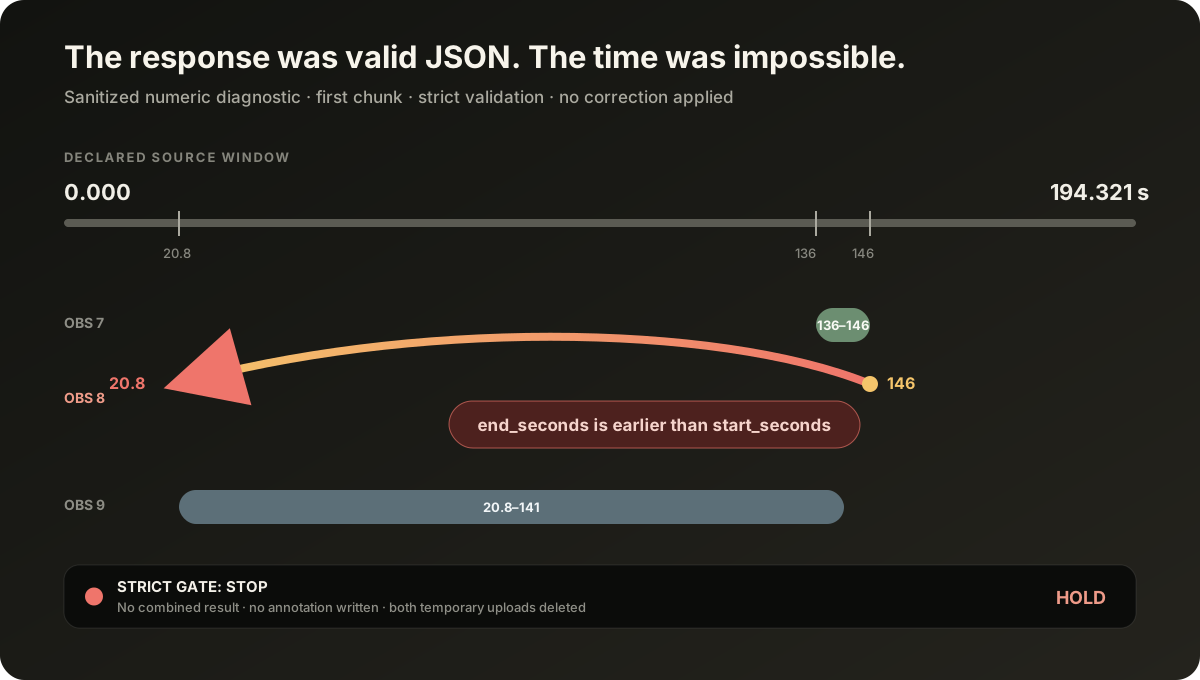
The deeper problem was that video often does not contain a clean ending. A
camera can show someone beginning a movement, then turn away while the movement
continues. Asking the model for an exact duration invites it to guess.
So we tried a smaller question: where can you actually see the thing?
```text
at_seconds: 146.0
```
That point is still a model claim, and BitterClip still has to check it against
the source. But it is a much cleaner unit of evidence. BitterClip can build a
short playback range around it for navigation without pretending the action
lasted for that whole range.
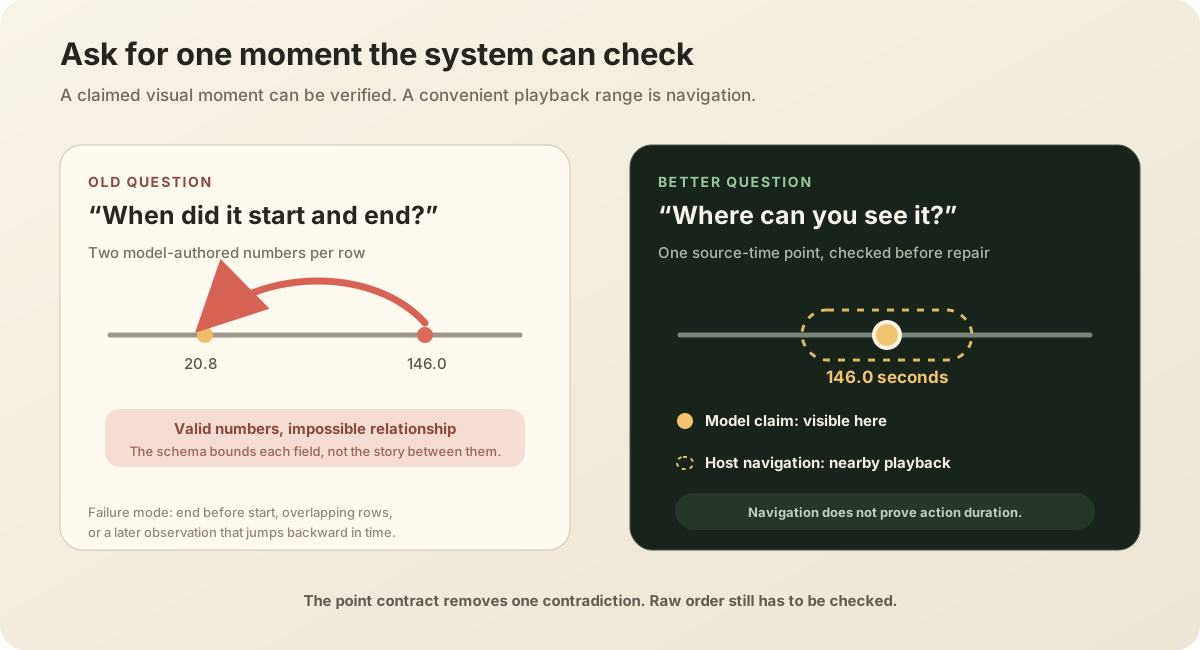
## What the testing showed
We ran 192 matched calls across the same two video chunks and four response
formats. We did not find a strong semantic difference between Gemini 3.6 and
3.7 in the material we reviewed. Both could understand the scene, and both
could produce bad timing under the old interval format.
The operational difference was clear:
| Fixed test workload | Gemini 3.6 | Gemini 3.7 |
| --- | ---: | ---: |
| Raw temporal checks passed | 94 / 96 | 92 / 96 |
| Median provider latency | 27.8 s | **10.8 s** |
| Estimated provider cost | $2.75 | **$2.08** |
Google charged both models at the same rate; 3.7 simply used fewer tokens in
this test. The point format also passed all 48 of its raw timing checks.
A larger follow-up stopped early because of a bug in our audit code, so we did
not use it to declare a benchmark winner. It did not change the practical read:
3.7 was much faster, a little cheaper, and not meaningfully different in the
footage we reviewed.
## We upgraded
We ran a strict two-chunk production canary, changed one model pin, and ran one
more live visual-path check. All three calls used Gemini 3.7 without falling
back or retrying.
Gemini 3.7 is now the primary model for BitterClip’s visual analysis. Gemini 3.6
remains the fallback. If wider use exposes a problem, we can put 3.6 back in
front with the same small pin change.
The point-format work remains separate from the model upgrade. The useful result
for people using BitterClip today is simpler: visual analysis now spends much
less time waiting on the model. We upgraded, kept a clean way back, and moved
on.
---
The comparison used 96 calls per model on two fixed silent video chunks. The
cost figures are rate-card estimates, not a reconciled provider bill. This was a
focused product test, not a general benchmark of video understanding.
---
# A condensed memory of the work
Source: https://showbrew.com/blog/a-condensed-memory-of-the-work
Description: A coach we work with sends every client a highlight reel of their session — not as marketing, but as memory. That habit explains more about where BitterClip is going than any feature list.
Date: 2026-07-08
Author: Michael Ruescher, Founder
Andrew coaches strength athletes in person, and he films every session. When
a client drives home, a short reel follows them: the best lift of the day,
the fix that finally clicked, the rep that looked the way it's supposed to
look.
The first time he described this, we almost mis-heard it as a marketing
habit. It isn't. The reels are **part of the coaching**. A session is two
hours; what a client can hold onto is about ninety seconds. The reel is that
ninety seconds, a condensed memory of the work, something to replay between
visits. Reel after reel, they become a running record of progress, and that
continuity *is* the relationship.
We think that's what recordings are actually for.
## Most of what you record, you lose
Think about your own archive for a second. The podcast episodes, the client calls,
the coaching sessions, the interviews: hours of the realest material your
work produces, and almost all of it is write-only. You record it, store it,
and never open it again, because opening it costs too much. An hour of video
is an hour of your life to review.
The industry's answer has been to make more content out of it. Ten viral
clips from every episode. That treats your archive as ore for the feed, and
it misses what Andrew understands instinctively: the recording's first
audience is *the people who were in it*.
## Clips as citations
Everything BitterClip makes keeps a receipt. A clip isn't a loose file. It
points back to the exact words, the exact speaker, the exact seconds of the
source it came from. We think of a finished clip as a **citation**: a claim
about what mattered, with the evidence attached.
That's what makes the condensed-memory habit trustworthy. Andrew's reel
isn't "content inspired by Tuesday's session." It *is* Tuesday's session,
the true ninety seconds of it, with nothing invented in between. When he and
a client disagree about how the lift looked, the source is one step away.
The clip settles it, because the clip can prove where it came from.
And because your assistant can read the transcript, search it, and zoom into
the moment where someone actually said the thing, "find where we talked
about her grip" is a question, not an afternoon.
## The archive should age like wine
Here's where this goes, and we'll be plain that we're partway there: an
archive you can *study*, not just store.
Andrew doesn't have one session with a client. He has months of them, in
order. The good questions live across that sequence: what changed since
March, which cue finally worked, what to plan for next Tuesday. BitterClip
already gives you the pieces, with every session transcribed, every speaker
known, every moment addressable. The work ahead of us is making the
*sequence* as readable as the session, so your assistant can read a season
of work the way it reads an episode.
Most footage just sits in a folder somewhere. It piles up, and you never
really go back into it. Andrew's archive works the other way: every session
he adds makes the older ones more useful, because now there's a history to
read across. It actually gets better with age, like good wine.
That's the promise of recording everything: not more posts, but a memory of
your work that's condensed enough to hold onto and cited well enough to
trust.
---
# We stopped making templates
Source: https://showbrew.com/blog/we-stopped-making-templates
Description: Every effect in BitterClip is real code — which means your AI assistant can write one, look at rendered frames of its own work, and make it better. Why we built motion design that way.
Date: 2026-07-08
Author: Michael Ruescher, Founder
Open any clip tool and you'll find the same thing: a wall of templates.
Hundreds of them. Someone designed each one eighteen months ago, and it shows
— they're frozen at whatever taste, trends, and tools existed the day they
shipped. Your job is to scroll until one feels close enough, and then live
with "close enough" forever.
We shipped Identity Studio without a template wall, and it wasn't an
oversight. It was the whole point.
## An effect is a program
In BitterClip, an opener isn't a video file with your logo composited on
top. It's a **scene** — a compact program with a stage, elements, and
motion, keyed to time and sound. This is what a minimal one looks like:
```js
export const scene = {
id: 'my-scene',
mount(ctx) {
const root = document.createElement('div')
root.className = 'scene my-scene'
root.innerHTML = 'YOUR MARK'
ctx.layer.append(root)
return { root }
},
frame(ctx) {
// motion, keyed to ctx.sync.progress and the soundtrack's amplitude
ctx.refs.root.style.opacity = ctx.sync.progress
},
}
```
The real ones are richer — the Signal Lock effect that glitches your
wordmark into focus is a few hundred lines — but the shape is the same:
plain code, drawing on a stage, in time with sound. When your render bakes,
the scene bakes with it, into the actual MP4.
## Why code instead of templates
Because code is the one format that gets better on its own.
A template is a frozen decision. Code is a *language* — and the striking
thing about the last few years is that models have gotten very, very good at
languages. When motion design is code, your AI assistant can do what a
motion designer does: write a draft, **look at rendered frames of its own
work**, notice the wordmark is drifting or the beat lands late, revise, and
look again. That loop — write, preview, critique, revise — runs right inside
your ChatGPT or Claude conversation, against your brand pack, until the
opener feels intentional.
We watched an assistant that had never seen these tools take a logo and a
one-line brief and produce a working signature opener, end to end, in one
conversation. Not by picking template #47 — by writing the scene.
## The bet underneath
Here's the honest version of the bet: **models improve every quarter;
template libraries don't.**
If we shipped five hundred templates today, they'd be stale by spring, and
the only fix would be us designing five hundred more. Instead we shipped a
small set of signature effects we're proud of — and a contract that lets any
sufficiently good model author new ones. Every time the models get better at
code, at visual judgment, at taste, your ceiling rises. You didn't upgrade
anything. Your subscription didn't change. The tool underneath your
assistant just became a better designer.
That's the principle we build on across BitterClip: prefer general
mechanisms that ride the improvement curve over special-cased features that
freeze it. Effects-as-code is the most visible example — the same idea runs
through how assistants read transcripts, pick moments, and cut episodes.
## What stays yours
Here's the part I should be honest about, because I lived it: the fiddling
doesn't go away. It moves up a level.
The signature effects that ship with BitterClip — Signal Lock included —
were made in exactly this loop, and it took a long, iterative process to
get them right. But I never wrote a line of the code. I worked the way a
producer works: watch the take, react in plain language — "I want the
letters to feel like they're being smeared horizontally, but not
vertically," "the flash is too eager," "let it settle a beat later" — and
let the model translate taste into code. Less operating a timeline, more being Rick
Rubin on the couch: you don't play the instruments; you know when it's
right.
That's the job that's left, and it's the good part. You bring the brand,
the references, the "again, but calmer," and the final yes. The assistant
brings the hands. And because every scene is inspectable code bound to your
account, you can always open the lab, see exactly what it made, and change
your mind tomorrow.
The template wall asked you to settle. This asks you to produce.
*Your show, your taste, better hands every quarter.*
---
# Your show has a signature now
Source: https://showbrew.com/blog/your-show-has-a-signature-now
Description: Introducing Identity Studio: branded openers, outros, and a signature look for every project — designed by you in a full-screen studio, or by your AI assistant, live, in the conversation.
Date: 2026-07-08
Author: Michael Ruescher, Founder
Clips made by tools look like they came from a tool. You've seen it: the
same caption style, the same hard cut into the same watermark, ten near-identical
shorts a day. The clip might be good. It still doesn't feel like it belongs to
anyone.
A show you take seriously opens a certain way. The wordmark lands. The
episode title reads. The sound resolves. *Then* the moment plays. That beat —
two seconds, maybe three — is the difference between "a clip" and "an episode
of something."
Today that beat is part of BitterClip.
## What shipped
**Every project now has an FX tab.** Pick a signature effect — Signal Lock,
Harmonic Resolve, and a growing set — bind it to your brand, and every render
from that project opens and closes as *yours*. Brand packs are strict dark or
light: your logo, wordmark, palette, fonts, and tagline on a pure stage, no
mud in between. Opener titles are per-episode, so "Episode 14: The Deadlift
Session" is baked into the video itself, not slapped on as a thumbnail.
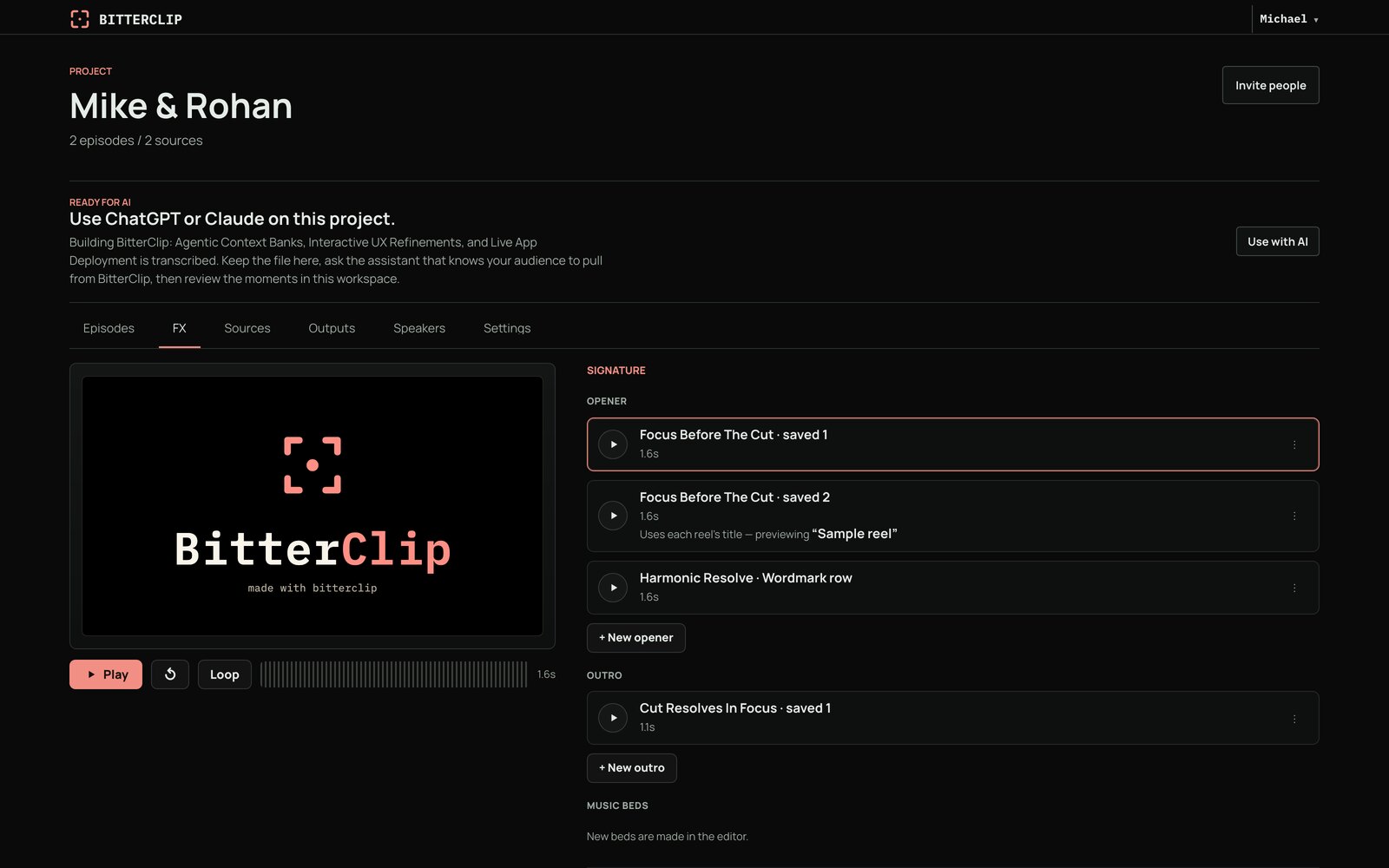
**Signature Studio is the full-screen lab.** Audition motion and sound
together, tune the beat until it lands, and save the result to your identity
library. The library lives at your account level — build the look once, set
it as the default for a project, and every future render carries it.
**And it survives all the way to the file.** This isn't a preview skin. The
opener, the outro, the title, the captions — they're rendered into the MP4
you download or publish, through the same pipeline that cuts the clip
itself.
## The part we're most excited about: your assistant can design it
Here's the thing we built underneath, and it's the reason this release exists.
Motion design in BitterClip isn't a template picker. Every effect is a small
piece of real code — a scene with a stage, elements, and motion keyed to time
and sound. Which means something interesting: **a model can write one.**
[Connect ChatGPT or Claude](/docs/assistants/overview), hand it your logo,
and describe the vibe —
"minimal, confident, dark, one pulse of color when the wordmark locks in."
Your assistant ingests the asset, writes your brand pack, and then writes the
scene itself. It previews actual frames of its own work, looks at them,
revises the code, and previews again — the same loop a motion designer runs,
compressed into your conversation. When it feels right, it saves the result
as your project's opener.
We watched an AI assistant that had never seen these tools before take a
logo and a one-line brief and produce a working signature opener —
full-frame stage, wordmark resolving on the beat, motion locked to the
soundtrack — end to end, in one conversation.
Why build it this way instead of shipping a hundred templates? Because
templates are frozen at whatever taste we had the day we made them, and
models get better every quarter. Effects-as-code means the ceiling on your
opener is the ceiling on your assistant — and that ceiling keeps moving up.
You bring the taste and the yes/no. The assistant brings the hands.
*Want to see it on your own show? [Connect your assistant](/docs/assistants/overview)
and ask for an opener.*
## Built with our design partners
This release didn't come from a roadmap. It came from early customers who
kept telling us what a finished show actually needs.
**Frontier Studio** pushed us hardest here — Rohan, who hosts the
[Founder-Led Podcast](https://www.youtube.com/@rohan_karunakaran), is the
reason we leaned into signatures at all. When we offered to start
experimenting with his show's raw footage, he texted back:
> Read my mind. MVP for a podcast: 30-sec sizzle intro hook, tightly
> edited, light audio/color grading on full episode. As close to
> one-shotted thumbnail & title, description template based on library
> template. Click to publish.
That text is the bar this release is built against: the hook, then the
signature, then the episode — the whole broadcast package, produced for
every episode, with taste applied once and carried automatically. "Does
this feel like a real show?" was the question every effect had to survive.
**Andrew** of [Strength & Positions](https://www.strengthandpositions.com/)
coaches in person and films every session. The highlight reels
he sends his clients aren't marketing — they're part of the coaching: a
condensed memory of the session's best work, something a client holds onto
between visits. Reel after reel, they become a running record of progress,
and that continuity *is* the relationship. What Andrew asked of us is that
each reel feel like part of that ongoing story — same look, same care, an
episode of something the client is in — rather than a loose file in a text
thread.
If you're producing a show or building a client business on recorded
sessions and want to push on BitterClip with us, we'd love to hear from you.
## Getting the finished thing out
One more piece, because a signature clip that's stuck inside a tool isn't
finished: you can now mint a **public download link** for any rendered
output. It's a direct MP4 URL that expires (7 days by default, up to 14) —
hand it to a client, drop it into a Zapier flow, feed it to a captioning or
scheduling tool. No integration required on their side; if it can fetch a
URL, it can take your clip. Ask your assistant for "a public link to that
render" and it's done.
*Know what mattered in the recording — then make it look like yours.*
---
# Showbrew vs Descript vs OpusClip
Source: https://showbrew.com/compare
A workflow comparison of source-linked understanding, full production control, and high-volume social clipping. See the canonical page for the current comparison and official sources.
---
# Showbrew vs CapCut: Phone Edits vs Finished Episodes
Source: https://showbrew.com/compare/capcut
Description: CapCut is the best free phone editor for short-form. Showbrew finishes recorded conversations into episodes and clips. Which one fits your week.
Canonical HTML page: https://showbrew.com/compare/capcut
CapCut is the best free phone editor for short-form. Showbrew finishes recorded conversations into episodes and clips. Which one fits your week.
Stay with CapCut if you make short videos on your phone — the templates, effects, and one tap to TikTok are the point, and much of it is free. Come to Showbrew if you record people talking for an hour or two and the hard part is turning that into a finished episode plus clips, again next week. Record the session in the browser or bring the file you already shot, then edit by deleting words in the transcript, or by asking for the change in ChatGPT or Claude.
Where CapCut wins: A free, deep, genuinely fun phone editor wired straight into TikTok.
## Quick verdict
**Showbrew:** Pick Showbrew when the hard part is finishing the recording, not shooting it. Record camera and mic straight into the project from a browser, or bring footage from your phone, Zoom, Riverside, or a camera, cut it by deleting words in the transcript, and every clip remembers where it came from — one click jumps back to that spot in the full recording. Creator starts with a card-required seven-day trial at $0 today, then costs $24/month unless canceled before the trial ends; Producer is $99/month.
**CapCut:** Pick CapCut when the video starts on your phone and the look is the point. The template, effects, and sound library is enormous, much of it free, and TikTok is one tap away. The March 2026 restructure put Pro at $19.99/month; the new Standard tier's price appears only in the in-app subscription page.
## Comparison
| What you're comparing | Showbrew | CapCut | Edge |
| --- | --- | --- | --- |
| Cutting a rambling tangent | **Delete the words.** Select the tangent in the transcript, hit delete, and the video is really cut — on the word. | **Desktop, one clip at a time.** Right-click a clip on desktop, generate its transcript, edit the text, and the media follows. | Showbrew |
| Asking for a change instead of making it | **Just ask.** Ask in ChatGPT, Claude, or the editor's own chat panel, and a real edit comes back. | **Not on offer.** capcut.com documents no public API, automation surface, or agent feature; editing happens inside CapCut's apps. | Showbrew |
| When the first cut is wrong | **Fix the cut you have.** Say what's off and the same cut changes; undo works all the way back. | **Open it and polish.** Preview the generated short, then open "Edit more" for manual work before export. | Showbrew |
| Deciding which moments are worth clipping | **You pick.** No mystery score ranks your moments — you or your assistant point at them. | **The scene detector picks.** It reads changes in visuals, audio, and context, then builds shorts with auto subtitles. | Even |
| A session you shot on two cameras | **Compose up to five.** Solo, two-up, picture-in-picture, speaker rail, or grid — switching cameras never disturbs the audio. | **It points at Premiere.** No documented multicam; CapCut's own guides walk you through Premiere Pro, Final Cut, and Resolve. | Showbrew |
| The word it heard wrong | **Fix that one word.** Active-word highlight, your own placement and accent color, and per-word fixes for misheard words. | **Fix the block.** Auto Captions run on web, desktop, and mobile, corrected one caption block at a time. | Showbrew |
| Making the vertical version | **One tap, timing intact.** The vertical version carries the captions and timing across, framed on a focal point. | **Feed it the long file.** Its long-video-to-shorts tool makes portrait clips with auto subtitles from your files, Drive, or Dropbox. | Even |
| Getting the session recorded | **Record in the browser.** Camera and mic from a laptop or phone browser, up to 1080p, transcribed the moment you stop. | **Records on the phone.** The mobile app shoots straight into an edit, with the phone's own camera and effects. | Even |
| Editing away from your desk | **Works in a phone browser.** Nothing to install and it opens on a phone, but the phone is not where it shines. | **Made for the phone.** Full mobile and tablet apps, and one-tap TikTok publishing lives only there. | CapCut |
| Getting the finished cut to someone else | **A link anyone can open.** 1080p download, review links that need no account, YouTube publishing behind a final confirm. | **One tap to TikTok.** Share to TikTok, YouTube, and Facebook; desktop documents up to 4K at 60fps, device permitting. | CapCut |
| Knowing what you'll pay | **Trial terms, printed.** Creator shows $0 today and the scheduled $24 monthly price; once the payment method is accepted and the trial starts, Billing shows your exact cancel-before time. Producer is $99/month. | **Look in the app.** Pro is $19.99/month or $179.99/year; Standard's price appears only in-app and varies by region. | Showbrew |
## Choose Showbrew when
- You record long conversations — podcasts, coaching sessions, webinars — and every one of them has to come out as a finished episode plus clips, week after week.
- You'd rather delete a sentence in the transcript than hunt for it on a timeline, and you want the cut to land on the word instead of clipping the first syllable.
- You want to ask for the edit — in ChatGPT, in Claude, or in the editor — and get back an ordinary edit you can keep changing by hand or undo exactly.
- You want to prop your phone up and record straight into the project — one person, from the browser, with the take already transcribed when you stop — as well as bring in sessions you shot elsewhere.
- You shoot two to five cameras and want them composed, with clean switching, without exporting to Premiere.
- You want trial terms on the page: card required, $0 today, seven days, and $24/month afterward unless you cancel before the trial ends.
## Choose CapCut when
- You make short videos on your phone. CapCut's mobile and tablet apps are the real thing, and one-tap TikTok publishing lives only there.
- You want the templates, effects, stock, and sound in one place. The library is enormous and much of it is free.
- You need exports above 1080p: CapCut desktop documents up to 4K at 60fps, device permitting, while Showbrew renders 1080p.
- You'd rather the machine picked the moments. CapCut's scene detection builds shorts with subtitles and you polish from there.
- You edit now and then and don't want a subscription at all. The free tier is a genuinely capable editor.
## The fine print (from CapCut's own pricing and terms)
### What you agree to when you upload
CapCut's terms grant it an "unconditional, non-exclusive, royalty-free, fully transferable, sub-licensable, perpetual and worldwide license" to use your content — scoped "for the purposes of operating, developing and providing the Services, subject to your Platform settings." A separate clause licenses your username, image, and likeness to identify you as the source of your content, "including for use in sponsored content."
Source: [CapCut Terms of Service](https://www.capcut.com/clause/terms-of-service)
### Cancelling takes effect next month, not today
CapCut's own comparison page states that cancellations in the current month "will take effect from the following month and cannot take effect in the current month." A 14-day refund policy applies to Premium Services under the terms.
Source: [CapCut: Standard vs Pro](https://www.capcut.com/resource/capcut-standard-vs-pro)
### Pro credits expire every month
Subscription credits are valid for one subscription month and do not roll over. Purchased top-up credits last two years and "cannot be refunded or exchanged to cash," transferred between accounts, or applied toward a Pro plan.
Source: [CapCut credits rules](https://www.capcut.com/clause/credits-rule)
### The dollar figure lives in the app
CapCut's help pages avoid dollar figures: pricing "can vary depending on your region, device, and available promotions," and they send you to the in-app subscription page. The Standard tier introduced in March 2026 has no published price on capcut.com.
Source: [CapCut help: How much does CapCut Pro cost](https://www.capcut.com/help/how-much-does-capcut-pro-cost)
## You recorded ninety minutes. Now what.
It is Tuesday. There is a ninety-minute session — a podcast, a client call, a workshop — either sitting on your drive or recorded straight into the browser, and by Friday it has to be one clean episode and four or five short clips, captioned, on brand, sent. Then the same thing happens next week.
CapCut can get you there. You will do it on a timeline: scrub, split, delete, scrub back, then find the same tangent a second time because the first cut clipped a syllable. Desktop transcript editing helps — right-click a clip, generate the transcript, edit the text, the video follows — but it is one tool tucked inside a consumer editor, not the way the app thinks.
Showbrew starts from the words. However the session got there, it arrives as prose you can read. Select the tangent, hit delete, and the video is genuinely cut — on the word, not near it, because the edit is worked out against the actual audio. No clipped syllables. No half-swallowed first word. And in October, when someone asks where a line came from, one click puts you back at that exact spot in the full recording.
## You can record it here too
The session does not have to arrive from somewhere else. Every project has a browser recorder: "Record in browser" on the Sources tab, or "Record here" in the editor's insert sheet, where the finished take drops into the edit at the playhead. Prop your phone up, or sit at a laptop, and it captures camera and mic — or your screen, in desktop Chrome — up to 1080p. It uploads in short chunks as you record, so nothing large is stranded on your device, the page shows you how much is already safely uploaded, and transcription starts the moment you press stop.
Know what it is not. One person, one device, signed in: no guest recording links, no separate track per participant, no 4K, no local backup copy if the network goes bad. It is not a remote interview studio. If your guest is somewhere else, record them in a tool built for that and bring the files in — that path is still completely normal, and for most people it is still the common one. Recording also needs billing on the account when transcription is switched on.
## Say what you want changed
The other difference is how you give the instruction. In CapCut you click. In Showbrew you can click too, or you can just ask — in ChatGPT, in Claude, or in the editor's own chat panel: cut the tangent around 14:20 and tighten the intro. What comes back is an ordinary edit. Open it, drag it, change your mind, undo it, all the way back. Anything you can click, you can ask for, and nothing your assistant does lands somewhere you cannot reach by hand.
Nothing scores your moments, either. CapCut's shorts tool watches for changes in visuals, audio, and context and decides what counts as a highlight. Showbrew has no such thing, on purpose. You point at the moment, or you describe what you are after and search everything you have recorded by what was said, who said it, or what was on screen.
## Keep CapCut for what it is genuinely great at
CapCut is a good editor and it is free. For short video made on a phone — trending templates, effects, sound, one tap to TikTok — it is the default for real reasons, and none of the above is an argument against it. If that is the work, stay where you are.
The switch is worth considering when the shape of the week changes: you are not making one short any more, you are finishing a recording, and then another recording. Creator's card-required seven-day trial lets you bring one recording up to two hours and use $5 of agent work for analysis, the First Cut, and continued direction. Trial exports are watermarked. It is $0 today, then $24/month unless canceled before the trial ends.
## FAQ
### Is CapCut worth it in 2026?
Yes, if you make short videos on your phone — the free tier is a real editor and the template and effects library is deep. If your raw material is an hour of people talking, the math shifts: Pro is $19.99/month after the March 2026 restructure, its AI credits expire monthly with no rollover, there is no multicam and no way to drive it from a chat, and transcript editing is desktop-only.
### What is the best CapCut alternative for podcasts and talking-head video?
Showbrew, if your work starts with a recording. Record it in the browser or bring the session in from your phone, Zoom, Riverside, or a camera, cut it by deleting words in the transcript, and every clip remembers exactly where in the recording it came from. CapCut stays the better pick for effects-heavy short-form made on a phone.
### Does Showbrew record, or do I have to bring footage?
It records. Every project has a browser recorder: "Record in browser" on the Sources tab, and "Record here" in the editor's insert sheet, which drops the finished take into the edit at the playhead. It captures camera and mic on a laptop or a phone browser, or your screen in desktop Chrome, up to 1080p, and it uploads in short chunks while you record so transcription can start the second you press stop. Here is the boundary: one person, one device, signed in. There are no guest recording links and no separate track per participant — one session is one merged file. To record a guest over the internet, use a tool built for remote interviews and bring the files in; bringing footage you shot elsewhere is still completely normal.
### Does CapCut own your videos?
No. CapCut has stated it "has never claimed ownership of users' work," and the license's stated purpose is operating, developing, and providing the Services. That license is still unconditional, fully transferable, sub-licensable, perpetual, and worldwide, and a separate clause licenses your username, image, and likeness, including for use in sponsored content. Read both clauses before you upload a client's footage.
### Does CapCut have an API or agent support?
No. capcut.com documents no public API, Zapier or Make integration, automation surface, or agent feature. Showbrew works the other way round: anything you can click in the editor, you can ask for in ChatGPT, Claude, any MCP client, the editor's own chat panel, or the command line.
### Is CapCut still owned by ByteDance?
In the U.S., partly. CapCut's U.S. operations were folded into the TikTok USDS Joint Venture, which closed on January 22, 2026 — majority U.S.-owned, with Oracle, Silver Lake, and MGX each holding about 15% and ByteDance retaining 19.9%. The joint venture's data and oversight safeguards explicitly extend to CapCut.
### Is Showbrew free?
There is no permanent free plan. Creator begins with a card-required seven-day trial: $0 today, then $24/month unless canceled before it ends. Bring one recording up to two hours; the trial includes $5 of agent work for analysis, the First Cut, and continued direction. Trial exports are watermarked.
## Sources
- [CapCut homepage](https://www.capcut.com/)
- [CapCut Terms of Service (updated April 15, 2026)](https://www.capcut.com/clause/terms-of-service)
- [CapCut: About CapCut's Terms of Service (ToS explainer)](https://www.capcut.com/resource/about-capcut-terms-of-service)
- [CapCut credits rules](https://www.capcut.com/clause/credits-rule)
- [CapCut: Standard vs Pro comparison](https://www.capcut.com/resource/capcut-standard-vs-pro)
- [CapCut help: New CapCut subscription pricing](https://www.capcut.com/help/new-capcut-subscription-pricing)
- [CapCut help: Pricing change (March 25, 2026)](https://www.capcut.com/help/pricing-change)
- [CapCut help: How much does CapCut Pro cost](https://www.capcut.com/help/how-much-does-capcut-pro-cost)
- [CapCut resource: Transcript-based editing](https://www.capcut.com/resource/edit-video-with-text)
- [CapCut tool: AI long video to short video](https://www.capcut.com/tools/ai-long-video-to-short-video)
- [CapCut help: Auto captions](https://www.capcut.com/help/auto-captions-in-capcut)
- [CapCut resource: Multicam editing guide](https://www.capcut.com/resource/multicam-editing)
- [CapCut help: Linking TikTok with CapCut](https://www.capcut.com/help/how-to-link-tiktok-with-capcut)
- [CapCut help: No 2K/4K export option](https://www.capcut.com/help/no-2k-or-4k-option-for-export)
- [TikTok newsroom: USDS Joint Venture announcement](https://newsroom.tiktok.com/announcement-from-the-new-tiktok-usds-joint-venture-llc)
Facts about CapCut were last reviewed 2026-08-17.
---
# Showbrew vs Captions: Finish What You Actually Recorded
Source: https://showbrew.com/compare/captions
Description: Captions styles short vertical video shot on a phone. Showbrew turns a whole recorded session into a finished cut and clips. Which one you need.
Canonical HTML page: https://showbrew.com/compare/captions
Captions styles short vertical video shot on a phone. Showbrew turns a whole recorded session into a finished cut and clips. Which one you need.
Stay with Captions if you shoot short vertical video on your phone — it styles a clip faster than you could by hand. Come to Showbrew if you record real conversations: podcasts, coaching calls, workshops, anything from 20 minutes to 2 hours. Captions runs out of room there — the manual editor stops at 10 minutes and AI Edit takes one to two minutes of footage — while Showbrew takes the whole session and hands back a finished cut plus vertical clips.
Where Captions wins: The fastest way to style a short vertical video on your phone.
## Quick verdict
**Showbrew:** Showbrew is where your recordings become finished episodes and clips. Record straight into a project from your browser, or bring footage from anywhere — phone, Zoom, Riverside, a camera — and a long session turns into a full cut and vertical clips you can keep changing. Cuts land on the word, undo works all the way back, and anything you can click you can also just ask for in ChatGPT or Claude.
**Captions:** Captions, now made by Mirage, is a phone-first video app. It records, captions, and styles short vertical clips with almost no manual work, and it has bet hard on AI avatars and generated video. The iPhone app is the real product: the manual editor caps projects at 10 minutes, and AI Edit accepts at most 2 minutes of single-speaker vertical footage.
## Comparison
| What you're comparing | Showbrew | Captions | Edge |
| --- | --- | --- | --- |
| Getting the footage in the first place | **Record in the browser.** Camera and mic from a phone or laptop, or upload footage you shot elsewhere. | **Records on your phone.** The iOS app records in-app with a teleprompter and edits without leaving the app. | Captions |
| When the conversation ran ninety minutes | **That's the normal case.** A 20-minute-to-2-hour session comes in whole, and you cut from all of it. | **You hit the ceiling fast.** The manual editor caps at 10 minutes; AI Edit takes 2 minutes on iOS, 1 on web. | Showbrew |
| Cutting out a rambling answer | **Delete the words.** Select the sentence in the transcript, delete it, and the cut lands on the word. | **No editing by transcript.** You correct caption wording phrase by phrase in a side panel; the video isn't cut from it. | Showbrew |
| When the first cut is wrong | **Fix the cut you have.** Say what's off and the same cut changes; undo works all the way back. | **Undo it or roll again.** Revert AI Edit cuts one at a time, or re-run the style at 10 to 40 credits a pass. | Showbrew |
| Asking for an edit instead of clicking for it | **Ask instead of click.** In ChatGPT, Claude, any MCP client, or the editor — same edits, same result either way. | **Chat editing on the top plan.** Captions has a chat editor on Max and a public API for captioning and generation. | Showbrew |
| Two or three cameras on one conversation | **Cut between five angles.** Two-up, picture-in-picture, speaker rail or grid — switching never disturbs the audio. | **One speaker, raw footage.** AI Edit requires single-speaker unedited video, and no multicam appears in the docs. | Showbrew |
| Working at a desk rather than on a phone | **Same editor everywhere.** It runs in any browser with nothing to install, and it works from a phone browser. | **The iPhone app is the product.** Their own docs list what web is missing — manual trimming, text, keyframes, transitions. | Showbrew |
| A styled vertical clip in the next ten minutes | **One tap for the vertical.** Any landscape cut gets a 9:16 version with captions and timing carried across. | **Posted before you've decided.** Short single-speaker vertical footage comes back styled with almost no manual work. | Captions |
| Wanting a presenter you never filmed | **Only footage you recorded.** Showbrew doesn't generate presenters, and no mystery score picks your moments either. | **That is the whole bet.** Avatars, digital twins, and prompt-to-video sit at the center of the Mirage product. | Captions |
| What the monthly bill looks like | **Trial, then source-footage hours.** Creator is $0 today, then $24/month after seven days; paid Creator includes 10 source-footage hours and $10 of included agent work. | **Credits burn per feature.** Max is $24.99 for 500 credits, and unused credits are forfeited when you cancel. | Even |
## Choose Showbrew when
- Your recordings are real sessions — a podcast episode, a coaching call, a workshop — and each one needs a full cut and a few vertical clips.
- You want to say "cut the tangent at 14:20 and tighten the intro" in ChatGPT or Claude, then open the result in the editor and keep going by hand.
- You film with more than one camera and want to cut between angles without the audio taking a hit.
- You want to find a moment by what was said, who said it, or what was on screen — and click straight back to that spot in the full recording.
- You'd rather fix the cut you have than roll the dice on a new one.
## Choose Captions when
- You shoot on an iPhone and want to record, style, and post from one app. That app is the best version of Captions, teleprompter and all.
- You want an avatar or a digital twin presenting for you. Generated video is the company's core bet; Showbrew only works with footage you actually recorded.
- Your videos are vertical, one person, and under two minutes, and you want them styled with almost no manual work.
- You need captions and translation across 100+ languages for fast social output.
- You post every day, and finished-in-minutes matters more to you than being able to go back and change it later.
## The fine print (from Captions's own pricing and terms)
### Cancel or downgrade and your credits are gone
Captions' help docs say it plainly. On downgrade, "Balance is immediately reduced to the new plan's cap. Any excess credits are forfeited." On cancellation, "All remaining credits are forfeited at the end of the billing period." Rollover caps at three times your monthly allowance.
Source: [Captions help — AI usage and credits](https://captions.ai/help/docs/ai-usage)
### The prices you see are the iPhone prices
The fine print on Captions' own pricing page reads "Features and prices reflect iOS plans only." Their feature-availability docs list what the web editor is missing: manual trimming, text, keyframes, and transitions, among other tools.
Source: [Captions pricing page (fine print)](https://www.captions.ai/pricing)
### The license you grant covers what you upload and what comes out
You keep ownership of your content — and you grant Mirage a royalty-free, sublicensable license to host, reproduce, modify, and create derivative works from both your input and your output, scoped "to provide the Services, to improve the Services, and to develop new services and products." The license survives termination of the terms.
Source: [Captions Terms of Service, section 2.2](https://mirage.app/legal/captions-terms)
### Your footage can train their models unless you're on Enterprise
Mirage's privacy policy states user information is used to "train our artificial intelligence/machine learning models," and describes no self-serve opt-out. Training-data exclusion appears on the pricing page as an Enterprise plan feature.
Source: [Mirage privacy policy](https://mirage.app/legal/privacy-policy)
## The day your recording stops fitting
You finished a 70-minute conversation. It was good. Now it's sitting on a drive, and somewhere in it are the twelve minutes worth keeping and four clips worth posting — and you have no idea which twelve minutes.
Captions can't take that file the way you'd hope. Its manual editor caps projects at ten minutes. AI Edit wants at most two minutes on iOS, one on web, single speaker, vertical, unedited. AI Shorts will chop a long video into bite-sized pieces, though not on desktop. Those limits aren't bugs. They describe what the product is for: making one short talking video look styled, fast. It is genuinely good at that, and if that's your work, stop reading.
Showbrew starts where that stops. The whole recording goes in — phone, Zoom, Riverside, a camera, or recorded straight into the project from your browser — and you cut from all of it. That last one is worth a sentence: prop your phone up, hit record in the project, and the take uploads while you talk and arrives already transcribed. It's one person from one browser, not a remote interview studio. You read the transcript, select the sentence where the tangent starts, delete it, and the video loses that stretch. Cuts land on the word, not near it, because they resolve against the actual audio: no clipped syllables, no half-swallowed first word. When you have the landscape cut, one tap makes the vertical version, captions and timing carried across. Every clip remembers where it came from, so one click jumps back to that spot in the full recording.
## What changing your mind costs
This is the part you feel on a Tuesday afternoon, on the fourth pass.
In Captions, refinement has a price list. You can revert AI Edit cuts one at a time or re-run with a different style, which costs 10 to 40 credits a pass. On desktop, correcting a misspelled word regenerates the whole video for about a credit. The loop is: don't like it, generate again, pay again, hope.
In Showbrew you fix the cut you have. Say what's wrong and that same cut changes. Undo works all the way back. A review link you sent always plays the exact version the other person watched, so nobody argues about which version they saw. And no mystery score decides which moments are good — you pick, or you tell your assistant what to pick.
## Two companies, two bets
In September 2025, Captions rebranded as Mirage, an AI video research lab, and folded Mirage Studio into the creator product. The bet is generated video: avatars, digital twins, prompt-to-video. If you want a presenter made for you, that's the right shop, and Showbrew isn't in that business at all.
Showbrew bets the other way. The sessions you already recorded are the asset, and the work is finishing them. So the editing happens wherever you already are — in ChatGPT, in Claude, or right in the editor. Anything you can click, you can ask for. "Cut the tangent at 14:20 and tighten the intro" comes back as a normal edit: open it, keep going by hand, or undo it.
## FAQ
### Is Captions worth it?
Yes, if you shoot short vertical video on your phone — the iOS app records, captions, and styles a clip faster than you would by hand. No, if your recordings are long: AI Edit accepts at most two minutes of footage and the manual editor caps projects at ten minutes. A 45-minute call hits that wall immediately.
### What is the best Captions alternative?
Showbrew, if you're leaving because a 10-minute editor and a credit meter don't fit real recordings. A whole session goes in; a finished cut and vertical clips come out, and you can keep changing them. If what you want is a different avatar or short-form generator, there are several.
### Can I edit Captions' AI output?
Partly. Their docs let you revert individual AI Edit cuts, edit timeline elements, or re-run with a different style — but a spelling correction on desktop regenerates the entire video and costs about a credit. In Showbrew, a fix is just an edit, and undo works all the way back.
### Does Showbrew record video like Captions does?
Yes, but not the same way. Every project has a recorder — 'Record in browser' on the Sources tab, or 'Record here' in the editor's insert sheet, which drops the finished take into the edit at the playhead. It captures camera and mic on a laptop or a phone browser, or your screen in desktop Chrome, up to 1080p, uploading in chunks as you go so transcription starts the moment you press stop. The boundary: one person, one device, signed in. No remote guests, no guest recording links, no separate per-participant tracks, no teleprompter, no native iOS app. For recording a guest over the internet, a dedicated remote-recording tool is better, and if a phone teleprompter is the part you need, that is a real Captions advantage. Bringing footage you shot elsewhere is still completely normal.
### Can Showbrew handle long videos?
Long recordings are the whole point. A session of roughly 20 minutes to 2 hours becomes one project you cut a full edit and vertical clips from. Captions' AI Shorts can chop a long video into short clips, but its manual editor caps projects at 10 minutes and AI Edit accepts one to two minutes of footage.
### Which is more affordable, Showbrew or Captions?
They charge for different things, so price it against what you actually make. Showbrew Creator is $0 today during a card-required seven-day trial, then $24/month unless canceled before the trial ends; paid Creator includes 10 source-footage hours and $10 of included agent work. Producer is $99/month with 40 source-footage hours, $40 of included agent work, and priority rendering. Captions' Max plan is $24.99 for 500 credits that burn per feature use; its free plan has no watermark but limits you to basic tools, and unused credits are forfeited when you cancel.
## Sources
- [Captions pricing page](https://www.captions.ai/pricing)
- [Captions help — AI usage and credits](https://captions.ai/help/docs/ai-usage)
- [Captions help — AI Edit requirements and limits](https://captions.ai/help/docs/project/ai-edit)
- [Captions help — feature availability by platform](https://captions.ai/help/docs/feature-availability)
- [Captions help — editing caption spelling](https://captions.ai/help/docs/captions/edit-spelling)
- [Captions help — subscriptions and plans](https://captions.ai/help/docs/subscriptions)
- [Captions help — API overview](https://captions.ai/help/docs/api/overview)
- [Captions feature page — add captions to videos](https://captions.ai/features/add-captions-to-videos)
- [Captions feature page — AI Shorts](https://www.captions.ai/features/ai-shorts)
- [Captions Terms of Service (mirage.app)](https://mirage.app/legal/captions-terms)
- [Mirage privacy policy](https://mirage.app/legal/privacy-policy)
- [Introducing Mirage — Captions rebrand announcement](https://captions.ai/blog/introducing-mirage-the-future-video-starts-now)
Facts about Captions were last reviewed 2026-08-17.
---
# Showbrew vs Descript: Editing Without the Credit Meter
Source: https://showbrew.com/compare/descript
Description: Descript records and edits in one app. Showbrew records in the browser and finishes recordings you bring — and fixing a cut doesn't cost credits. Which one fits your week.
Canonical HTML page: https://showbrew.com/compare/descript
Descript records and edits in one app. Showbrew records in the browser and finishes recordings you bring — and fixing a cut doesn't cost credits. Which one fits your week.
Stay with Descript if you want to record remote guests and your screen in the same place you edit. Pick Showbrew if you record straight into the project from a browser, or show up with footage already recorded, and need a finished episode plus a few vertical clips out of every session — editing by asking, in ChatGPT, Claude, or the editor. And if what's bothering you is the retry meter: changing your mind about a cut isn't a billable event here.
Where Descript wins: It invented transcript editing, and it records your session too.
## Quick verdict
**Showbrew:** Showbrew is where your recordings become finished episodes and clips. Record straight into the project from your browser — one person, camera and mic, or your screen in desktop Chrome — or bring a file from anywhere, then edit by selecting words in the transcript or just asking for the change — and every clip remembers where it came from, one click back to that spot in the full recording. Paid plans include source-footage hours and agent work; manual changes do not mint a new charge.
**Descript:** Descript records you, captures your screen, and edits the result in one app — and it invented transcript editing, which it still does better than almost anyone. Underlord, its AI co-editor, takes feedback and leaves you a normal project you can keep editing by hand. Since September 2025, plans count media minutes plus AI credits, and neither carries over to next month.
## Comparison
| What you're comparing | Showbrew | Descript | Edge |
| --- | --- | --- | --- |
| Getting the recording in the first place | **Records in the browser.** One person, camera and mic or desktop-Chrome screen, uploading as you go — no remote guests. | **Records you, screen and all.** Remote sessions and screen capture happen in the same app you edit in. | Descript |
| Everything else you might want to do to a video | **Recorded conversations only.** Built for sessions you recorded, not for every kind of video you might make. | **The biggest toolkit here.** Voice cloning to patch a flubbed line, script collaboration, 4K export on Creator and up, and 1–5 seats. | Descript |
| Asking for an edit instead of clicking it | **Ask anywhere, edit anywhere.** ChatGPT, Claude, the editor, or any MCP client — anything you can click, you can ask for. | **Ask inside the app.** Underlord edits from within Descript; a connector lets outside assistants import, transcribe, and run Underlord. | Showbrew |
| When the first cut is wrong | **Fix the cut you have.** Give it feedback instead of rolling the dice again, and undo works all the way back. | **Every retry costs credits.** Underlord takes feedback, but each prompt spends more credits — the thinking plus any tool it runs. | Showbrew |
| Whether the cut lands on the word | **Lands on the word.** No clipped syllables, no half-swallowed first word — cuts resolve against the actual audio. | **It invented transcript editing.** Delete words in the document and the timeline follows. Mature, and still excellent. | Even |
| Deciding which moments are worth clipping | **No mystery score.** You pick; search finds the moments by what was said, who said it, or what was on screen. | **It picks for you.** Create clips generates 1–20 clips at lengths you set, dressed with captions, music, and b-roll. | Even |
| When more than one camera was rolling | **Up to five cameras.** Solo, two-up, picture-in-picture, speaker rail, or grid — and switching never disturbs the audio. | **Switches speakers, with caveats.** Automatic switching needs multi-track sequences; Descript's docs warn non-overlapping tracks can produce blank scenes. | Showbrew |
| Getting the vertical version out | **One tap, captions carried.** The 9:16 version keeps your captions and timing, with fill or fit framing around a focal point. | **Presets for every shape.** Portrait 9:16 and square 1:1 presets in Create clips, plus extra layout packs. | Even |
| What you pay for when you keep tweaking | **Tweaking is free.** Paid plans include source-footage hours and agent work; changing the same cut by hand does not mint another plan charge. | **The meter runs on retries.** Running the same tool twice charges the same twice, and unused minutes and credits expire monthly. | Showbrew |
| Working somewhere that isn't your desk | **Opens in a browser.** Nothing to install, and it works from a phone browser when you need it to. | **Desktop or web.** macOS and Windows apps plus web; phones can upload media, capped at 250 MB per file. | Showbrew |
## Choose Showbrew when
- You already have the footage — phone, Zoom, Riverside, a camera — or you record it in the browser right there, and you need the same thing out of every session: a full cut and a few vertical clips.
- You'd rather say what you want changed than go hunting for it. Ask in ChatGPT, Claude, or the editor, and what comes back is a normal edit you can keep changing by hand or undo.
- You're tired of paying to try again. What gets counted here is footage in and finished files out, not attempts.
- You want cuts that land on the word — no clipped syllables, no half-swallowed first word — and every clip remembering the spot it came from.
- Picking the moments is your call. Search everything you've recorded by what was said, who said it, or what was on screen, and no mystery score decides for you.
## Choose Descript when
- You record inside your editing tool — remote sessions, screen capture, a camera — and want it all in one app. That is Descript's home turf. Showbrew's browser recorder is one person on one device, with no way to bring a guest in over the internet.
- You'd rather patch a flubbed line than say it again. Voice cloning is Descript's, not Showbrew's.
- You write and revise scripts with other people in the same document, and the editing follows the script.
- Your work spans every kind of video, not just recorded conversations — Descript's general toolkit is the broadest of anyone here.
- You need 4K or seats for a team: Descript's Creator plan and up export 4K, Creator includes 1–3 seats, and Business goes up to 5. Showbrew renders 1080p.
## The fine print (from Descript's own pricing and terms)
### Monthly minutes and credits don't roll over
On current Descript plans, unused media minutes and AI credits do not roll over month to month. Top-ups are consumed only after the monthly allowance runs out, roll over for up to 12 months from purchase, then expire — and they are non-refundable.
Source: [Descript Help — Top-Ups](https://help.descript.com/hc/en-us/articles/40053604160909-Top-Ups-Buy-Additional-Media-Minutes-and-AI-Credits)
### Re-running an AI tool bills you again
Descript's metering docs state that running the same input twice results in the same charge twice. Underlord prompts are charged per attempt — the "agent brain" reasoning plus any tool it applies on your behalf — and the same prompt can cost different amounts on different runs.
Source: [Descript Help — Media minutes and AI credits](https://help.descript.com/hc/en-us/articles/27841674958221-Track-and-understand-your-media-minutes-and-AI-credits)
### What the terms say about your content
Section 8.2 grants Descript a perpetual, irrevocable, worldwide license to user content — stated as subject to Section 9's usage limitations and confidentiality obligations. Section 8.4(e) lets Descript use your Input and Output to train its own models unless you opt out, while its third-party AI providers are contractually barred from training on that data. Section 17 says that on termination of access, Descript deletes stored user content — backups are solely your responsibility. Read it and weigh it yourself.
Source: [Descript Terms of Service](https://www.descript.com/terms)
### What cancelling actually does
Cancel and your plan runs to the end of the billing cycle, then the account drops to Free. Projects stay accessible, but features from the previous plan that aren't in Free stop applying — and Free exports are 720p with a watermark.
Source: [Descript Help — Downgrade or cancel a subscription](https://help.descript.com/hc/en-us/articles/10255894257037-Downgrade-or-cancel-a-subscription)
## The recording went great. Now it's Sunday.
You have ninety minutes of good conversation and three hours of work in front of you. That is the actual problem on this page. Descript and Showbrew both go after it — they just start from opposite ends.
Descript starts at the microphone. It records you, records your screen, records the person on the other end of the call, and drops all of it into an editor that reads like a document. It invented that document. Delete a sentence in the transcript and the video loses the sentence, and years later Descript is still the best version of that idea. [Underlord](https://www.descript.com/underlord), its AI co-editor, takes feedback and leaves you a normal project you can keep editing by hand. Descript even lets assistants outside the app reach in to import, transcribe, and run Underlord — [their docs cover it](https://help.descript.com/hc/en-us/articles/46056322186509-Descript-MCP-overview). That is more than most editors offer, and it deserves saying plainly.
Showbrew starts at the file — including one it records for you. Every project has a browser recorder in it: "Record in browser" from the Sources tab, or "Record here" in the editor's insert sheet, where the finished take lands at the playhead already transcribed. Prop your phone up and talk, and the take is in the edit. It captures camera and mic on a laptop or phone, or your screen in desktop Chrome, up to 1080p, uploading in short chunks as you go so nothing large sits on your device. It is one person on one device, signed in — no remote guests, no guest links, no separate tracks per person. If you need to record someone over the internet, use a tool built for that. And bringing what you already shot — phone, Zoom, Riverside, a camera card — is still the common case, and everything after that is the product.
## Editing by asking
The difference you feel daily is what "just ask for it" gets you. In Showbrew, anything you can click, you can ask for. Say "cut the tangent at 14:20 and tighten the intro" in ChatGPT, in Claude, or in the panel beside the editor, and what comes back is an ordinary edit. Open it, nudge the in-point by hand, undo it. There is no separate AI mode with its own rules, and nothing you can only do one way.
## The retry shouldn't be the bill
The first cut is rarely the cut. That is where Descript's September 2025 pricing bites. By [Descript's own metering docs](https://help.descript.com/hc/en-us/articles/27841674958221-Track-and-understand-your-media-minutes-and-AI-credits), running the same input through the same tool twice charges you twice, every Underlord prompt bills for the reasoning plus whatever tools it runs, and unused minutes and credits expire at month end. The help center has a whole article about [how that landed with customers](https://help.descript.com/hc/en-us/articles/40471885821325-Questions-and-concerns-we-ve-heard-from-the-customer-community). None of it makes Underlord bad. It makes trying again cost money.
Showbrew's paid plans include source-footage hours and agent work: Creator is $24/month with 10 hours and $10; Producer is $99/month with 40 hours, $40, and priority rendering. Changing your mind about a cut by hand is not another plan. When the first pass is wrong you fix the cut you have instead of rolling the dice on a new one, and the review link you already sent still plays the exact version they watched.
## Nobody scores your footage
Descript's [Create clips](https://help.descript.com/hc/en-us/articles/10119670449293-Create-clips-from-your-content) will hand you one to twenty clips at whatever length you ask for. Showbrew won't, on purpose — no score decides which of your moments are good. What it gives you instead is a way to find them yourself: search everything you have ever recorded by what was said, who said it, or what was on screen. Cuts land on the word rather than near it, and one click on any clip jumps back to that spot in the full recording. You still pick. That is the part worth keeping.
## FAQ
### Is Descript worth it?
Yes, if you record and edit in the same app — remote recording, screen capture, and transcript editing under one roof is a real thing to pay for. The catch since September 2025 is the meter: media minutes plus AI credits that don't carry over, and a second run of the same tool costing the same as the first.
### What is the best Descript alternative?
Depends which half you're replacing. If you're leaving over the credit meter, or because your week is really about turning recorded sessions into a full episode and a few vertical clips, that's the job Showbrew was built for. If you're leaving because the recording itself isn't good enough, you need a better recorder, not a different editor.
### Can I edit what Descript's AI produces?
Yes. Underlord's edits land in a normal project you can keep editing, and it takes feedback round after round — each round just spends more credits, so iterating has a running cost. In Showbrew an assistant's edit is an ordinary edit: keep changing it by hand or undo it, and what gets counted is footage in and finished files out, not how many times you asked.
### Does Showbrew record?
Yes. Every project has a recorder in it — "Record in browser" from the Sources tab, or "Record here" from the editor's insert sheet, which drops the finished take into the edit at the playhead. It captures camera and mic on a laptop or phone browser, or your screen in desktop Chrome, up to 1080p, and it uploads in chunks while you record so transcription starts the moment you stop. The boundary: one person, one device, signed in. No remote guests, no guest recording links, no separate per-participant tracks. For recording someone over the internet, a dedicated remote-recording tool is genuinely better. And recording wherever you already do — phone, Zoom, Riverside, a camera — then bringing the file is still completely normal.
### Is Showbrew cheaper than Descript?
They charge for different things, so it depends what you make. Showbrew Creator starts with a card-required seven-day trial at $0 today and becomes $24/month unless canceled before the trial ends; paid Creator includes 10 source-footage hours and $10 of included agent work. Producer is $99/month with 40 source-footage hours, $40 of included agent work, and priority rendering. Descript's Hobbyist is $24/month ($16 billed annually) for 600 media minutes and 400 AI credits. Take one real month of your own output and run the numbers on both.
### Can I switch from Descript to Showbrew?
Your recordings move; your timeline doesn't. Descript project files don't transfer, so you bring the original media — and from there every clip you make remembers where it came from, one click back to that spot in the full recording.
## Sources
- [Descript pricing](https://www.descript.com/pricing)
- [Descript homepage](https://www.descript.com/)
- [Descript — Underlord](https://www.descript.com/underlord)
- [Descript Terms of Service](https://www.descript.com/terms)
- [Descript Help — Top-Ups: Buy Additional Media Minutes and AI Credits](https://help.descript.com/hc/en-us/articles/40053604160909-Top-Ups-Buy-Additional-Media-Minutes-and-AI-Credits)
- [Descript Help — Track and understand your media minutes and AI credits](https://help.descript.com/hc/en-us/articles/27841674958221-Track-and-understand-your-media-minutes-and-AI-credits)
- [Descript Help — Create clips from your content](https://help.descript.com/hc/en-us/articles/10119670449293-Create-clips-from-your-content)
- [Descript Help — Automatic multicam](https://help.descript.com/hc/en-us/articles/28736507904525-Automatic-multicam)
- [Descript Help — Upload media from your phone](https://help.descript.com/hc/en-us/articles/38045218292877-Upload-media-from-your-phone-to-Descript)
- [Descript Help — Downgrade or cancel a subscription](https://help.descript.com/hc/en-us/articles/10255894257037-Downgrade-or-cancel-a-subscription)
- [Descript Help — Descript MCP overview](https://help.descript.com/hc/en-us/articles/46056322186509-Descript-MCP-overview)
- [Descript Help — Questions and concerns we've heard from the customer community](https://help.descript.com/hc/en-us/articles/40471885821325-Questions-and-concerns-we-ve-heard-from-the-customer-community)
Facts about Descript were last reviewed 2026-08-17.
---
# Showbrew vs Kapwing: Long Recordings or Social Video?
Source: https://showbrew.com/compare/kapwing
Description: Kapwing is a browser studio for short social video. Showbrew finishes long recordings into full cuts and vertical clips. Which one fits your week.
Canonical HTML page: https://showbrew.com/compare/kapwing
Kapwing is a browser studio for short social video. Showbrew finishes long recordings into full cuts and vertical clips. Which one fits your week.
Pick Kapwing if your videos start as a prompt or a template, and often with two or three people in the same tab. Pick Showbrew if they start as a recording — a podcast, a talk, a client session — and the hard part is turning 90 minutes into a finished episode plus a few vertical clips, every week. The two barely overlap.
Where Kapwing wins: The best browser studio for a team making social video together.
## Quick verdict
**Showbrew:** Record camera and mic straight into the project from your browser, or bring in a file from your phone, Zoom, Riverside, or a camera. Either way you cut it by selecting words in the transcript. Cuts land on the word, not near it, and undo works all the way back. Anything you can click, you can ask for — in ChatGPT, in Claude, or right in the editor.
**Kapwing:** Kapwing is where a team makes short social video together in the browser: 100+ caption templates, text-to-video, text-to-speech, dubbing, and posting straight to TikTok, Facebook, and YouTube. Right call when the video starts as a prompt rather than a recording. Watch the billing — monthly AI credits don't roll over, and each member of a Pro workspace is billed separately.
## Comparison
| What you're comparing | Showbrew | Kapwing | Edge |
| --- | --- | --- | --- |
| What you're starting with | **Record here or bring it.** Record camera and mic in the browser, or upload from phone, Zoom, Riverside, or a camera. | **A prompt, a template, some stock.** Generating short social video from text, templates, and stock assets is the core of the product. | Even |
| Editing while you're already in ChatGPT | **Just ask for the edit.** The same edits work from ChatGPT, Claude, any MCP client, or the editor itself. | **You do it in the tab.** No public developer API or agent integration is advertised; plugins pull stock from Unsplash, Pexels, Pixabay, and Giphy. | Showbrew |
| When the first cut is wrong | **Fix the cut you have.** Say what's off instead of rolling the dice again, and undo goes all the way back. | **Finish it by hand.** Kapwing calls its AI clips '100% customizable directly in the studio' — music, brand assets, B-roll, clip by clip. | Showbrew |
| Who decides which moments are good | **You do.** No mystery score picks the moments, and that is deliberate rather than missing. | **The generator picks first.** Repurpose Studio reads your prompt, picks the 'best sections,' and makes 15-second to 3-minute clips. | Even |
| Whether the cut lands on the word | **On the word, every time.** Cuts resolve against the actual audio — no clipped syllables, no half-swallowed first word. | **Delete words, the video trims.** A genuine text-based editor built for cutting filler out of interviews, with comments and shared editing. | Showbrew |
| A ninety-minute recording | **That's the whole job.** Recordings from roughly 20 minutes to 2 hours are what the product is built around. | **Stops at two hours.** Exports and link uploads cap at 120 minutes even on paid plans; the clipper takes 2-hour sources. | Showbrew |
| Making the captions look right | **Fix the misheard word.** Active-word highlight, custom placement, accent color, speaker titles, and per-word corrections. | **More looks than anyone.** 100+ styled templates, per-word animation, multi-speaker styling, translation into 100+ languages, SRT and VTT download. | Kapwing |
| Shooting with more than one camera | **Cut between five angles.** Solo, two-up, picture-in-picture, speaker rail, or grid — and switching never disturbs the audio. | **One clip at a time.** Drag-and-drop editing centered on captions, templates, resizing, and AI generation. | Showbrew |
| Getting the finished video out the door | **The link plays what they watched.** A 1080p MP4 download, review links anyone can open without an account, YouTube publishing with a final confirm. | **Posts to more places.** Facebook, TikTok, YouTube and Shorts direct — though Instagram still means exporting the MP4 and posting by hand. | Kapwing |
| What a month costs | **Seven days to prove the fit.** Creator is $0 today, then $24/month unless canceled before the trial ends; Producer is $99/month. | **Twenty-four a month, each seat.** $24/month ($16 billed annually) with 1,000 AI credits that reset on the 1st and never roll over. | Even |
## Choose Showbrew when
- You record the same thing every week — a show, a class, a client session — and all of it has to come out finished, not just started.
- You'd rather say 'cut the tangent at 14:20 and tighten the intro' than go hunting for it on a timeline. That works from ChatGPT, Claude, or the editor, and what you get back is a normal edit you can keep changing by hand.
- You've been burned by cuts that clip the first word. These land on the word, because they're matched against the actual audio.
- Every clip remembers where it came from, so one click puts you back at that spot in the full recording when someone asks.
- You shoot two or three angles and want to cut between them without wrecking the audio.
## Choose Kapwing when
- Your video starts as a prompt or a template rather than a recording — text-to-video, script generation, text-to-speech, dubbing, and stock are the point of Kapwing, not a side feature.
- You want caption looks by the hundred: 100+ styled templates, per-word animation, per-speaker styling, and translation into 100+ languages.
- Two or three people need to be in the same project at once — shared workspaces, comments on the transcript, and a brand kit that keeps everyone's styling matched.
- You need 4K: Kapwing Pro exports watermark-free up to 4K, while Showbrew delivers 1080p.
- You post to TikTok and Facebook straight from the editor. Kapwing does both; Showbrew can prepare connected YouTube, LinkedIn, and X destinations, but every send waits for your final confirmation. Review links and downloads cover the rest.
## The fine print (from Kapwing's own pricing and terms)
### Credits reset on the first of the month, not your billing date
AI features on every Kapwing plan draw from monthly credits — auto-subtitling costs 1 credit per minute, lip sync 30. Unused credits don't roll over, and they reset on the first of each month no matter when you were billed. Only Business-plan workspaces can buy more.
Source: [Kapwing Subscription FAQ](https://www.kapwing.com/help/subscription-faq/)
### Free projects can be deleted after three days
Projects in a free workspace are subject to deletion after three days; paid workspaces keep projects 'for the duration of the subscription.' Kapwing's own FAQ warns against treating it as the only long-term copy of your source files or finished work.
Source: [Kapwing Help FAQ](https://www.kapwing.com/help/kapwing-faq/)
### No trial, no refunds
There is no free trial of the paid plans, and once you upgrade, 'a refund will not be provided as set forth in these terms.' Subscriptions renew on their own until you cancel.
Source: [Kapwing Terms of Service](https://www.kapwing.com/policies/terms-of-service)
### The license you grant when you upload
Uploading grants Kapwing a non-exclusive license to publish your content on Kapwing services and to store, display, reformat, and distribute it — including showing advertising alongside your content and using it to promote Kapwing. The same terms say Kapwing will 'never sell your content to third parties without your explicit permission.' Broad grants are common in this industry; read this one and decide whether the scope fits your footage.
Source: [Kapwing Terms of Service](https://www.kapwing.com/policies/terms-of-service)
## Week one is fine. Week six tells you the truth.
You upload the talk, run Repurpose Studio, get a batch of clips the AI picked, restyle the captions, export. A decent afternoon. Then you do it again the next week, and the week after, and the shape of the job shows itself: the machine proposes the sections, and you finish every one of them yourself — music, brand assets, B-roll — before any of it can go out. Kapwing says its AI clips are "100% customizable directly in the studio." That's true. It's also a description of the labor. Customizable means you do it, clip by clip.
Showbrew starts from the recording instead of from a prompt. Prop your phone up and record straight into the project from the browser — the take uploads in chunks while you shoot, and transcription starts when you press stop — or drop in a file you already have from Zoom, Riverside, or a camera. Either way you get a transcript you can edit like a document. Select the sentence where you rambled, delete it, and a real cut happens in the video. It lands on the word rather than near it, because it's matched against the actual audio: no clipped syllables, no half-swallowed first word. The vertical 9:16 version is one tap, captions and timing carried across. Openers and outros, speaker titles, music you can listen to before you commit to it. Same kit every week, so the second episode isn't a rebuild of the first.
## Ask for the edit instead of going to find it
When a Kapwing clip is 80% right, you open the studio and close the last 20% by hand. When a Showbrew cut is 80% right, you say what's wrong — in ChatGPT, in Claude, or in the panel beside the editor — and it changes. What comes back is a normal edit: keep nudging it yourself, or undo it, all the way back. Anything you can click, you can ask for.
Two things fall out of that, and you feel both weekly. Every clip remembers where it came from, so one click puts you back at that spot in the full recording — worth a lot the day someone asks when exactly he said that. And the review link you sent doesn't drift out from under you; it plays the version they watched, even after you've moved on.
There's no score deciding which moments are good, either. That's on purpose. If you want a machine to choose your highlights, Kapwing will do it and Showbrew won't.
## The money is shaped differently
Kapwing bills each member of a Pro workspace separately, which is the honest shape when three people share a project. Showbrew's paid Creator plan is $24/month with 10 source-footage hours, $10 of included agent work, clean exports, and 4 GB files. Producer is $99/month with 40 source-footage hours, $40 of included agent work, clean exports, 20 GB files, and priority rendering. Price the footage and agent work your real month needs, not just the sticker.
If your work is one-off social videos made with a team in the browser, stay where you are; Kapwing is good at that. If your work is the same show, finished properly, every week, bring one recording over and see what comes back out.
## FAQ
### Is Kapwing worth it?
Yes, if the job is short social video made in the browser with other people — the caption templates, the AI generation suite, and the shared workspaces earn the money. For finishing long recordings it fits worse: exports cap at 120 minutes, and the AI features run on monthly credits that don't roll over.
### What is the best Kapwing alternative?
For turning talks, podcasts, or coaching sessions into clips week after week, Showbrew. You record in the browser or bring a file in, cut it by editing the transcript, and get the full episode plus vertical clips out of the same pass. If what you actually want is a different template-driven social editor, another studio-style tool will suit you better.
### Is Showbrew better than Kapwing?
For finishing recordings, yes. For turning a prompt into a social video, no. Showbrew cuts on the word, keeps every clip tied to the moment it came from, undoes exactly, and takes instructions from ChatGPT, Claude, or the editor. Kapwing is better at making short videos out of prompts, templates, and stock.
### Does Showbrew record, or do I have to bring footage?
It records. Every project has a browser recorder — 'Record in browser' on the Sources tab, or 'Record here' in the editor's insert sheet, which drops the finished take into the edit at the playhead. It captures camera and mic on a laptop or a phone, or your screen in desktop Chrome, up to 1080p, and it uploads in short chunks while you record so transcription starts the moment you press stop. Now the boundary: one person, one device, signed in. There are no guest recording links and no separate per-participant tracks — one session is one merged file. To record a guest over the internet, use a dedicated remote-recording tool; that is a real studio job and Showbrew is not one. Bringing footage you shot elsewhere is still completely normal.
### Can I edit Kapwing's AI-generated clips?
You can — Kapwing says Repurpose Studio clips are '100% customizable directly in the studio,' so you're never stuck with what the generator handed you. The difference is what fixing means. In Showbrew you say what's wrong and the same cut changes, and you can undo it; in Kapwing you finish each clip yourself on a timeline.
### Does Kapwing watermark free exports?
Every free-plan export carries a Kapwing watermark, resolution stops at 720p, and free projects can be deleted after three days. Showbrew instead offers a card-required seven-day Creator trial with watermarked exports; paid Creator begins at $24/month with clean exports.
### Does Kapwing have an API?
No — Kapwing advertises no public developer API, no Zapier app, and no agent integration; extensibility means in-editor plugins pulling stock from providers like Unsplash and Giphy. In Showbrew, anything you can click you can also ask for from ChatGPT, Claude, or the editor's own panel, and the result is an ordinary edit.
## Sources
- [Kapwing homepage](https://www.kapwing.com/)
- [Kapwing pricing](https://www.kapwing.com/pricing)
- [Kapwing Subscription FAQ](https://www.kapwing.com/help/subscription-faq/)
- [Kapwing Help FAQ](https://www.kapwing.com/help/kapwing-faq/)
- [Kapwing Repurpose Studio](https://www.kapwing.com/tools/repurpose)
- [Kapwing Auto Subtitle Generator](https://www.kapwing.com/tools/subtitles)
- [Kapwing text-based video editor](https://www.kapwing.com/ai/text-based-video-editor)
- [Kapwing Plugins](https://www.kapwing.com/plugins)
- [Kapwing Share to Socials](https://www.kapwing.com/help/share-to-socials-from-kapwing/)
- [Kapwing Terms of Service](https://www.kapwing.com/policies/terms-of-service)
Facts about Kapwing were last reviewed 2026-08-17.
---
# Showbrew vs Klap: Control After the First Cut
Source: https://showbrew.com/compare/klap
Description: Klap turns a link into shorts, fast. Showbrew finishes the whole recording — full episode plus vertical clips — and lets you fix a bad cut by hand.
Canonical HTML page: https://showbrew.com/compare/klap
Klap turns a link into shorts, fast. Showbrew finishes the whole recording — full episode plus vertical clips — and lets you fix a bad cut by hand.
Pick Klap when you want a lot of shorts and don't want to think about it — paste a YouTube link, take the clips it hands back, schedule them, move on. Pick Showbrew when the recording itself has to be finished, and when a cut that lands wrong needs fixing rather than re-rolling. Klap gives you a pile to choose from; Showbrew gives you an edit you can keep working on.
Where Klap wins: Paste a link, get shorts. There is no learning curve at all.
## Quick verdict
**Showbrew:** Where your recordings become finished episodes and clips. Pull words out of the transcript and the video actually changes, or ask for the edit in ChatGPT, Claude, or the editor itself — cuts land on the word, not near it, so nothing gets clipped mid-syllable. Change your mind and undo works, all the way back.
**Klap:** The fast lane for volume. Paste a YouTube link or upload a file, and Klap picks the moments, scores each one for virality, crops to vertical, captions in 52 languages, and posts to TikTok, YouTube, Instagram, and LinkedIn on a schedule. Once a clip exists you can strike sentences and restyle captions; anything deeper is out of reach, and the advertised prices are the billed-yearly rates.
## Comparison
| What you're comparing | Showbrew | Klap | Edge |
| --- | --- | --- | --- |
| What you walk away with | **The whole episode, finished.** The full cut plus vertical clips, from a recording twenty minutes to two hours long. | **A stack of shorts.** One long video goes in, many captioned vertical clips come out, one click. | Showbrew |
| When the first cut is wrong | **Fix the cut you have.** Say what's wrong or move it by hand, and undo works all the way back. | **Roll the dice again.** Strike sentences, restyle captions, or generate again and pick from a new stack. | Showbrew |
| How the moments get picked | **You pick, or you ask.** No mystery score decides which moments are good — you or your assistant choose. | **A score ranks them.** A virality score sorts every clip, and by Klap's own description it "relies heavily on speech detection." | Showbrew |
| Where a clip came from | **One click back to it.** Every clip remembers its spot, so one click drops you there in the full recording. | **No trip back.** Word-level transcripts exist in the API, but nothing in the product links a clip home. | Showbrew |
| Editing without opening the editor | **Ask for the edit.** Do it in ChatGPT, Claude, any MCP client, or the editor — same edits either way. | **No chat lane.** There's a REST API you poll, with toggles for captions, reframing, emojis, and intro titles. | Showbrew |
| Sessions shot on more than one camera | **Up to five cameras.** Solo, two-up, picture-in-picture, speaker rail or grid, and cutting between them never disturbs the audio. | **One video in, shorts out.** No multi-camera feature appears anywhere in the app or the docs. | Showbrew |
| Making the vertical version | **One tap, captions carried.** The 9:16 version keeps its captions and timing, with fill-or-fit framing around a focal point. | **Vertical is the default.** Every clip arrives already cropped to portrait and captioned, without you asking. | Even |
| Where the recording comes from | **Record in the browser.** Camera and mic from one laptop or phone, or bring footage you shot anywhere else. | **A link or a file.** The API adds S3, GCS, and public URLs, with Google Drive and Twitch listed as coming. | Showbrew |
| Getting it in front of people | **You hand it off.** A 1080p download, a review link anyone can watch without an account, YouTube with a final confirm. | **It posts for you.** TikTok, YouTube, Instagram, and LinkedIn, with unlimited social accounts and analytics built in. | Klap |
| How much you have to learn | **There's an editor to learn.** Transcript, cameras, captions, music, brand FX — more to hold in your head on day one. | **Paste a link. Done.** There is essentially nothing to learn, and the first clip lands minutes after signup. | Klap |
## Choose Showbrew when
- You want the whole recording finished — the full episode and the vertical clips — not just a handful of fragments.
- You'd rather fix the cut you have than generate again and hope the next stack is better.
- You want to ask for edits while you're already in ChatGPT or Claude, and have them come back as real edits you can keep changing by hand.
- You shot two or three cameras and want to cut between them without the audio going sideways.
- You want to choose which moments matter yourself, with the full recording one click away.
## Choose Klap when
- You want the most shorts for the least effort. Paste a YouTube link, take what comes back, schedule it, move on.
- You post to TikTok, Instagram, YouTube, and LinkedIn and want scheduling, unlimited accounts, and analytics in one place.
- You caption in more than one language — Klap transcribes and edits in 52.
- You're putting shorts generation inside your own product: Klap's API is self-serve and priced per operation, with no application or approval queue.
- You post a clip and never look at it again, so re-rolling costs you nothing.
## The fine print (from Klap's own pricing and terms)
### Refunds all but stop after the first month
If you're unhappy, you can get a refund in the first month. After that, a refund requires consecutive fully elapsed months of zero usage, up to three. On a yearly plan, month one gets a full refund; later refunds are prorated at 1/12 of the annual amount per qualifying zero-usage month.
Source: [Klap Terms of Service](https://klap.app/terms-of-services)
### Clip counts are the only published difference between plans
The pricing page lists 100, 300, or 1,000 clips per month, says all plans include AI clipping, unlimited social accounts, and analytics, and promises "Only pay for clips you generate" — but publishes no watermark, resolution, rollover, overage, or seat terms, and no pricing FAQ. The homepage FAQ still quotes Pro at $29/month; the pricing page says $39/mo billed yearly.
Source: [Klap pricing page](https://klap.app/pricing)
### They can close your account any time, and nothing says what happens to your work
The consumer Terms reserve the right to "terminate or suspend your access to our Service at any time, for any reason, without notice or liability," and say nothing about your projects after you cancel. The only promise about keeping anything is in the DPA: uploads are kept until you delete them or the account terminates, plus 30 days for backup recovery.
Source: [Klap Terms of Service](https://klap.app/terms-of-services)
### Their own privacy policy says consent isn't being collected yet
Klap says transcription runs on self-hosted open-source models with no data retention, while clip curation sends transcripts to OpenAI's GPT-3.5 via API. The same policy — last updated July 2024 — says explicit consent for sharing data with third-party AI models is not currently obtained and a consent mechanism is being implemented.
Source: [Klap privacy policy](https://klap.app/privacy-policy)
## You're looking at a clip that's almost right
Ninety minutes of good conversation went in. You pasted the link, the machine handed back a stack of vertical clips, and one of them is close — the story is all there, but it starts a beat late and the punchline lands on a word that got sliced in half. Now what?
This is where the road narrows. In Klap you can strike a sentence in the transcript, keep another, restyle the captions, save the look as a preset. For a lot of clips that's genuinely enough. But when the pick itself is wrong — the setup without the payoff, or the wrong three minutes entirely — the move left to you is to generate again and choose again from a new stack.
Showbrew treats the first cut as a draft. You fix the one you have: pull words out of the transcript and the video actually changes, drag the edge yourself, or say "cut the tangent at 14:20 and tighten the intro" in ChatGPT or Claude while you're already sitting in there. What comes back is an ordinary edit — open it, keep working on it by hand, or undo it, all the way back to where you started. Cuts land on the word rather than near it, because they're made against the actual audio. No clipped syllables, no half-swallowed first word. And every clip remembers where it came from, so one click puts you back at that spot in the full recording when someone asks why it's in there.
That's also why nothing here scores your moments. A ranker earns its keep when you're shipping fifteen shorts a week and watching none of them. It gets in the way when you're choosing the two moments that have to stand for an hour of your work.
## The shorts aren't the work. The episode is.
Klap treats your long video as raw material. Shorts come out, and while the API can caption or reframe a whole video, nothing in the product cuts the long one into something you'd publish on its own. If a session exists only to feed the clip machine, that's efficient.
Most people recording twenty minutes to two hours of real work — a podcast, a coaching session, a training — need the session itself finished. Tangents gone. Two or three cameras cut together without the sound going sideways. Misheard words fixed in the captions. An opener on the front, music cues you listen to before you commit to them. In Showbrew the full cut is the thing you're making, and the vertical version is one tap away, carrying its captions and timing with it. One recording, one finished package. Months later, when you need that one exchange from March, you search everything you've recorded — by what was said, who said it, or what was on screen.
If you left Klap because the picks kept missing and the editor stopped just short of the fix, that's the gap you were feeling. Try it on one recording of up to two hours. Creator's card-required seven-day trial is $0 today and includes $5 of agent work for analysis, the First Cut, and continued direction; trial exports are watermarked. Cancel before the trial ends to avoid the $24 first charge.
## FAQ
### Is Klap worth it?
Yes, if the job is volume — turning talking-head long-form into captioned vertical clips you'll mostly post as they come. One click in, ranked clips out, posting and scheduling to four platforms included. It stops being worth it when a clip needs a real fix: the editor handles transcript strikes and caption styling, and there's no multicam and no timeline behind it.
### What is the best Klap alternative?
Showbrew, if you're leaving because you want the cut to be right — fixing the same clip instead of re-rolling, cuts that land on the word, the full episode finished alongside the shorts. If you're only shopping on price for shorts volume, you're comparing quota machines, and Klap's $14/month yearly-billed Basic tier holds up fine.
### Can I edit Klap's output?
Yes, within a set range. The editor works off the transcript — highlight a sentence to keep it, strike one to cut it — plus captions, fonts, colors, a logo, and saveable style presets. Recomposing the shot, cutting between cameras, or working on a timeline all sit outside it.
### Does Showbrew have a virality score like Klap?
No, on purpose. Nothing scores your moments for you; you or your assistant choose them, and every clip is one click from the spot it came from in the full recording. Klap's score is the right idea for hands-off volume and the wrong one when you're the person answering for the cut.
### Can Showbrew make vertical shorts like Klap?
It can. The 9:16 version of any landscape cut is one tap, with captions and timing carried across and fill-or-fit framing around a focal point. The difference is that the short stays tied to the full cut, and to the exact moment in the recording it came from.
### Which is cheaper, Showbrew or Klap?
Neither, cleanly — they charge for different things. Showbrew Creator begins with a card-required seven-day trial at $0 today, then costs $24/month unless canceled before the trial ends; paid Creator includes 10 source-footage hours and $10 of included agent work. Producer is $99/month with 40 source-footage hours, $40 of included agent work, and priority rendering. Klap's advertised rates are billed yearly — $14/month for 100 clips, $39 for 300, $94 for 1,000 — with no watermark, resolution, or rollover terms published to compare against.
## Sources
- [Klap homepage](https://klap.app/)
- [Klap pricing page](https://klap.app/pricing)
- [Klap Terms of Service](https://klap.app/terms-of-services)
- [Klap privacy policy](https://klap.app/privacy-policy)
- [Klap API documentation](https://docs.klap.app/)
- [Klap API pricing](https://docs.klap.app/pricing)
- [Klap API styling docs](https://docs.klap.app/styling)
- [Klap API upload-sources docs](https://docs.klap.app/usecases/generate-shorts)
- [Klap AI clip maker page](https://klap.app/tools/ai-clip-maker)
- [Klap's own Opus Clip comparison page](https://klap.app/alternatives/opus-clip)
Facts about Klap were last reviewed 2026-08-17.
---
# Showbrew vs Munch: Clipping Tool or Social Suite?
Source: https://showbrew.com/compare/munch
Description: Munch became a social-posting suite. Showbrew just makes clips. Pricing, how much you can actually edit, and which one fits the job you have.
Canonical HTML page: https://showbrew.com/compare/munch
Munch became a social-posting suite. Showbrew just makes clips. Pricing, how much you can actually edit, and which one fits the job you have.
If you came for the clips, pick Showbrew — turning recordings into finished clips is the entire product, and you fix a cut instead of rolling for a new one. If you want AI to write your social posts and put them out across five platforms on a schedule, pick Munch. On December 31, 2025 it relaunched as Munch Studio, and clipping is now one metered quota inside a marketing suite.
Where Munch wins: The whole social calendar, written and posted for you.
## Quick verdict
**Showbrew:** Where your recordings become finished episodes and clips. Record straight into the project from your browser, or upload a session you shot anywhere — phone, Zoom, Riverside, a camera — then edit it by selecting words in the transcript, by asking in ChatGPT or Claude, or by hand. Cuts land on the word, every clip remembers where it came from, and undo works all the way back.
**Munch:** An AI social-media-marketing suite, formerly the GetMunch clipper. It reads your website and brand materials, writes posts and a content plan, then schedules and auto-publishes to Instagram, Facebook, LinkedIn, YouTube, and TikTok with a performance dashboard. Clipping survives as a monthly minute quota, and editing a clip means extending it, cropping it, or cutting silences.
## Comparison
| What you're comparing | Showbrew | Munch | Edge |
| --- | --- | --- | --- |
| What you're actually paying for | **Clips, start to finish.** Recordings in; a full cut and vertical clips out, edited until they're right. | **A posting machine.** Clipping is one metered quota — 500 to 7,500 minutes a month by plan. | Even |
| When the first cut is wrong | **Fix the cut you have.** Say what's off and the same cut gets tightened, instead of starting over. | **Roll the dice again.** Re-Munch makes a new batch, and you must change at least one setting first. | Showbrew |
| How much you can change | **Edit by reading.** Select words in the transcript, delete them, and a real edit happens. | **Trim at the edges.** Extend a clip up to 30 seconds, reframe with Manual Crop, cut silences. | Showbrew |
| Who decides which moments are good | **You do.** No mystery score picks your moments — you choose them, or you ask for them. | **The AI does.** Your recourse is a 30-second extension or a fresh batch with changed settings. | Showbrew |
| Editing from ChatGPT or Claude | **Just ask.** Anything you can click, you can ask for in ChatGPT, Claude, or any MCP client. | **Not a thing.** No public API, webhooks, or assistant surface documented; automation means auto-posting. | Showbrew |
| When you shot with more than one camera | **Up to five angles.** Solo, two-up, picture-in-picture, speaker rail or grid, and the audio never wobbles. | **One video in.** Nothing documented for multicam; a single video goes in, clips and posts come out. | Showbrew |
| Getting the words on screen right | **Fix misheard words.** Active-word highlight, your placement and accent color, and per-word corrections. | **Save a look, reuse it.** AI subtitles with saveable templates for font, color, size, and animation. | Even |
| Running several brands or a team | **Aimed at your own tape.** Built around finishing the recordings you make, not running a roster of client brands. | **Built for agencies.** Studio and Scale plans cover multi-brand workspaces with team roles, 5 and 15 brands. | Munch |
| Getting it in front of people | **Hands you the file.** YouTube publishing with a final confirm, private review links, 1080p downloads. | **Posts it for you.** One-click scheduling to five platforms, plus a dashboard for how each post did. | Munch |
| Your first month | **Seven days to prove the fit.** Card required; Creator is $0 today, then $24/month unless canceled before the trial ends. | **The trial bills you.** No free plan; the 7-day trial converts automatically, then Essential is $48/month. | Showbrew |
## Choose Showbrew when
- You want the recording finished, not re-rolled — a full cut plus the vertical version out of every session, tightened until it's right.
- You'd rather edit by reading: find the tangent in the transcript, select it, delete it, and it's gone from the video.
- You want to make the clip while you're already in ChatGPT or Claude, then open it in the editor and keep going by hand.
- You shoot with two or three cameras and need to cut between angles without the audio wobbling.
- You send review links and need them to hold — the link you sent still plays the exact version they watched, and undo works all the way back.
## Choose Munch when
- Your social calendar should draft itself — posts written from your website and brand materials, your job reduced to approving them.
- You need scheduling and auto-publishing across Instagram, Facebook, LinkedIn, YouTube, and TikTok with performance tracking in one place. Showbrew prepares connected destinations for confirmation and hands off the finished file.
- You run an agency: the Studio and Scale plans cover multi-brand workspaces with team roles, up to 5 and up to 15 brands.
- Brand kits matter to you — logo and CTA overlays with platform safe zones, plus intro and outro videos, with no cap on how many kits you build.
- Clips are the side dish. What you actually want is a posting cadence you barely have to touch.
## The fine print (from Munch's own pricing and terms)
### The trial charges you unless you act
There is no free plan. The 7-day trial turns into a paid subscription on its own at the end — Munch's help center says that if you do nothing, "your payment method will be charged." Cancel before the trial ends to avoid the charge.
Source: [Munch Studio help: trial and billing](https://help.munchstudio.com/en/articles/13114429-free-trial-demo-billing-during-trial)
### Refunds require that you never used it
Monthly plans refund only if you cancel within 7 days of payment and did not use the platform during those days. Annual plans refund within the first 14 days (including the trial) only if unused after the trial ended. Outside those windows there is no refund; access runs to the end of the billing period.
Source: [Munch Studio Terms of Use, §9.6](https://www.munchstudio.com/terms-of-use)
### Cancel, and your posts go view-only
After you cancel you can still see your posts but cannot download, schedule, or publish them, and anything already scheduled will not go out. The Terms give you 30 days after your subscription ends to get your content and deliverables out; after that, Munch may permanently delete them.
Source: [Munch Studio help: what happens when you cancel](https://help.munchstudio.com/en/articles/13225020-will-i-lose-my-saved-posts-or-calendar-if-i-cancel)
### You agree to let your content train their AI
Section 8.2 of the Terms has you "acknowledge, instruct, and agree" to Munch using your Content to train its AI systems, scoped to providing the services to you, with a stated carve-out that it won't train on non-public personal data. The same section keeps the content license service-scoped and limited to your subscription term — narrower than much of the industry.
Source: [Munch Studio Terms of Use, §8.2](https://www.munchstudio.com/terms-of-use)
## Munch isn't a clipping tool anymore
On December 31, 2025, GetMunch became Munch Studio. getmunch.com redirects there now, and the pitch changed from AI clipping to "the AI that does your social media marketing for you." Accounts, projects, and clips carried over — but clipping is now one metered quota, 500 minutes a month on the $48 Essential plan, inside a suite whose real job is writing posts and putting them out.
That is a legitimate product. It is also a different product. If you signed up to get clips out of your recordings, the thing you came for is now a side feature of the tool you pay for. That is the honest reason this page exists.
## The loop you're leaving is roll-again-and-hope
You finish a 90-minute conversation. Munch hands back a batch. One clip is close. So you Extend Clip — 30 seconds at either end, that is the ceiling — and reframe with Manual Crop, and when it is still not right, the documented path is Re-Munch: a new batch, and you have to change at least one setting to get it. You never fix the clip in front of you. You re-roll and re-watch, and the version that almost existed in batch one never comes back.
Showbrew starts somewhere else. Your recording is the reference, so cuts land on the word, not near it — no clipped syllables, no half-swallowed first word. When a cut is 90% right, you say what is wrong, something like "the intro drags, lose the sponsor tangent," and that same cut gets tightened. Undo works all the way back. Every clip remembers where it came from, so one click jumps you to that spot in the full recording, and the review link you sent your co-host on Tuesday still plays the exact version they watched on Thursday.
You can also just read your way through it. The transcript is the edit: find the tangent in the words, select it, delete it, and it is gone from the video. Then one tap makes the vertical version, captions and timing carried across, and if a word came through wrong you fix that word.
## Asking for an edit, not asking an assistant
Munch automates outward. Connect your accounts and it posts for you. There is no public API, webhook, or assistant surface in the docs — you work in their dashboard, and the AI works on your calendar.
Showbrew points the automation at the edit itself. Anything you can click in the editor, you can ask for in ChatGPT or Claude instead. Say "cut the tangent at 14:20 and tighten the intro" and what comes back is an ordinary edit: open it in the editor, keep changing it by hand, or undo it. Nothing hands you a score, either. No number decides which forty seconds of your conversation deserved to exist.
Munch decided its job is your calendar. Showbrew's job is the recording — the one sitting on your desktop right now with three hours of dread attached to it.
## FAQ
### What happened to Munch (GetMunch)?
Munch rebranded to Munch Studio on December 31, 2025 and turned from an AI clipper into a full AI social-media-marketing suite. getmunch.com now redirects to munchstudio.com, and clipping survives as a monthly minute quota inside the new product. Existing accounts, projects, and clips carried over automatically.
### Is Munch Studio worth it?
Worth it if you want the whole suite: posts written from your website and materials, scheduled and auto-published across five platforms, with analytics — starting at $48/month. Not worth it for the clipping alone: repurposing is a metered sub-feature, editing a clip stops at extending, cropping, and cutting silence, and there is no free plan to find out with.
### What is the best Munch alternative for clipping?
Showbrew, if the clips were the point. That is the whole product: recordings in, a finished full cut and vertical clips out, edited by selecting words in the transcript or by asking in ChatGPT or Claude. Creator's card-required seven-day trial lets you bring one session of up to two hours through that workflow at $0 today before the scheduled $24 first charge.
### Can I edit Munch's output?
Yes, within fixed bounds: extend a clip by up to 30 seconds at either end, split and reframe segments with Manual Crop, and auto-remove silences. Past that the documented path is Re-Munch, which generates a new batch and requires changing at least one setting. Nothing in the docs lets you edit through the transcript.
### Is Showbrew better than Munch?
Yes, for turning recorded sessions into finished cuts and clips you control — that is the entire product, from transcript editing to multiple cameras to undo that actually works. For hands-off post writing and auto-publishing across five platforms, Munch Studio is the better fit; Showbrew prepares connected destinations for your final confirmation and hands off the finished file.
### How much does Munch Studio cost compared to Showbrew?
Munch Studio starts at $48/month (Essential, billed monthly; $38/month billed annually) with a 7-day trial and no free plan; multi-brand plans run $148 and $398/month. Showbrew Creator also begins with a seven-day trial, but its card-backed terms are explicit — $0 today, then $24/month unless canceled before the trial ends — and the trial includes one recording plus $5 of agent work for analysis, the First Cut, and continued direction. Producer is $99/month. What you're really choosing between is a posting quota and a place to finish your recordings.
## Sources
- [Munch Studio homepage](https://www.munchstudio.com/)
- [Munch Studio pricing](https://www.munchstudio.com/pricing)
- [Munch Studio Terms of Use](https://www.munchstudio.com/terms-of-use)
- [Munch Studio help: Re-Munch feature](https://help.munchstudio.com/en/articles/8907880-using-the-re-munch-feature)
- [Munch Studio help: Extend Clip feature](https://help.munchstudio.com/en/articles/9352607-using-the-extend-clip-feature)
- [Munch Studio help: free trial and billing](https://help.munchstudio.com/en/articles/13114429-free-trial-demo-billing-during-trial)
- [Munch Studio help: plans, limits, and cancelations](https://help.munchstudio.com/en/articles/15032725-plans-limits-billing-cancelations-multi-brand)
- [Munch Studio help: what happens to posts if you cancel](https://help.munchstudio.com/en/articles/13225020-will-i-lose-my-saved-posts-or-calendar-if-i-cancel)
- [Munch Studio help: social platform integrations](https://help.munchstudio.com/en/articles/11801497-integrating-your-social-media-platforms-with-munch-studio)
- [Munch Studio help: subtitle templates](https://help.munchstudio.com/en/articles/9361161-subtitles-template)
- [Munch Studio help: Brand Kit feature](https://help.munchstudio.com/en/articles/9008272-brand-kit-feature)
- [Munch Studio help center](https://help.munchstudio.com/en/)
Facts about Munch were last reviewed 2026-08-17.
---
# Showbrew vs OpusClip: Fix the Cut or Roll Again
Source: https://showbrew.com/compare/opus-clip
Description: OpusClip turns one long video into a pile of captioned shorts. Showbrew lets you fix the cut you have. Which one fits how you work?
Canonical HTML page: https://showbrew.com/compare/opus-clip
OpusClip turns one long video into a pile of captioned shorts. Showbrew lets you fix the cut you have. Which one fits how you work?
If you need ten captioned vertical clips by Friday and no desire to touch a timeline, that's OpusClip — from the $15 Starter tier it posts them for you. If what you have is one almost-right cut and you need it right, that's Showbrew: edit by deleting words in the transcript, or just ask for the change in ChatGPT, Claude, or the editor. Same recording, two very different jobs.
Where OpusClip wins: The fastest way to get ten shorts out of one video.
## Quick verdict
**Showbrew:** Where your recordings become finished episodes and clips. Record straight into the project from your browser, or bring footage from a phone, Zoom, Riverside, or a camera, and turn a twenty-minute-to-two-hour session into a full cut plus the vertical version — editing in the transcript, up to five cameras, and every change something you can ask for by name or undo. Built for people who fix the cut they have instead of generating another batch.
**OpusClip:** The volume machine. Upload up to ten hours, get back a batch of captioned vertical clips — graded for engagement on paid tiers — then post them straight from Starter, or on a six-platform schedule with Pro. It's the right tool when the job is quantity and distribution with almost no review, and it isn't going anywhere: SoftBank money, and a push from clipping into a full AI video-agent platform.
## Comparison
| What you're comparing | Showbrew | OpusClip | Edge |
| --- | --- | --- | --- |
| Turning one recording into something you can post | **Edit by deleting words.** Select the words in the transcript, hit delete, and the video actually changes. | **Upload and walk away.** Feed it up to 10 hours; captioned vertical clips come back — Free picks on spoken words only. | Even |
| When the first cut is wrong | **Fix the cut you have.** Trim it, adjust it, undo exactly — no rolling the dice on a fresh batch. | **Re-roll, or pay to edit.** Paid plans add text and timeline editing plus a reprompt; Free has no editing at all. | Showbrew |
| Cuts that don't clip your first word | **Lands on the word.** Cuts resolve against the actual audio, so nothing opens on a half-swallowed syllable. | **The model sets the edges.** The clipping model picks each boundary; moving one later means timeline editing, a paid feature. | Showbrew |
| Deciding which moments are worth posting | **No score, on purpose.** No mystery number decides which of your moments are good — you pick, or you ask. | **It grades your clips.** On paid tiers a 0–99 score ranks hook strength, flow, and trend alignment — a suggestion, their docs say. | Even |
| Asking for an edit instead of clicking for it | **Ask instead of click.** Anything you can click, you can ask for — in ChatGPT, Claude, any MCP client, or the editor. | **An API, behind a plan.** Full API access is Business-plan only, with self-serve caps on credits, requests, and projects. | Showbrew |
| Sessions you shot on more than one camera | **Cut between five cameras.** Solo, two-up, picture-in-picture, speaker rail, or grid — switching cameras never disturbs the audio. | **One video, re-framed.** ReframeAnything follows the subject and re-lays out a single upload, with speaker and screenshare splits. | Showbrew |
| Captions that spell your names right | **Fix the misheard word.** Per-word corrections, an active-word highlight, and your own placement and accent color. | **Animated templates, every tier.** Emoji and keyword highlighting, editable caption text; custom fonts and speaker colors are paid. | Even |
| Getting it in front of an audience | **YouTube, then hand off.** Sends to a connected YouTube destination only after final confirmation, plus review links and 1080p downloads. | **Posts it for you.** Direct posting from the $15 Starter tier; Pro schedules six platforms with auto titles and hashtags. | OpusClip |
| Footage that isn't two people talking | **Built for people talking.** Made for recorded conversations, roughly twenty minutes to two hours long. | **Clips gameplay and vlogs.** On paid plans ClipAnything picks on visuals, sound, and emotion, from sources up to 10 hours. | OpusClip |
| What a month actually costs | **$24 after a seven-day trial.** Paid Creator includes 10 source-footage hours, $10 of included agent work, clean exports, and 4 GB files. | **$15 for 150 credits.** One credit is one source minute, charged on the whole upload, and credits expire after 60 days. | Even |
## Choose Showbrew when
- You've reviewed one auto-clip batch too many and want to fix the cut you have — same cut, made right, with an undo that actually works.
- Every recording needs the whole package: the full episode and the vertical version, not just shorts.
- You shoot with more than one camera and want to cut between them, not crop a single video.
- You want to say "cut the tangent at 14:20 and tighten the intro" in ChatGPT and get back an edit you can open, keep changing by hand, or undo.
- You'd rather pick the moments yourself than take a 0–99 score's word for it.
## Choose OpusClip when
- Volume is the job: one upload becomes a stack of captioned vertical shorts with almost no hands-on time.
- You want posting built in — straight from the $15 Starter tier, plus Pro's six-platform scheduler with auto titles and hashtags.
- Your footage isn't people talking. On paid plans, ClipAnything picks on visuals, sound, and emotion — gaming, sports, vlogs.
- Your videos run long. OpusClip takes uploads up to 10 hours; Showbrew is built for twenty-minute to two-hour sessions.
- You want an iOS app for tweaking captions and overlays away from your desk.
## The fine print (from OpusClip's own pricing and terms)
### Credits are spent on what you upload, not what you keep
One credit equals one minute of source video processed, charged on the full upload length no matter how many clips you use; videos under a minute round up to a full credit. On monthly plans, unused credits expire 60 days after they're issued.
Source: [OpusClip Help — How are credits consumed](https://help.opus.pro/docs/article/how-are-credits-consumed)
### Your projects and exports have expiry dates
Free-plan exports and storage last 3 days. Projects expire after 30 days by default. Download what you want to keep.
Source: [OpusClip pricing page](https://www.opus.pro/pricing)
### Cancelling mid-cycle gets you nothing back
Subscriptions auto-renew and cannot be terminated before the end of the paid period. The terms allow no prorated refund of the current subscription fee, and no refund of fees already paid except as expressly provided.
Source: [OpusClip Terms of Service](https://www.opus.pro/terms-of-service)
### What the content license actually says
Private uploads get a service-scoped license: OpusClip may display and distribute your submission "for the sole purpose of making that Personal User Submission accessible to you." Public submissions broaden the grant to rights "in connection with OpusClip' business" — expressly including use of your public content in OpusClip's own marketing and promotion.
Source: [OpusClip Terms of Service](https://www.opus.pro/terms-of-service)
## The batch came back and clip four is almost right
The clips land, and clip four is genuinely good — except it starts two seconds late and swallows the setup line. The money is already gone: a 60-minute upload costs 60 credits whether you keep five clips or none. So what do you do with an almost-right clip?
On OpusClip's paid plans you can open the text and timeline editor and nudge it, or reprompt and review a fresh batch. But the product is built around generating — it sells itself on turning long videos into viral clips — so the unit of work is the batch, and the real fix for a bad batch is another batch.
Showbrew's unit of work is the clip you already have. Open the transcript, select the words that shouldn't be there, delete them, and the video actually changes. If the intro drags, say so — in the editor or in ChatGPT: "cut the tangent at 14:20 and tighten the intro." Either way what comes back is an ordinary edit. Open it, keep changing it by hand, or undo it, all the way back.
## Why the cut doesn't eat your first word
Cuts land on the word, not near it, because they resolve against the actual audio in your recording. No clipped syllables, no half-swallowed opening. Every clip remembers where it came from, so one click jumps you back to that spot in the full recording — and the review link you sent a client always plays the exact version they watched.
There is no score, deliberately. OpusClip grades each clip 0–99 on hook strength, flow, and trend alignment, and its own docs describe the number as suggesting engagement potential. Showbrew doesn't have one. No mystery number decides which of your moments are good.
Anything you can click, you can ask for. The editor, ChatGPT, Claude, the command line — same operations, same result, and the result is a normal edit you can keep changing or undo. OpusClip publishes an API too, but full access is Business-plan only, and self-serve is capped at 900 credits a month, 30 requests a minute, and four projects at once.
## Where OpusClip is simply the right tool
Be honest about the job. If it's throughput — one long upload into a stack of scored, captioned vertical shorts, scheduled across six platforms with barely any of your time — OpusClip is the most complete machine for it. It takes videos up to ten hours, clips footage that isn't people talking, and its scheduler saves you a second tool. It's no fading startup either: it raised a round from SoftBank and is expanding from clipping into a full AI video-agent platform.
Showbrew is for the other job. You have a recording — twenty minutes to two hours, recorded straight into the project from your browser or shot on a phone, Zoom, Riverside, or a camera and brought in — and every time you need the finished thing: the full episode, the vertical version, captions with the misheard names fixed, and a way to search everything you've recorded when you need that one moment from March back. Creator's card-required seven-day trial is $0 today and covers one recording up to two hours, $5 of agent work for analysis, the First Cut, and continued direction, plus watermarked exports.
## FAQ
### Is OpusClip worth it?
Yes, if the job is volume. For turning long videos into a lot of captioned vertical shorts and scheduling them across six platforms, nothing is more complete. It fits worse if you expect to fix individual clips: editing only exists on paid plans, and you pay for every minute you upload whether you keep anything or not.
### What is the best OpusClip alternative?
If you're leaving because the clips miss the point and your only move is generating another batch, Showbrew is built for that gap: you edit by deleting words in the transcript, cuts land on the word, and you fix the cut you have. If you're leaving over price, do the credit math first — how you're metered usually matters more than the sticker.
### Can I edit OpusClip's output?
On paid plans, yes: Starter and up include text-based and timeline editing plus a reprompt that runs the selection again. Free has no editing — generating another batch is the only move. In Showbrew, editing is the whole product: select words in the transcript, delete them, and the video actually changes.
### Does Showbrew have a virality score?
No, on purpose. No mystery number decides which of your moments are good — you pick them, or you ask your assistant to. OpusClip's 0–99 score is a paid-tier feature its own docs describe as suggesting engagement potential.
### Does Showbrew record?
Yes. Every project has a browser recorder: "Record in browser" from the Sources tab, or "Record here" in the episode editor's insert sheet, which drops the finished take into the edit at the playhead. It captures camera and mic on a laptop or a phone browser, or your screen in desktop Chrome, up to 1080p, and it uploads in short chunks while you record so transcription starts the moment you press stop. The boundary matters: it's one person, one device, signed in. No remote guests, no guest recording links, no separate per-participant tracks. If the job is recording a guest over the internet, use a dedicated remote-recording tool and bring the file in — that's still completely normal here.
### Can Showbrew post directly to TikTok and Instagram?
No. Showbrew can send a finished export to a connected YouTube destination after a fresh confirmation, then hands off everything else through review links and 1080p MP4 downloads. If six-platform auto-posting is the center of your week, choose OpusClip.
### How is Showbrew's pricing different from OpusClip's credits?
OpusClip counts minutes of video you upload, so a 60-minute upload costs 60 credits no matter how many clips you keep, and monthly credits expire after 60 days. Showbrew Creator begins with a card-required seven-day trial at $0 today, then costs $24/month unless canceled before the trial ends; paid Creator includes 10 source-footage hours and $10 of included agent work. Producer is $99/month with 40 source-footage hours, $40 of included agent work, and priority rendering.
## Sources
- [OpusClip homepage](https://www.opus.pro/)
- [OpusClip pricing page](https://www.opus.pro/pricing)
- [OpusClip Help — Plans and credits](https://help.opus.pro/docs/article/plans-and-credits)
- [OpusClip Help — How are credits consumed](https://help.opus.pro/docs/article/how-are-credits-consumed)
- [OpusClip Help — Virality score](https://help.opus.pro/docs/article/virality-score)
- [OpusClip Terms of Service](https://www.opus.pro/terms-of-service)
- [OpusClip MCP server](https://www.opus.pro/mcp)
- [OpusClip API reference — Limitations](https://help.opus.pro/api-reference/limitation)
- [OpusClip Help — Video length and upload limits](https://help.opus.pro/docs/article/video-length)
- [OpusClip mobile app page](https://www.opus.pro/mobile-app)
- [OpusClip funding announcement (SoftBank, OpusSearch launch)](https://www.opus.pro/blog/opusclip-raises-a-new-round-of-funding-from-softbank-and-launches-opussearch)
Facts about OpusClip were last reviewed 2026-08-17.
---
# Showbrew vs Podcastle: Remote Guests or Finished Episodes
Source: https://showbrew.com/compare/podcastle
Description: Podcastle — now Async — records your show and cleans it up. Showbrew turns those recordings into finished episodes and clips. Honest 2026 comparison.
Canonical HTML page: https://showbrew.com/compare/podcastle
Podcastle — now Async — records your show and cleans it up. Showbrew turns those recordings into finished episodes and clips. Honest 2026 comparison.
Podcastle is the better recorder. Showbrew is the better finisher. If the job is getting a remote guest on tape and shipping an audio show, stay with Podcastle; Showbrew does have a browser recorder, but it's one person on one device, and what it's really for is turning ninety minutes into a real cut plus a stack of vertical clips.
Where Podcastle wins: The cheapest good way to record remote guests and clean the audio.
## Quick verdict
**Showbrew:** Showbrew records one person from a browser, and everything after that is where it earns its keep. Prop your phone up and record straight into the project, or bring in whatever you shot — phone, Zoom, Riverside, a camera — then cut it by deleting words in the transcript, switch between up to five cameras, and get the vertical version in one tap. You can do all of it by asking in ChatGPT, Claude, or the editor, and undo works all the way back.
**Podcastle:** Podcastle — renamed Async in January 2026 — is the stronger pick if you need to record a remote guest, or if your show is audio and you want AI to make most of the editing decisions. It's a browser recording studio plus a chat-first AI suite: local per-guest 4K capture, one-click cleanup, AI clips, and free podcast hosting with RSS distribution. The AI work is billed in credits that reset every month.
## Comparison
| What you're comparing | Showbrew | Podcastle | Edge |
| --- | --- | --- | --- |
| Getting everyone on the call recorded | **Records one person, not guests.** A browser recorder in every project captures camera and mic — one device, no guest links. | **Records ten people at once.** Each guest captured locally in 4K and uncompressed WAV, so a bad connection can't spoil the tracks. | Podcastle |
| Taking out a sentence that didn't land | **Cuts land on the word.** No clipped syllables, no half-swallowed first word, and the picture follows the text. | **Clears the filler in bulk.** Search flags silences and filler words across the recording so you remove them in one pass. | Even |
| When the first cut is wrong | **Fix the cut you have.** Say what's off and it changes; undo works all the way back. | **Back to the editor.** Adjust trims, captions, pacing, and reframing by hand after the AI pass. | Showbrew |
| Editing without opening the editor | **Ask from ChatGPT or Claude.** Anything you can click, you can ask for, and what comes back is a normal edit. | **Ask inside their chat box.** Say what you want in the chat and Engagement Booster restructures the video in the background. | Showbrew |
| When there's more than one camera | **Switch angles like a director.** Solo, two-up, picture-in-picture, speaker rail or grid, up to five cameras, and the audio never flinches. | **Tracks go in, nothing switches.** Separate tracks per guest are captured, but no multicam editing appears on its feature pages. | Showbrew |
| Making the vertical version | **One tap off your own cut.** The 9:16 version carries over the captions and timing you already approved. | **It picks the moments too.** AI Clips reframes to 9:16 with face detection and adds subtitles automatically. | Even |
| Finding a moment you half-remember | **Search everything you've recorded.** By what was said, who said it, or what was on screen. | **Search inside one transcript.** The only documented search highlights silences and filler words in the editor. | Showbrew |
| Answering "where is that from?" six weeks later | **One click back to the source.** Every clip remembers its spot in the full recording, and a review link always plays that exact version. | **Clips are files you download.** No way back to the source moment is described on the AI Clips page. | Showbrew |
| Getting the episode into podcast apps | **Not what it's for.** YouTube publishing, private review links, and 1080p downloads, but no feed and no hosting. | **Free hosting and a feed.** A show page, an embeddable player, and submission to Apple Podcasts and Spotify. | Podcastle |
| What you pay each month | **Production plus agent work.** Paid Creator is $24/month with 10 source-footage hours and $10 of included agent work after its seven-day trial. | **A balance to keep watching.** Video runs 6 to 92 credits a clip, and monthly credits reset with no rollover. | Showbrew |
## Choose Showbrew when
- Every session has to come out finished — a full cut and a few vertical clips — not just cleaner audio.
- You point two or three cameras at the conversation and want to cut between them without moving to a desktop editor.
- You'd rather fix the cut you have than roll the dice on a new one.
- You want to make edits by asking, from ChatGPT or Claude, and still open the result and move things by hand.
- You want the same bill every month instead of a credit balance to keep an eye on.
## Choose Podcastle when
- You need remote guests recorded — up to 10 guests, each captured locally in 4K and uncompressed WAV, straight from a browser tab.
- Your show is audio and the finished thing is an RSS feed; Hosting Hub covers hosting, a show page, and Apple Podcasts and Spotify.
- One subscription should also cover text-to-speech, voice cloning, and bundled generative video and image models.
- You're starting out and you'd rather one click made most of the editing decisions for you.
- You need a text-to-speech API for your own software — the Async Voice API starts at $0.50/hour with voice cloning included.
## The fine print (from Podcastle's own pricing and terms)
### AI inputs and outputs can be used for training unless you email to opt out
Async's terms grant a perpetual, irrevocable, sublicensable license to store, copy, modify, and distribute your AI Input and Output — for running the platform, for research and development, and "to improve our services and those of the third party AI providers." Getting out of the AI-training use means sending the company a message.
Source: [Async Terms of Service](https://async.com/terms/)
### AI credits expire on a schedule
Monthly subscription credits reset at the start of each billing cycle and nothing carries over. Top-up credits last until the subscription ends on yearly plans but only two months on monthly plans, and yearly plans hand out credits month by month rather than all at once.
Source: [Async pricing page FAQ](https://async.com/pricing/)
### Two different refund policies in print
The pricing-page FAQ advertises a 7-day refund on new subscriptions, minus any AI credits you used. The Terms of Service say no refunds once a subscription charge has gone through, nothing prorated for a partly used month, and nothing back for quitting before the end of a term. Both texts are live as of this writing — read them before you commit to an annual plan.
Source: [Async Terms of Service](https://async.com/terms/)
### Account termination deletes your content immediately
Per the terms, when an account is terminated for any reason access stops and "all content in your account(s) will be deleted." No grace period and no window to get your files out is stated.
Source: [Async Terms of Service](https://async.com/terms/)
## The record light goes off. That's when the week starts.
Podcastle earned its users honestly. It gets a guest on the line from a browser tab and records each person locally, up to 4K, with uncompressed WAV, uploaded as the call runs so a bad connection can't wreck the tracks. If getting a remote guest recorded is your problem, use it.
Then the file lands, and you have ninety minutes of two people talking and a Tuesday to turn it into something. Async's text-based editing page is written for podcasts and voiceovers: delete a word, the audio goes with it. And nothing on its feature pages says it can cut between cameras. Separate tracks per guest go in; nothing documented puts them on screen one at a time.
That's the part Showbrew does. Bring in the recording — Podcastle's studio, Zoom, a phone, a camera — or record it here. Every project has a browser recorder: "Record in browser" from the Sources tab, or "Record here" in the editor, which drops the take into the cut at the playhead. Prop your phone up, hit record, and it lands already transcribed, uploading in chunks as you go rather than sitting on your device. It is a single-person recorder, though — camera and mic on a laptop or phone, or your screen in desktop Chrome, up to 1080p, no guest links and no per-guest tracks — so for a remote interview, keep using Podcastle's studio. Either way, the next part is building the picture: one person, two-up, picture-in-picture, a speaker rail or a grid, up to five cameras. Cutting to a different angle never touches the audio, so what people hear is one continuous conversation. Crossfades keep the length honest. When the wide cut is done, one tap makes the vertical version with the captions and timing carried over. That's a finished package out of every session, not just cleaner sound.
## Two different meanings of "just chat with it"
Async's headline is "just chat with Async" — a chat box inside their editor. Showbrew's version is that the chat can be wherever you already are: ChatGPT, Claude, any MCP client, the panel in the editor, or the command line. Anything you can click, you can ask for.
What matters more is what comes back. Say "cut the tangent at 14:20 and tighten the intro" and you get an ordinary edit — open it, drag it, change your mind, undo all the way back. Nothing is a sealed result you either accept or re-roll. And when you delete a sentence in the transcript, the cut lands on the word rather than near it, because it is reading the actual audio: no clipped syllables, no half-swallowed first word. There's no mystery score picking your best moments either. Which parts matter is still your call.
## A flat bill or a balance to watch
Async charges for AI work in credits. A video clip runs 6 to 92 of them, monthly credits reset with nothing carried over, and top-ups on a monthly plan expire after two months. Fine for occasional generation. Annoying for a weekly show, where the work is the same every week and the bill shouldn't be a variable.
Showbrew Creator starts with a card-required seven-day trial: bring one recording up to two hours for $0 today, then pay $24/month unless canceled before the trial ends. The trial includes $5 of agent work for analysis, the First Cut, and continued direction, plus watermarked exports. Paid Creator includes 10 source-footage hours and $10 of included agent work. Producer is $99/month with 40 source-footage hours, $40 of included agent work, larger files, and priority rendering. Finish every session and you can still do the year's math in your head.
## FAQ
### Is Podcastle worth it in 2026?
Yes, if you record remote interviews and want AI to handle the cleanup — the browser studio's per-guest 4K and WAV capture is genuinely good for the price. Know that Podcastle became Async in January 2026 and now spans a wider generative-AI suite billed in credits. Turning those recordings into a finished video episode and a set of clips is a different job, and it's Showbrew's.
### What is the best Podcastle alternative?
For finishing recordings into episodes and clips: Showbrew. It takes footage from anywhere — Podcastle included — and turns it into a full cut, a multicam picture, captions, and vertical clips. If what you actually need is a studio for remote guests, Showbrew isn't it.
### Can I edit Podcastle's AI output, or do I have to regenerate?
You can edit it — Async's own pages say you can fine-tune trims, captions, pacing, and reframing in the editor after an AI pass. The difference is what happens next: in Showbrew an AI edit is just an edit, so you tell it what's still wrong and it fixes that cut, and undo takes you back exactly.
### Does Showbrew record podcasts?
Yes, within limits. Every project has a browser recorder — "Record in browser" on the Sources tab, or "Record here" in the editor's insert sheet, which drops the finished take into the edit at the playhead. It captures camera and mic on a laptop or a phone, or your screen in desktop Chrome, up to 1080p, and it uploads in short chunks while you record so transcription starts the moment you press stop. The boundary: one person, one device, signed in. No remote guests, no guest recording links, no separate per-participant tracks. For getting a guest on tape over the internet, Podcastle's studio is the better tool — and bringing over footage you shot on a phone, in Zoom, or on a camera is still completely normal.
### Which costs less, Showbrew or Podcastle?
Showbrew Creator is $24/month after its card-required seven-day trial, against Podcastle's Storyteller at $19.99/month ($11.99/month billed annually). They count different things, though — paid Creator includes 10 source-footage hours and $10 of included agent work; Podcastle counts recording hours, transcription hours, and AI credits that reset monthly. Price what a real month of yours uses, not the sticker.
### Is Podcastle still Podcastle, or is it Async now?
It's Async. The rebrand landed January 28, 2026, and podcastle.ai now redirects to async.com. The company says accounts, projects, pricing, and billing carry over unchanged, with enterprise positioning and a developer voice API added on top.
## Sources
- [Async homepage](https://async.com/)
- [Podcastle is now Async (rebrand announcement)](https://async.com/announcements/podcastle-is-now-async/)
- [Async pricing page](https://async.com/pricing/)
- [Async help center: How does Podcastle pricing work](https://help.async.com/en/articles/6535067-how-does-podcastle-pricing-work)
- [Async: Text-based editing](https://async.com/tools/text-based-editing/)
- [Async: AI Clips](https://async.com/ai-tools/ai-clips/)
- [Async: Recording studio](https://async.com/products/recording/)
- [Async: Video editor](https://async.com/products/video-editor/)
- [Async Intelligence (chat editing)](https://async.com/async-intelligence/)
- [Async: Hosting Hub](https://async.com/products/hosting-hub/)
- [Async Voice API](https://async.com/async-voice-api/)
- [Async: AI models](https://async.com/ai-models/)
- [Async Terms of Service](https://async.com/terms/)
Facts about Podcastle were last reviewed 2026-08-17.
---
# Showbrew vs Riverside: Record There, Finish Here
Source: https://showbrew.com/compare/riverside
Description: Riverside records the session. Showbrew finishes it. Which one to pick, where each honestly wins, and how to edit a Riverside recording.
Canonical HTML page: https://showbrew.com/compare/riverside
Riverside records the session. Showbrew finishes it. Which one to pick, where each honestly wins, and how to edit a Riverside recording.
If getting a remote guest recorded cleanly is the hard part, use Riverside. Showbrew does record — one person, camera and mic, straight from a browser into the project — but the reason to pick it is what happens after, when the recording lands and three hours of editing are waiting for you. Plenty of people use both — record the session there, bring the file here, finish it.
Where Riverside wins: The best way there is to record a remote guest.
## Quick verdict
**Showbrew:** Pick Showbrew when the session is already shot and finishing it is the part you dread. It does record — prop your phone up, hit record in the browser, and the take lands in the project already transcribed — but that's one person on one device, not a remote studio. Usually you bring the file in and cut it by selecting words in the transcript, or by asking Showbrew's built-in agent, ChatGPT, Claude, or the editor for the change, and every cut lands on the word. Paid plans include source-footage hours and agent work for that finishing work.
**Riverside:** Pick Riverside when the recording is the hard part. Each guest is recorded locally, up to 4K, on their own track, which is why one person's bad wifi doesn't wreck the take — nothing here matches that. Just know what's metered: separate-track downloads, footage you upload from elsewhere, and AI credits that expire.
## Comparison
| What you're comparing | Showbrew | Riverside | Edge |
| --- | --- | --- | --- |
| Getting the recording in the first place | **Records one person.** Camera and mic from a browser, up to 1080p — no guest links, no separate tracks. | **Records better than anyone.** Each guest is recorded locally on their own track, up to 4K, so bad wifi can't ruin the take. | Riverside |
| Footage you shot somewhere else | **That's the front door.** Outside footage is the normal case: the trial accepts one recording up to two hours; paid Creator includes 10 source-footage hours and Producer 40. | **Metered, and invisible.** 2 hours a month on Free, 15 on paid self-serve — with no way to see what you've used. | Showbrew |
| Making a change without opening the editor | **Ask from where you are.** Type what you want in ChatGPT or Claude, and the result is an edit you can keep changing. | **Inside Riverside only.** Its AI works in its own editor, and the API sits behind the custom-priced Business plan. | Showbrew |
| When the first cut is wrong | **Fix the cut you have.** Tell it what's wrong with that cut and it changes that cut; undo goes all the way back. | **Trim it yourself after.** Magic Clips open in the text-based editor, where you adjust duration, dimensions, and layout. | Showbrew |
| Who decides which moments are good | **You pick the moments.** No mystery score decides what's worth clipping — you choose, or you ask. | **It picks for you.** Magic Clips finds highlights and ships YouTube, TikTok, and Instagram presets, free and fast. | Even |
| Whether the cut lands where you meant | **On the word, not near it.** It cuts against the real audio, so you don't get clipped syllables or half-swallowed first words. | **Edit it like a document.** Delete a line of transcript and the video updates, with a timeline for cut, split, and trim. | Showbrew |
| Cutting between cameras after the shoot | **Decide angles afterward.** Up to five cameras — solo, two-up, picture-in-picture, speaker rail, grid — and the audio never moves. | **Decided at record time.** A phone can join as a second angle; in-person multicam needs the Mac app on Pro or above. | Showbrew |
| Making the vertical version | **One tap, captions and all.** The 9:16 version keeps your captions and timing, with fill or fit around a focal point. | **One tap, from its picks.** Vertical presets ship per platform in Magic Clips, and a clip can switch back to widescreen. | Even |
| Getting it out the door | **Download, share, publish.** A 1080p MP4 of exactly what you see, links anyone can watch, YouTube behind a confirm. | **Owns the podcast feed.** Hosting on Grow and up, publishing to Spotify, Transistor, and Castos, plus Premiere and Final Cut exports. | Riverside |
| What the monthly bill buys | **Pays for production and agent work.** Creator is $24/month with 10 source-footage hours and $10 of included agent work after its trial; Producer is $99 with 40 hours and $40. | **Pays for the recorder.** $29 Pro covers 4K capture and 15 hours of separate-track downloads; $39 Grow adds livestreaming and hosting. | Even |
## Choose Showbrew when
- You shoot wherever the session happens — phone, Zoom, Riverside, a camera — and the same three hours of editing is waiting for you every week.
- You'd rather ask for a change than hunt for it, in ChatGPT, Claude, or the editor, and have what comes back be an ordinary edit you can keep changing by hand.
- You send review links, and the link you sent has to keep playing the version they watched.
- You want to fix the cut you have instead of rolling the dice on a new one, and you want undo to work all the way back.
- You'd rather nothing scored your moments for you and told you which ones were good.
## Choose Riverside when
- You need the recording itself. Local per-participant capture up to 4K is the reason to pay for Riverside; Showbrew's browser recorder is one person, up to 1080p, with no guest links and no separate tracks.
- You livestream or run webinars. Grow adds 1080p livestreaming and Webinar handles up to 100 registrants; Showbrew does neither.
- You want the podcast feed in the same place you edit — hosting on Grow and up, publishing to Spotify, Transistor, and Castos.
- You finish in Premiere Pro or Final Cut and want a synchronized package handed straight to your editor.
- Highlights chosen for you with almost no direction are enough. Magic Clips is on the Free plan and doesn't spend AI credits.
## The fine print (from Riverside's own pricing and terms)
### AI credits don't roll over
Riverside's pricing page says Pro and Grow users 'start with 20 free credits' for credit-gated tools like AI Translation, AI B-Roll, and Animated Clips. The refund policy says leftover credits don't carry into the next term and aren't refunded, even if you never spent one.
Source: [Riverside refund and cancellation policy](https://support.riverside.com/hc/en-us/articles/7633971223325-Refund-and-Cancellation-Policy-for-paid-subscriptions)
### Your recordings are archived after two years
On Free, Pro, Grow, and Webinar plans, recordings move to archival storage two years after they were recorded, and getting one back can take up to 24 hours. The Terms separately say the platform 'is not intended to be used as storage, backup or archiving services.' Only Business accounts are exempt.
Source: [Riverside help: access archived recordings](https://support.riverside.com/hc/en-us/articles/5599517085981-Access-archived-recordings)
### Downloading each guest's track is capped every month
Pro, Grow, and Webinar include 15, 20, and 25 hours a month of separate-track downloads. Go over and everything you already have stays where it is, but you can't download new separate tracks until the next billing cycle or an upgrade.
Source: [Riverside pricing](https://riverside.com/pricing)
### Outside footage is metered — and you can't see the meter
Editing files you didn't record in Riverside draws on its own allowance: 2 hours a month on Free, 15 on paid self-serve plans. Riverside's help center notes there is currently no way to check how many upload hours you have used.
Source: [Riverside help: external upload limits](https://support.riverside.com/hc/en-us/articles/27728436340125-What-are-the-limits-for-uploading-external-files)
## The session went great. Now it's Tuesday.
Ninety minutes of good conversation is sitting on a drive, and you already know how the next three hours go: scrub, guess, trim, watch it back, guess again. Nobody sells you a tool for that part, because recording is the part that's easy to sell.
Riverside — it dropped the .fm and moved to riverside.com in May 2026 — is very good at recording. It pulls clean, locally recorded, separate tracks out of people scattered across the internet, and one guest's bad wifi doesn't wreck the take. That is a hard problem, and Showbrew's one-person browser recorder doesn't try to solve it.
What happens after the session ends is a different story. The recording lands in an editor built around transcript deletes, timeline trims, and quick auto clips, and the pricing tells you where the attention went: footage you shot somewhere else draws on its own small allowance you can't even check, downloading each guest's track is a monthly quota, and the API sits behind a custom-priced plan. Recording is the building. Editing is the annex.
Showbrew is the annex, built out. There is a recorder in it: prop your phone up, hit "Record in browser" from the project's Sources tab, or "Record here" in the editor to drop a take straight into the edit at the playhead. It takes camera and mic, or your screen in desktop Chrome, up to 1080p, and it uploads while you record instead of leaving a big file on your device, so transcription starts when you press stop. It is one person, one device, signed in — no guest links, no separate tracks, no 4K. So mostly you bring the file — a Riverside session, a Zoom call, a phone video, a camera card — and from there it's an episode you can actually work on, and find again months later by what was said, who said it, or what was on screen. It runs in a browser with nothing to install, and it'll get you through a fix from your phone.
## Ask for the change from wherever you already are
Both products let you talk to an assistant about your video. The difference is where you're standing when you do it. Riverside's AI works inside Riverside. Showbrew's works from ChatGPT, from Claude, from any MCP client, or right inside the editor — the same moves wherever you ask. Anything you can click, you can ask for. Say "cut the tangent at 14:20 and tighten the intro" in the assistant you already had open, and what comes back is an ordinary edit. Open it, drag it, change your mind by hand, undo it.
## The cut lands on the word
The other difference is quieter, and you feel it every day rather than once. Showbrew cuts against the actual audio, so an edit lands on the word instead of near it — no clipped syllable, no half-swallowed first word, no nudging the edge a frame at a time until it stops sounding wrong. Every clip remembers where it came from, so one click puts you back at that spot in the full recording when someone asks where it's from. The review link you sent last week still plays the version they watched. When the first cut isn't right, you fix that cut rather than rolling the dice on a new one, and undo goes all the way back. Nothing scores your moments and tells you which ones are good. You decide, or you ask.
Keep recording where recording is best. Finish where finishing is the whole product. Bring one Riverside session across and see what the same conversation looks like done.
## FAQ
### Is Riverside worth it?
For recording, yes. Recording each guest locally, up to 4K, on their own track is the reason to pay for it. The friction is what's metered: hours of separate-track downloads, hours of outside footage, and AI credits that expire unused. Finishing somewhere else is a path Riverside's own docs support — edited timelines come out as synchronized packages for Premiere Pro and Final Cut.
### What is the best Riverside alternative?
Showbrew, if editing is the half you're replacing. It's no answer for recording a remote guest — its recorder handles one person from a browser, with no guest links. What it does is take the file you already have and get it to a finished episode and clips — cutting by selecting words in the transcript, or by asking for the change in ChatGPT, Claude, or the editor.
### Can I edit Riverside recordings in Showbrew?
Yes. Export the recording from Riverside, bring it into Showbrew, and work on it like anything else. Record there, finish here is the whole idea.
### Does Showbrew record podcasts or meetings?
Yes, within a narrow lane. Every project has a recorder — 'Record in browser' on the Sources tab, or 'Record here' in the editor's insert sheet, which drops the finished take into the edit at the playhead. It captures camera and mic on a laptop or a phone browser, or your screen in desktop Chrome, up to 1080p, and it uploads in short chunks while you record, so transcription starts the moment you press stop. What it is not: one person, one device, signed in — no remote guests, no guest recording links, no separate track per participant, no 4K. For recording a guest over the internet, keep Riverside in front of it.
### Is Showbrew cheaper than Riverside?
They're paying for different jobs, so the stickers mislead. Riverside's $29 Pro buys the recorder — 4K capture and 15 hours a month of separate-track downloads. Showbrew's $24 Creator buys 10 source-footage hours and $10 of included agent work after a card-required seven-day trial; $99 Producer buys 40 hours, $40 of included agent work, and priority rendering. Compare what each dollar actually produces.
### Does Showbrew have something like Magic Clips?
No, and that's on purpose. Nothing scores your moments and tells you which ones are good — you choose them, or you ask for them. Once a landscape cut exists, the vertical version is one tap with captions and timing carried across. If you want highlights picked for you, Magic Clips does that on Riverside's Free plan without spending AI credits.
## Sources
- [Riverside homepage](https://riverside.com/)
- [Riverside pricing](https://riverside.com/pricing)
- [Riverside Business plan](https://riverside.com/business)
- [Riverside video editor](https://riverside.com/video-editor)
- [Riverside Magic Clips](https://riverside.com/magic-clips)
- [Riverside Terms & Conditions](https://riverside.com/terms-conditions)
- [Riverside refund and cancellation policy](https://support.riverside.com/hc/en-us/articles/7633971223325-Refund-and-Cancellation-Policy-for-paid-subscriptions)
- [Riverside help: access archived recordings](https://support.riverside.com/hc/en-us/articles/5599517085981-Access-archived-recordings)
- [Riverside help: external upload limits](https://support.riverside.com/hc/en-us/articles/27728436340125-What-are-the-limits-for-uploading-external-files)
- [Riverside help: use a mobile device as a second camera](https://support.riverside.com/hc/en-us/articles/5767459419549-Use-mobile-device-as-second-camera-multicam-mode)
- [Riverside in-person recording](https://riverside.com/use-cases/in-person)
- [Riverside integrations overview](https://support.riverside.com/hc/en-us/articles/13493160790685-Riverside-integrations-Overview)
- [Riverside rebrand announcement (PR Newswire, May 2026)](https://www.prnewswire.com/news-releases/riverside-formerly-riversidefm-officially-adopts-its-new-name-and-moves-to-riversidecom-302778167.html)
Facts about Riverside were last reviewed 2026-08-17.
---
# Showbrew vs Submagic: Clips or Whole Recordings?
Source: https://showbrew.com/compare/submagic
Description: Submagic styles short clips fast. Showbrew turns a whole recording into a finished cut plus vertical clips. Prices, caps, and fine print compared.
Canonical HTML page: https://showbrew.com/compare/submagic
Submagic styles short clips fast. Showbrew turns a whole recording into a finished cut plus vertical clips. Prices, caps, and fine print compared.
If what you have is already a short clip and you want it captioned and posted today, pick Submagic — it is fast and it looks good. If what you have is a 90-minute conversation and you need a finished episode plus the vertical clips out of it, pick Showbrew. Submagic caps how long a video can be; long recordings are Showbrew's normal day.
Where Submagic wins: Trend-perfect captions in seconds, with effects that fire on the words.
## Quick verdict
**Showbrew:** Record straight into the project from your browser, or bring in a recording from your phone, Zoom, Riverside, or a camera, then edit it by selecting words in the transcript — delete a sentence and a real cut happens. Ask for changes with Showbrew's built-in agent, ChatGPT, Claude, or the editor and what comes back is a normal edit you can keep adjusting by hand or undo. Paid plans include source-footage hours and agent work.
**Submagic:** The fastest good-looking path from a short raw clip to a captioned vertical: captions in 123 languages, emoji, zooms, B-roll, and a scheduler that posts to five platforms. Pick it when your footage is already short and you want volume with a ready-made look. Know the caps before you pay: 2-minute videos on Starter, 5 on Pro, and clipping long videos costs extra.
## Comparison
| What you're comparing | Showbrew | Submagic | Edge |
| --- | --- | --- | --- |
| What you can actually bring in | **A whole recording.** Footage from a phone, Zoom, Riverside, or a camera — or record camera and mic in the browser. | **A clip you already cut.** Short raw footage in, styled vertical out; a long video needs the Magic Clips add-on. | Showbrew |
| Getting one short posted today | **One tap, after the cut.** The vertical version carries captions and timing across — but the cut has to exist first. | **Minutes, start to finish.** Upload, pick a template, export — Submagic takes this one outright. | Submagic |
| When the first cut is wrong | **Fix the cut you have.** Say what's off and the same cut changes; undo works all the way back. | **Fix it by hand.** Trim the timeline, redo the captions, change the hook title — one change at a time. | Showbrew |
| Editing by asking instead of clicking | **Just ask for it.** Anything you can click, you can ask for in ChatGPT, Claude, or the editor. | **Pipelines, not conversation.** Automation means Zapier, Make, n8n, and a REST API — no chat editing advertised. | Showbrew |
| How long your video is allowed to be | **No ceiling to work around.** A 20-minute to 2-hour recording is the normal case here, not an upsell. | **2 minutes on Starter.** 5 minutes on Pro, 30 on Business; anything longer needs the Magic Clips add-on. | Showbrew |
| Who decides which moments are good | **You do.** No mystery score picks your moments, and every clip remembers where it came from. | **It picks, in bulk.** Magic Clips pulls 20+ highlights per long video: $19 a month, 10 videos, 10–25 minutes each. | Even |
| Making the captions look right | **Right words, your look.** Active-word highlight, placement, accent color, and per-word fixes when a name gets misheard. | **Templates that just look right.** Captions in 123 languages, with fonts, colors, and emoji effects that fire on the words. | Submagic |
| When you shot with more than one camera | **Up to five cameras.** Solo, two-up, picture-in-picture, speaker rail, or grid — switching never disturbs the audio. | **One video in, one out.** Nothing about multiple cameras appears on the product or anywhere in the docs. | Showbrew |
| Getting it out the door | **Download, link, or YouTube.** A 1080p MP4 of the exact current version, private review links, and YouTube behind a final confirm. | **Five platforms, scheduled.** TikTok, YouTube, Instagram, Facebook, and LinkedIn straight from the app — wider reach than Showbrew today. | Submagic |
| What a month costs | **$24 or $99 monthly.** Paid Creator: 10 source-footage hours and $10 of included agent work; Producer: 40 hours, $40 of included agent work, and priority rendering. | **$19 to $69, plus add-ons.** Free is 3 watermarked videos; Starter $19 ($12 annually) buys 15, Pro $39 buys 40, Business $69 buys 100. | Even |
## Choose Showbrew when
- Your recordings run 20 minutes to two hours, and every one of them has to become a finished episode plus vertical clips.
- You'd rather say "cut the tangent about the flight" than go hunting for it on a timeline.
- You're done re-rolling AI output — you want to fix the cut you have, and undo it when a change was wrong.
- You shoot two to five cameras and want to cut between them without touching the audio.
- You want to know where every clip came from, and jump straight back to that spot in the full recording.
## Choose Submagic when
- Your footage is already short — under two minutes — and you want captions, emoji, zooms, and a hook title today.
- You'd rather pick a caption look off the shelf than build one yourself.
- You post to TikTok, Instagram, Facebook, LinkedIn, and YouTube and want to schedule all five from one place.
- You run no-code pipelines: Zapier, Make, or n8n dropping raw footage in one end and posts out the other.
- You need seats for a team — three on Pro, unlimited on Business.
## The fine print (from Submagic's own pricing and terms)
### Every fee is non-refundable
Submagic's terms make all monthly and annual fees non-refundable, with the 14-day consumer withdrawal right as the stated exception where it applies. Monthly plans renew on their own, month to month, until you cancel in the billing panel.
Source: [Submagic Terms of Use](https://www.submagic.co/terms-of-use)
### What happens to your projects if you cancel
Access ends when the agreement does. Ask for your data back within 60 days of expiry or termination — after that, the terms say the company destroys it across all environments and servers.
Source: [Submagic Terms of Use](https://www.submagic.co/terms-of-use)
### Clipping long videos is a second subscription
Magic Clips — the feature that turns long videos into shorts — isn't included in any base plan. It's $19 a month on top, and it covers 10 long videos a month.
Source: [Submagic pricing](https://www.submagic.co/pricing)
### The license you grant when you upload
Uploading grants TURBO STUDIO (the company behind Submagic) a worldwide, non-exclusive license to use, modify, reproduce, and distribute your content on and through the platform — a scope common for running a hosted service. Using your content to promote the product is a separate clause; email support to opt out.
Source: [Submagic Terms of Use](https://www.submagic.co/terms-of-use)
## You didn't record a clip. You recorded a conversation.
That is usually the whole problem. There are 90 minutes of a podcast, a client session, or a founder call sitting on a drive, and what you need out of it is one finished episode and four or five verticals. Submagic starts one step after that. It takes a piece of footage and makes it look good — template captions, emoji, zooms, B-roll, a hook title. Its own help center describes the workflow plainly: upload, style, correct, export. For a clip under two minutes, that really is the fastest way to something you'd post.
The catch is how much you're allowed to bring in. Starter caps a video at 2 minutes, Pro at 5, Business at 30. Turning a long recording into shorts is Magic Clips, a separate $19 a month that hands you a batch of machine-picked highlights, 10 long videos a month.
Showbrew starts at the recording. Drop in the file — phone, Zoom, Riverside, a camera — and the transcript becomes the thing you edit. Find the tangent in the words, select it, delete it, and a real cut happens. The cut lands on the word rather than near it, because it is timed against the actual audio: no clipped syllables, no half-swallowed first word. One tap makes the vertical version, captions and timing carried across.
You can also skip the drop and record straight into the project. Every project has a browser recorder: Record in browser on the Sources tab, or Record here in the editor's insert sheet, which lands the finished take in the edit at the playhead. Prop your phone up and go — it takes camera and mic from a laptop or phone browser, or your screen in desktop Chrome, up to 1080p, and it uploads in short chunks while you record rather than leaving a big file on your device, so the take is transcribed by the time you press stop. Know the shape of it: one person, one device, signed in, with no remote guests and no guest recording links. For recording a guest over the internet, a dedicated remote-recording tool is still the better choice. Submagic doesn't record at all — it styles footage you already have.
## A template can read the text. It can't hear the point.
It doesn't know that "forty percent" is the number the whole clip exists to deliver, so the emphasis lands wherever the template's rules put it. Submagic gives you real tools to fix that — its guide walks through correcting transcript errors and moving word highlights and emoji — but the fixing is yours, caption by caption, clip by clip.
In Showbrew, captions are something you can ask for. Tell ChatGPT to highlight the price and the deadline and fix the founder's name everywhere it got misheard, and that is what happens: active-word highlight, accent color, placement, per-word corrections. Anything you can click, you can ask for — in ChatGPT, in Claude, or right in the editor.
## Fix the cut you have.
Credit where it's due: Submagic's output is editable, not take-it-or-leave-it. You can trim the timeline, correct the captions, change the hook, swap the B-roll. What its docs describe is a finishing pass over a result the machine already produced.
Showbrew is built the other way around. When the first cut isn't right, you say what's wrong and the same cut gets better — no starting over and hoping for a luckier draw. Undo works, all the way back. The review link you sent a client always plays the exact version they watched. And every clip remembers where it came from, so "where did this line actually come from" still has an answer months later.
The trade in one line: Submagic is a fast finish for footage you have already made the decisions about. Showbrew is where the deciding happens. Creator's card-required seven-day trial is $0 today and includes $5 of agent work for analysis, the First Cut, and continued direction; trial exports are watermarked. Cancel before the trial ends to avoid the $24 first charge.
## FAQ
### Is Submagic worth it?
For short clips, yes — it's one of the fastest ways to turn raw footage into a captioned vertical that looks the part. What costs you is the caps, not the price: 15 videos of 2 minutes on Starter, 40 of 5 minutes on Pro, and clipping long videos is a separate $19 a month. If what you have is whole recordings rather than clips, it's the wrong shape of tool.
### What is the best Submagic alternative?
Showbrew, if the wall you keep hitting is video length — you work in 20-minute to 2-hour recordings, not 2-minute clips. Whole recordings go in, a finished cut plus vertical clips come out, and you fix the cut you have instead of rolling the dice again. If you only want cheaper captions for shorts, a simpler caption tool will serve you better than either of us.
### Can I edit Submagic's output?
Yes, inside its editor: the docs cover trimming the timeline, correcting transcript and caption mistakes, changing hook titles, and swapping B-roll and music. It's a real hands-on finishing pass. Where Showbrew differs is what happens after — a change you don't like undoes exactly, and the review link you already sent keeps playing the version they watched.
### Can Submagic handle long videos?
Only on Business, and only up to 30 minutes a video. Starter stops at 2 minutes and Pro at 5; anything longer goes through Magic Clips, the $19-a-month add-on limited to 10 long videos a month. A 20-minute to 2-hour recording is Showbrew's normal case — the trial accepts one recording up to two hours, paid Creator includes 10 source-footage hours, and Producer 40.
### Does Submagic work with ChatGPT or Claude?
No. Its automation story is Zapier, Make, n8n, and a REST API — pipelines, not conversation. Showbrew works the other way around: anything you can do in the editor you can ask for in ChatGPT, Claude, any MCP client, the built-in agent panel, or the command line, with the same permissions you have yourself.
### Does Showbrew record?
Yes. Every project has a browser recorder: Record in browser on the Sources tab, or Record here in the editor's insert sheet, where the finished take drops into the edit at the playhead. It captures camera and mic from a laptop or phone browser, or your screen in desktop Chrome, up to 1080p, and it uploads in short chunks while you record, so transcription starts the moment you press stop. The boundary matters: one person, one device, signed in. There are no remote guests, no guest recording links, and no separate per-participant tracks — one session is one merged file. For recording a guest over the internet, a dedicated remote-recording tool is still the better choice. Submagic doesn't record at all.
### Is Showbrew better than Submagic?
For finishing whole recordings, yes. For putting a trend-perfect caption look on a clip that's already short, no — Submagic is faster there and it looks better. Submagic is a finishing pass; Showbrew is where the cut gets made in the first place. Plenty of people could reasonably use both.
## Sources
- [Submagic homepage](https://www.submagic.co/)
- [Submagic pricing](https://www.submagic.co/pricing)
- [Submagic Terms of Use](https://www.submagic.co/terms-of-use)
- [Submagic integrations page](https://www.submagic.co/integrations)
- [Submagic v2 step-by-step guide (help center)](https://care.submagic.co/en/article/how-to-use-submagic-v2-step-by-step-guide-pafx7o/)
- [Magic Clips step-by-step guide (help center)](https://care.submagic.co/en/article/how-to-use-magic-clips-step-by-step-guide-15mve5q/)
- [Submagic free trial terms (help center)](https://care.submagic.co/en/article/does-submagic-have-a-free-trial-7opyg3/)
Facts about Submagic were last reviewed 2026-08-17.
---
# Showbrew vs VEED: Toolbox or Workshop?
Source: https://showbrew.com/compare/veed
Description: VEED does a lot of different video jobs in a browser. Showbrew does one recurring job — recordings into finished episodes and clips. Which fits your week.
Canonical HTML page: https://showbrew.com/compare/veed
VEED does a lot of different video jobs in a browser. Showbrew does one recurring job — recordings into finished episodes and clips. Which fits your week.
Stay with VEED if your month is a pile of different video jobs — subtitles, a dub, a captioned ad, a screen walkthrough. Pick Showbrew if it is the same job every week: a podcast, an interview, a client session that has to come out as a finished episode plus a few vertical clips. VEED is a toolbox. Showbrew is a workshop set up for one bench.
Where VEED wins: Almost any small video job, done fast in one browser tab.
## Quick verdict
**Showbrew:** Showbrew records one person straight from the browser — camera and mic on a laptop or a phone, or your screen in desktop Chrome, up to 1080p — and most weeks you bring the session you already shot from a phone, Zoom, Riverside, or a camera. Either way you cut it by selecting words in the transcript: cuts land on the word, not near it, because they resolve against the actual audio. Up to five cameras, captions you can fix word by word, and one tap for the 9:16 version. Anything you can click, you can also ask for, in ChatGPT, in Claude, or in the panel beside the editor.
**VEED:** VEED is the browser tool that covers the widest spread of small video jobs: auto-subtitles in a long language list, translation, dubbing, avatars, a screen recorder, templates, brand kits, and real team workspaces. Right call when the work changes shape every week. Watch the bill — paid plans multiply by the number of editors in the workspace, including invitations nobody has accepted, and AI credits and transcription minutes never roll over.
## Comparison
| What you're comparing | Showbrew | VEED | Edge |
| --- | --- | --- | --- |
| The twenty other video jobs on your list | **Not what it does.** It finishes recorded sessions into episodes and clips; it will not dub, generate avatars, or build ads. | **Covers nearly all of them.** Subtitles, translation, dubbing, avatars, templates and a screen recorder all live in the same browser tab. | VEED |
| Getting the session recorded | **One person, one device.** Camera and mic from a laptop or phone browser, or your screen in desktop Chrome, up to 1080p. | **Screen and webcam, capped.** Its browser recorder handles screen and webcam but stops at sixty minutes. | Even |
| A ninety-minute session | **That is the whole job.** Sessions from roughly 20 minutes to 2 hours are exactly what the product is built around. | **Holds one, warily.** Its own guidance keeps projects near five gigabytes, and the browser recorder stops at sixty minutes. | Showbrew |
| Whether the cut lands on the word | **On the word, every time.** Cuts resolve against the actual audio, so no clipped syllables and no half-swallowed first word. | **Delete words, footage goes.** Edit by Script is genuine transcript editing, but only on VEED's own auto-generated subtitles. | Showbrew |
| Working with more than one camera | **Cut between five angles.** Solo, two-up, picture-in-picture, speaker rail or grid, and switching angles never disturbs the audio. | **Stack the tracks yourself.** The timeline layers tracks for picture-in-picture; no synchronised multicam or angle switching is documented. | Showbrew |
| Making the captions look right | **Fix the misheard word.** Active-word highlight, custom placement, accent colour, speaker titles, and per-word fixes for misheard words. | **Captions in more languages.** Per-speaker styling, low-confidence words flagged, and a long translation list; SRT download needs a higher tier. | VEED |
| Editing while you are already in ChatGPT | **Just ask for the edit.** The same edits work from ChatGPT, Claude, the editor, or the command line. | **A local beta, Macs only.** OpenEdit is genuinely agent-driven but runs on your own machine, Apple Silicon on macOS 26. | Showbrew |
| Who decides which moments are good | **You do.** No mystery score picks the moments, and that is deliberate rather than missing. | **Clips rates them first.** It scans a long video and rates sections for engagement before you have looked at them. | Even |
| Adding a second person to the project | **Send a link instead.** Private review links anyone can watch without an account, and nobody has to make one. | **Real shared workspaces.** Collaborators, comments, brand kits and version control, with SSO and analytics on higher tiers. | VEED |
| Getting the finished video out the door | **Link, download, or YouTube.** A 1080p MP4, review links that keep playing the version they watched, YouTube behind a confirm. | **Download, then post by hand.** VEED hosts and embeds, but tells you to download and upload to sharing sites yourself. | Showbrew |
| What a month costs | **Seven days to prove the fit.** Creator is $0 today, then $24/month unless canceled before the trial ends; Producer is $99/month. | **Depends who is in the workspace.** Plan price multiplies by editor, and AI credits and transcription minutes never roll over. | Even |
## Choose Showbrew when
- You record the same kind of session every week and it has to come out as the same finished package every time, not merely started.
- You would rather say 'tighten the intro and cut the tangent at fourteen twenty' than go hunting for it on a timeline. That works from ChatGPT, Claude, or the panel beside the editor, and what comes back is a normal edit you can keep changing by hand.
- You have been burned by cuts that clip the first word. These land on the word, because they are matched against the actual audio.
- You shoot two or three angles and want to cut between them without wrecking the audio.
- You want the terms on the page — a card-required seven-day Creator trial at $0 today, then $24/month unless canceled before the trial ends; Producer is $99/month.
## Choose VEED when
- Your month is many different video jobs rather than one recurring one. A dub here, a captioned ad there, a screen walkthrough, a talking-head explainer. VEED covers all of it and Showbrew covers almost none of it.
- You need subtitles or translation across a lot of languages. Read VEED's own per-language matrix first: the transcription list and the translation list are not the same list, and both draw down the same pool of minutes.
- You want a template library and a brand kit so someone who is not an editor can produce something on-brand without you.
- Two or three people co-edit the same project. Budget per editor rather than per plan, and clear out invitations you are not using, because pending ones are billed too.
- You need 4K: VEED's higher tiers export up to 4K, while Showbrew delivers 1080p.
## The fine print (from VEED's own pricing and terms)
### Every seat is billed, including invitations nobody accepted
VEED's help centre is blunt about it: 'All paid plans are per-user based. This means you are charged for each user invited/added to your workspace - including pending invitations.' Adding a collaborator raises a prorated invoice immediately. Removing one gives you a credit against the next invoice, not a refund.
Source: [VEED collaborator charges](https://support.veed.io/en/articles/8517339-how-collaborator-charges-are-calculated)
### The free tier licenses your footage for AI training
VEED's privacy policy names an activity called Development and Improvement Processing: 'training and developing any relevant artificial intelligence models (including associated pre-training, testing, benchmarking, adaptation and refinement).' It applies to 'content submitted or uploaded to our Applications by users under a Free subscription', and it carves out the mobile apps — 'this does not include any content submitted or uploaded via our mobile applications.' So the browser free tier, the one an individual evaluates on, is the tier your client footage goes into.
Source: [VEED Privacy Policy](https://www.veed.io/privacy)
### The first upload ends your right to a refund
The 14-day consumer right applies only if you 'have paid for the services but have never used them (where usage includes uploading media, editing media, adding subtitles among other things)'. After that the door shuts: 'you do not have a right to change your mind once we have supplied you with the Services (i.e. you have used the Services).' The same document takes a 'non-exclusive, irrevocable, royalty-free, worldwide licence to reproduce and use' the content you submit.
Source: [VEED Terms of Sale](https://www.veed.io/terms-of-sale)
### The watermark is burned in, so upgrading does not clean up old exports
'The watermark is hardcoded into the video file during the export process.' Anything you rendered before upgrading stays watermarked forever and has to be re-exported. A failed payment reverts the workspace to free behaviour, and the watermark comes back on the next render.
Source: [VEED watermark help article](https://support.veed.io/en/articles/7060527-why-is-watermark-still-showing-if-i-am-a-paid-subscriber)
## The toolbox is full. The bench is empty.
VEED is good at what it is for, and it is for a lot. Auto-subtitles across a long language list, translation, dubbing, avatars, a screen recorder, templates, brand kits, workspaces with comments and version control. If your month holds a dubbed ad, a captioned client clip and a screen walkthrough, VEED does all three in one tab. Nothing here argues otherwise.
The trouble starts when your month is not three different jobs but the same job, three times. Cut the tangent, fix the misheard words, add the opener, cut between cameras, export, rebuild the vertical by hand. Next week, again. A template and a brand kit carry the look across, and VEED is good at both, but the assembly underneath is hand work every time — and Clips, the one feature that would build the vertical for you, will not touch a video already in your account or a project you have already exported. And the bill scales with the number of editors, so the assembly costs per head.
## What one bench looks like
Showbrew records, in one narrow lane: every project has a browser recorder — "Record in browser" on the Sources tab, or "Record here" in the editor, which drops the take into the edit at the playhead. Camera and mic from a laptop or phone, or your screen in desktop Chrome, up to 1080p, uploaded in chunks as you record so transcription starts when you stop. One person, one device, signed in — no remote guests, no guest links, no separate tracks, no 4K. For someone across the internet, a dedicated remote-recording tool is genuinely better. Most weeks you bring the file anyway: phone, Zoom, Riverside, a camera.
Either way you get a transcript you edit like a document: delete the rambling sentence and a real cut happens in the video, landing on the word rather than near it because it resolves against the actual audio — no clipped syllables, no half-swallowed first word.
VEED has real transcript editing too; Edit by Script is on every plan. What differs is around it. Up to five cameras, and switching angles never disturbs the audio. Captions with an active-word highlight, your placement, and a per-word fix for the name it mishears. One tap makes the 9:16 version, captions and timing carried across. Same kit every week, so the sixth episode is not a rebuild of the first.
## Ask for the edit instead of finding it
Anything you can click, you can ask for. From ChatGPT, Claude, the editor, or the command line: tighten the intro, cut the tangent at fourteen twenty. What comes back is a normal edit you can keep changing by hand. VEED is moving this way too — OpenEdit is genuinely agent-driven — but it is a beta that runs on your own machine, on recent Apple Silicon Macs only.
The terms are on the page: Creator's card-required seven-day trial is $0 today, then $24/month unless canceled before the trial ends. It includes one recording up to two hours, $5 of agent work for analysis, the First Cut, and continued direction, plus watermarked exports. Paid Creator includes 10 source-footage hours and $10 of included agent work; Producer is $99/month with 40 source-footage hours, $40 of included agent work, larger files, and priority rendering. If your week is many small video jobs, stay with VEED. If it is one recording that has to come out finished, bring one over.
## FAQ
### Is VEED worth it?
Yes, if your video work is many different small jobs done fast in a browser — subtitles, translation, dubbing, a screen recording, a template-driven ad. It fits worse when the work is one recurring job. Templates and a brand kit carry the look across, but the assembly is hand work every session, paid plans multiply by the number of editors in the workspace, and subtitles and translations draw down one shared pool of transcription minutes that does not roll over.
### What is the best VEED alternative?
For turning podcasts, interviews, or client sessions into finished episodes and vertical clips week after week, Showbrew. You record it in the browser or bring the file you already have, cut it by editing the transcript, and get the full cut plus the 9:16 version out of the same pass. If what you actually want is another general-purpose browser toolbox, VEED is hard to beat at that and a straight swap will disappoint you.
### Does VEED train AI on my videos?
On the free plan, yes. VEED's privacy policy applies its Development and Improvement Processing — training and developing artificial intelligence models — to content uploaded by users on a Free subscription, with content from its mobile apps carved out. Paid plans are outside that clause, but the Terms of Sale separately take a non-exclusive, irrevocable, royalty-free, worldwide licence to reproduce and use the content you submit. Read both documents before you upload a client's footage.
### Does VEED have a free trial?
Not on the self-serve plans. VEED's pricing page offers a trial to enterprise customers only, with a three-user minimum, so an individual evaluates on the watermarked free tier — which is the tier whose content is licensed for AI training. Showbrew instead offers a card-required seven-day Creator trial with watermarked exports; paid Creator begins at $24/month with clean exports.
### Can VEED edit a two-hour podcast?
It can hold one, but it is not built around one. VEED advises keeping a project under five gigabytes and around four to five hours, the browser recorder stops at sixty minutes on every plan, and Clips needs a source with between one minute and three hours of speech. Showbrew is built for 20-minute-to-2-hour sessions and treats the whole assembly — cut, cameras, captions, opener, vertical — as one job.
### Does Showbrew record, or do I have to bring footage?
It records, within a narrow lane. Every project has a browser recorder — 'Record in browser' on the Sources tab, or 'Record here' in the editor's insert sheet, which drops the finished take into the edit at the playhead. It captures camera and mic on a laptop or a phone browser, or your screen in desktop Chrome, up to 1080p, and it uploads in short chunks while you record, so nothing large sits on your device and transcription starts the moment you stop. Now the boundary: one signed-in person on one device. No remote guests, no guest recording links, no separate track per participant, no 4K, and no local backup copy. To record someone over the internet, a dedicated remote-recording tool is genuinely better. Bringing footage you already shot — phone, Zoom, Riverside, a camera — is still completely normal.
### Does VEED have an API?
Two hosted AI models, not an editor API. The Subtitles API and Fabric 1.0 both run on fal.ai, a third-party marketplace, authenticated with a FAL key and needing no VEED account, and there is no documented API for projects or the timeline. In Showbrew, anything you can click you can also ask for — from ChatGPT, Claude, any MCP client, or the command line — and the result is an ordinary edit you can keep changing by hand.
## Sources
- [VEED homepage](https://www.veed.io/)
- [VEED pricing](https://www.veed.io/pricing)
- [VEED Privacy Policy](https://www.veed.io/privacy)
- [VEED Terms of Sale](https://www.veed.io/terms-of-sale)
- [VEED collaborator charges](https://support.veed.io/en/articles/8517339-how-collaborator-charges-are-calculated)
- [VEED watermark help article](https://support.veed.io/en/articles/7060527-why-is-watermark-still-showing-if-i-am-a-paid-subscriber)
- [VEED Edit by Script](https://support.veed.io/en/articles/11137955-how-to-use-our-edit-by-script-tool)
- [VEED recorder](https://support.veed.io/en/articles/11099678-how-to-use-our-recorder)
- [VEED timeline](https://support.veed.io/en/articles/10804541-what-you-need-to-know-about-veeds-timeline)
- [VEED subtitles](https://support.veed.io/en/articles/11172739-how-to-add-subtitles-to-your-video-automatically)
- [VEED Clips](https://support.veed.io/en/articles/11652474-how-to-use-our-clips-feature)
- [VEED uploads](https://support.veed.io/en/articles/10657034-how-to-upload-video-audio-music-or-image-files)
- [VEED sharing and embeds](https://support.veed.io/en/articles/11029688-how-to-share-your-videos)
- [VEED OpenEdit](https://support.veed.io/en/articles/16342833-how-to-use-openedit-veed-s-agent-driven-video-editor)
- [VEED Subtitles API](https://support.veed.io/en/articles/15230204-veed-subtitles-api)
Facts about VEED were last reviewed 2026-08-17.
---
# Showbrew vs Vizard: Fix the Cut, Don't Run It Again
Source: https://showbrew.com/compare/vizard
Description: Vizard makes a lot of clips fast and cheap. Showbrew finishes the whole recording and fixes the cut you have. Which one fits your week.
Canonical HTML page: https://showbrew.com/compare/vizard
Vizard makes a lot of clips fast and cheap. Showbrew finishes the whole recording and fixes the cut you have. Which one fits your week.
Pick Vizard if you want volume: one upload comes back as thirty-plus captioned vertical clips, scheduled out to six platforms, for very little money. Pick Showbrew if you record long conversations and each one has to leave finished — the full cut plus the vertical version — and you'd rather fix an almost-right cut than run the generator again and hope. One makes a lot of clips. The other finishes the recording.
Where Vizard wins: A generous free tier, and a lot of clips for little money.
## Quick verdict
**Showbrew:** Showbrew is where a recording becomes a finished episode and the clips that come off it. Record straight into the project from a browser — camera and mic on a laptop or a phone, one person at a time, no remote guests — or bring footage from your phone, Zoom, Riverside, or a camera. Then edit by selecting words in the transcript: the cut lands on the word, because it's reading the actual audio underneath. Work in the editor or just ask in ChatGPT or Claude; it's the same edit either way, and undo works all the way back.
**Vizard:** Vizard is a clip machine. Upload a long video and it hands back 30+ captioned vertical clips with reframing, emoji, and social copy, then posts them on a schedule to six platforms. Cheap per clip — the free plan gives 60 upload-minutes a month at 720p with a watermark — as long as you accept that the meter runs when you upload and that you'll tidy up the AI's boundaries afterward.
## Comparison
| What you're comparing | Showbrew | Vizard | Edge |
| --- | --- | --- | --- |
| Turning one long upload into a pile of shorts | **Not the job it does.** You pick the moments, or you ask for them. There is no thirty-clip button. | **Thirty-plus in one pass.** One upload comes back as captioned verticals with reframing and the social copy written. | Vizard |
| When the first cut is wrong | **Fix the cut you have.** Say what's wrong and get the same cut back corrected; undo works all the way back. | **Stretch it, or start over.** Push the boundary out sentence by sentence, or go select the segments by hand. | Showbrew |
| When a clip starts half a word late | **It lands on the word.** Cuts resolve against the actual audio, so no clipped syllables and no half-swallowed first word. | **It can stop mid-sentence.** Vizard's own help docs describe this and call it a glitch it cannot fix. | Showbrew |
| Editing without opening the editor | **Ask in ChatGPT or Claude.** Anything you can click, you can ask for, and the result is a normal edit. | **An API, not a conversation.** Submit videos, retrieve clips; the editing endpoint refuses anything three minutes or longer. | Showbrew |
| Deciding which moments are worth clipping | **You choose. No score.** No mystery number decides which moments are good; you or your assistant pick them. | **The machine chooses first.** Spark 1.0 reads visuals, audio, and sentiment — fast, when you agree with its picks. | Even |
| You filmed with more than one camera | **Up to five cameras.** Solo, two-up, picture-in-picture, speaker rail or grid, and switching never disturbs the audio. | **Nothing in the docs.** The closest article covers Zoom footage where speaker and screen share can't be told apart. | Showbrew |
| Putting captions on the finished clip | **Fix the misheard word.** Active-word highlight, your placement and accent color, and per-word corrections when it hears wrong. | **Thirty-plus languages, animated.** Fonts, colors, animated styles, and emoji inserted for you, which you can edit or switch off. | Even |
| Getting it posted everywhere | **YouTube, with a final confirm.** Plus review links anyone can watch without an account, and expiring links for handing off a render. | **Six platforms on a calendar.** TikTok, YouTube, LinkedIn, X, Instagram, and Facebook Pages, scheduled ahead of time. | Vizard |
| What the bill actually counts | **Production plus agent work.** Paid Creator includes 10 source-footage hours and $10 of included agent work; Producer includes 40 hours and $40. | **The upload, not the clips.** One credit per uploaded minute, charged the same whether you keep twenty clips or two. | Showbrew |
| Working from your phone | **Browser, nothing to install.** It works from a phone browser when you need it to, though there's no app. | **Real iOS and Android apps.** Native apps alongside the web editor, if you clip while you're out. | Vizard |
## Choose Showbrew when
- You're tired of running the generator again and hoping. You want to say what's wrong with a cut, get it back fixed, and undo cleanly when a change misfires.
- You shot with more than one camera and need real switching — two-up, picture-in-picture, a speaker rail — without the audio flinching every time you cut.
- You'd rather edit by asking. Say it in ChatGPT or Claude, or right in the editor, and what comes back is a normal edit you can keep nudging by hand.
- Every recording has to leave finished — the full cut, plus the vertical version with captions and timing already carried across.
- You need to find things again later. Every clip remembers where it came from, one click jumps back to that spot in the full recording, and you can search everything you've recorded by what was said, who said it, or what was on screen.
## Choose Vizard when
- You want the most clips per hour of footage for the least attention — one upload becomes 30+ captioned verticals with the caption copy already written.
- You post on a schedule across TikTok, Instagram, LinkedIn, X, Facebook, and YouTube. Showbrew prepares connected destinations but keeps a fresh final confirmation in the loop.
- You push a lot of footage every month: Creator starts at 600 upload-minutes for $29/month, or $174 billed yearly.
- You clip on your phone and want a real iOS or Android app instead of a browser tab.
- You need a permanent free tier: Vizard gives you 60 upload-minutes a month at 720p with a watermark; Showbrew instead offers one card-required seven-day Creator trial.
## The fine print (from Vizard's own pricing and terms)
### The meter runs when you upload, not when you export
One credit is one minute of uploaded video, taken when the project is processed — once per project, however many clips you end up keeping. Two keepers out of a 90-minute recording cost the same 90 credits as twenty.
Source: [Vizard Help — How credits are used for AI processing](https://help.vizard.ai/en/articles/12017624-how-credits-are-used-for-ai-processing)
### Monthly credits expire after 60 days
Each batch of credits lasts two months on monthly plans, 13 months on yearly ones. Unused Creator credits don't carry over when you move up to Business, and a downgrade only takes effect at the end of the billing cycle.
Source: [Vizard Help — How to upgrade or downgrade your plan](https://help.vizard.ai/en/articles/10441977-how-to-upgrade-or-downgrade-your-plan)
### A refund needs an untouched account within 7 days
The request has to arrive within 7 days of purchase and covers unused services only — uploading anything or using the tools disqualifies you, except for billing errors. Refunds that aren't billing errors may carry processing fees; approved ones take 5–10 business days.
Source: [Vizard Help — Can I request a refund](https://help.vizard.ai/en/articles/8766984-can-i-request-a-refund)
### The terms and the help center say different things about model training
Vizard's terms state that nothing stops the company from using machine learning over user-provided content and usage data for testing, tuning, optimizing, validating, or otherwise enhancing the models underlying the service. Its data-safety help article says the models are trained exclusively on publicly available YouTube data. Both are Vizard's own documents.
Source: [Vizard Terms of Service](https://vizard.ai/user-service.html)
## The clip that starts half a word late
You have ninety minutes of a good conversation and about three hours of dread. So you upload it, thirty clips come back, and most of them are fine. Then you watch the four you actually want to post. One starts half a word late. One ends mid-sentence. And now you're in the editor anyway, which is the thing you were paying not to do.
Vizard is honest about this part. Its own help docs say the AI "will stop in the middle of a sentence" and call it "some glitch in ChatGPT that we cannot fix." From there you can push the boundary out sentence by sentence, put struck-out transcript text back, or go select the segments by hand. Whichever you pick, you've already paid — Vizard takes credits when you upload, so those ninety minutes cost the same whether you keep twenty clips or two.
Showbrew starts from the opposite assumption: the first cut is a draft, and drafts get changed. Select words in the transcript and a real edit happens. The cut lands on the word because it's reading the actual audio underneath — no clipped syllables, no half-swallowed first word. Something's off, you say what's wrong and fix the cut you have. You went too far, undo takes you back. The review link you already sent your co-host still plays the exact version they watched. There's nothing to run again, because nothing got thrown away.
## Anything you can click, you can ask for
Vizard has a real API — submit a long video, pull the clips back out, polish the short ones, though the editing endpoint refuses anything three minutes or longer. It's a pipeline. Video in, clips out.
Showbrew works the other way around. Every edit the editor can make — trims, camera switches, captions, music cues — you can also just ask for, in ChatGPT, in Claude, or right there in the editor. Type "cut the tangent at 14:20 and tighten the intro" and what comes back is an ordinary edit: open it, nudge it by hand, undo it. The last ten percent of clip work is the annoying part, and that's where asking beats uploading again.
## Which side you're on
If your output is volume — daily verticals across six platforms, cut from talking-head footage, and you're happy letting the machine choose first — stay on Vizard. It's priced and shaped for exactly that, and Spark 1.0 is good at it, though prompt-based extraction caps at 10 prompts per project and isn't switched on for everyone yet.
If your output is finished recordings — the full cut, the vertical version with captions and timing already carried across, every clip one click from the spot it came from — start with Showbrew's card-required seven-day Creator trial. Bring one recording up to two hours for $0 today and use $5 of agent work for analysis, the First Cut, and continued direction. Trial exports are watermarked; cancel before the trial ends to avoid the $24 first charge.
Bring one recording you already regret uploading somewhere else. The first almost-right cut you fix instead of redo will tell you which side you're on.
## FAQ
### Is Vizard worth it?
Yes, if the job is volume. Turning long talking-head footage into a steady stream of captioned vertical clips for $29 a month is exactly what it was built for. It's a worse fit if the cut has to land in the right place — its own docs admit clips can stop mid-sentence — or if credits that expire after 60 days on monthly plans would bother you.
### What is the best Vizard alternative?
Depends what's bugging you. If it's paying at upload and clips that start or stop in the wrong place, what you want is a real editor behind the AI — one where you fix the cut you have instead of running it again. That's Showbrew. If you just want a different clip machine, Showbrew isn't one; it finishes whole recordings.
### Can I edit Vizard clips after the AI makes them?
Somewhat. Vizard lets you push a boundary out sentence by sentence, put struck-out transcript text back, or fall back to selecting segments by hand. In Showbrew you select words in the transcript and a real edit happens, the cut lands on the word because it's reading the audio, and every change undoes exactly.
### Does Showbrew make 30 clips automatically like Vizard?
No, on purpose. No mystery score decides which moments are good — you pick them, or you ask your assistant to. Every clip remembers where it came from, so one click jumps back to that spot in the full recording. If you want a machine to hand you 30 candidates unprompted, Vizard does that job better.
### Do Vizard credits roll over?
Not usefully on monthly plans: each batch lasts 60 days, or 13 months on yearly plans, and unused Creator credits don't transfer when you upgrade to Business. Credits also come out when you upload, whether you keep a clip or not.
### Does Showbrew record, or do I have to bring footage?
Yes, it records. Every project has a browser recorder: Record in browser on the Sources tab, or Record here in the editor's insert sheet, where the finished take lands in the edit at the playhead. It captures camera and mic on a laptop or a phone, or your screen in desktop Chrome, up to 1080p, and it uploads in short chunks while you record so transcription starts the moment you press stop. The boundary is one person, one device, signed in — no remote guests, no guest recording links, no separate track per person. To record a guest over the internet, a dedicated remote-recording tool is still the better tool. Bringing footage you shot elsewhere stays completely normal.
### Can I use Showbrew from ChatGPT or Claude?
Yes. Anything you can click in the editor you can ask for instead — in ChatGPT, in Claude, in any MCP client, right in the editor, or from the command line. Say "cut the tangent at 14:20" and what comes back is a normal edit you can open, nudge by hand, or undo.
## Sources
- [Vizard homepage](https://vizard.ai/)
- [Vizard pricing](https://vizard.ai/pricing)
- [Vizard Terms of Service](https://vizard.ai/user-service.html)
- [Vizard Help — How to extend and add more content to AI-generated clips](https://help.vizard.ai/en/articles/8984381-how-to-extend-and-add-more-content-to-ai-generated-clips)
- [Vizard Help — What is Spark 1.0](https://help.vizard.ai/en/articles/9905409-what-is-spark-1-0)
- [Vizard Help — How credits are used for AI processing](https://help.vizard.ai/en/articles/12017624-how-credits-are-used-for-ai-processing)
- [Vizard Help — How to upgrade or downgrade your plan](https://help.vizard.ai/en/articles/10441977-how-to-upgrade-or-downgrade-your-plan)
- [Vizard Help — What does the free plan offer](https://help.vizard.ai/en/articles/8767572-what-does-the-free-plan-for-vizard-offer)
- [Vizard Help — Vizard and data safety](https://help.vizard.ai/en/articles/9629134-vizard-and-data-safety)
- [Vizard Help — Can I request a refund](https://help.vizard.ai/en/articles/8766984-can-i-request-a-refund)
- [Vizard API documentation](https://docs.vizard.ai/llms.txt)
- [Vizard API pricing and limits](https://docs.vizard.ai/docs/pricing.md)
- [Vizard Help — How to connect your social media accounts](https://help.vizard.ai/en/articles/10367893-how-to-connect-your-social-media-accounts)
- [Vizard mobile apps](https://vizard.ai/app)
- [Vizard Help — Zoom speaker and screen-share detection](https://help.vizard.ai/en/articles/8768908-vizard-cannot-detect-the-screen-and-speaker-in-my-zoom-recordings-how-can-i-get-vizard-to-identify-them-separately)
- [Vizard Help — Editor collection](https://help.vizard.ai/en/collections/8474224-editor)
- [Vizard auto subtitle generator](https://vizard.ai/tools/auto-subtitle-generator-online)
Facts about Vizard were last reviewed 2026-08-17.